When more and more projects get added, it would be tough to trace a specific project or a set of projects with a similar name, same version number, status or/and tag by manually scrolling up/down. In such a scenario, use one of the following or both.
Sort
Click the column heading to sort the projects in alphabetical order of Project ID, Version number, Server Groups, Last Modified or Tags. Click again to sort in the descending order.
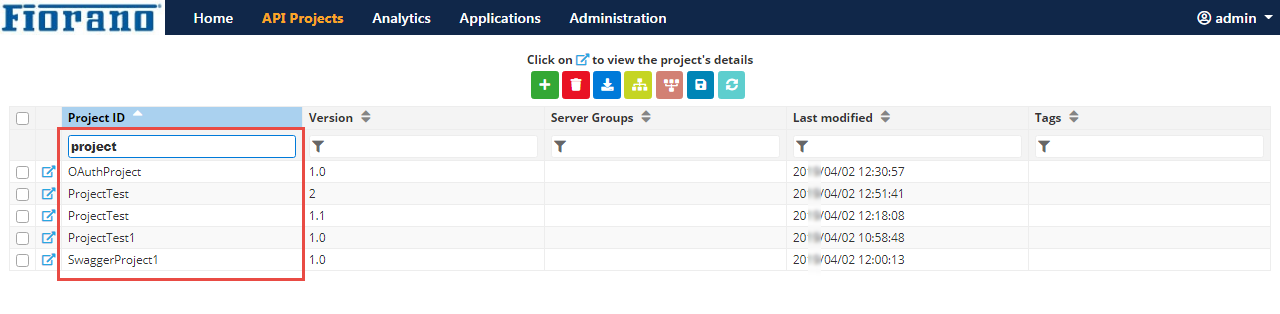
Clicking the heading - Project ID sorts projects in the alphabetical order of the project ID.
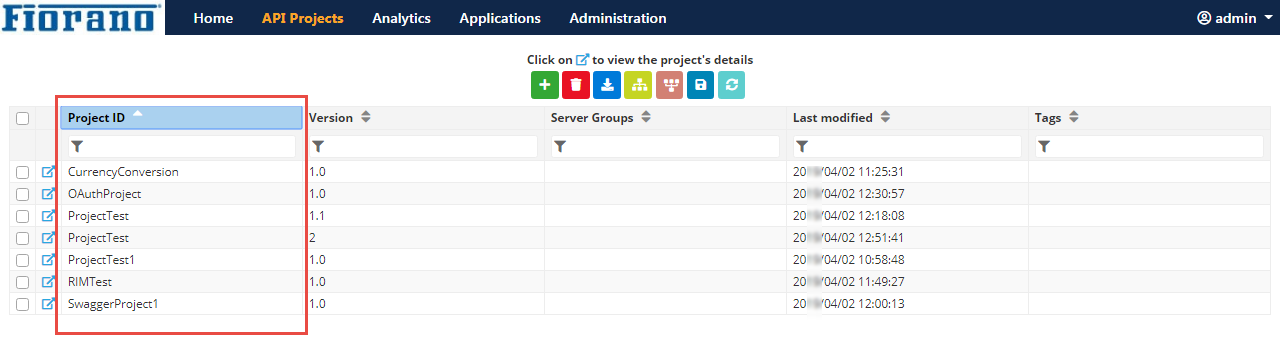
Figure 1: Projects sorted based on the Project ID
Filter
Provide criteria under the respective column heading; projects get filtered as the data is keyed-in.
Typing "1.1" in the Version filter field filters projects with version number starting with "1.1".

Figure 1: Projects filtered using Version Number apart from sorting based on Project ID
Notice that
-
Project1 with version number 2.0 which is seen in Figure1 does not get filtered in Figure 2 as projects are filtered with Version "1".
-
In Figure 2, it is sorted as per Figure 1 (Project ID) as well as filtered using the version number.
The options of criteria available are described in the table below.
Filtering can be performed with any one of the options below or multiple criteria may be used depending on the depth of filtering.
|
Search options |
Description |
|
|
Project ID |
Sort |
Click the heading to sort projects in the alphabetical order of the Project ID. See Figure 1. |
|
Filter |
Provide the project name or part of the project name. Results appear as the text is typed.
|
|
|
Version |
Sort |
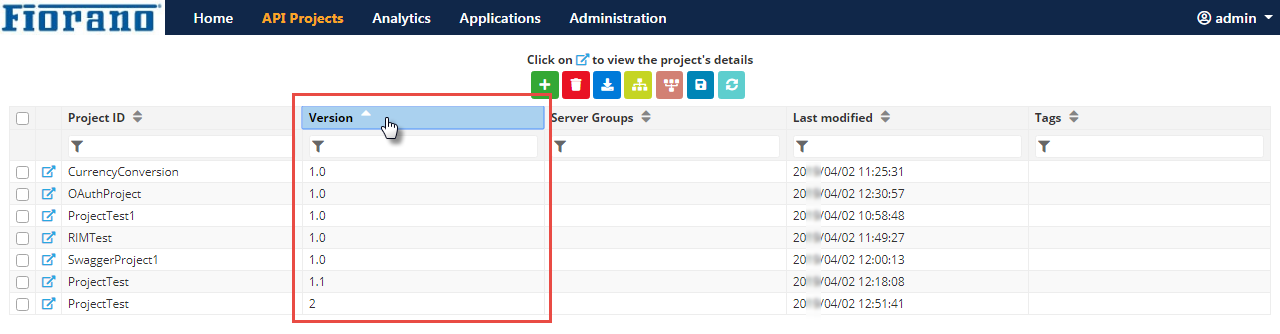
Click the heading to sort projects in the alphabetical order of the Version number. |
|
Filter |
Provide the version number of the project to filter a project according to its Version number. See Figure 2. To upgrade/copy a project with the same project name and a different version number, refer to the Upgrading or Copying a Project section.
|
|
|
ServerGroups |
Sort |
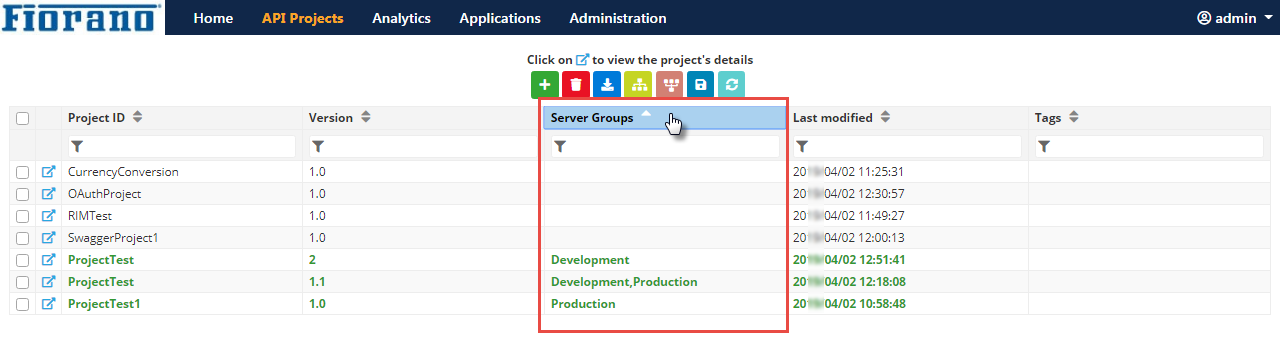
Sorts the projects based on the alphabetical order of the Server Group name. The deployed projects appear in the green font colour.
|
|
Filter |
Type the Server Group Name to filter the projects based on the specified name. |
|
|
Last Modified |
Sort |
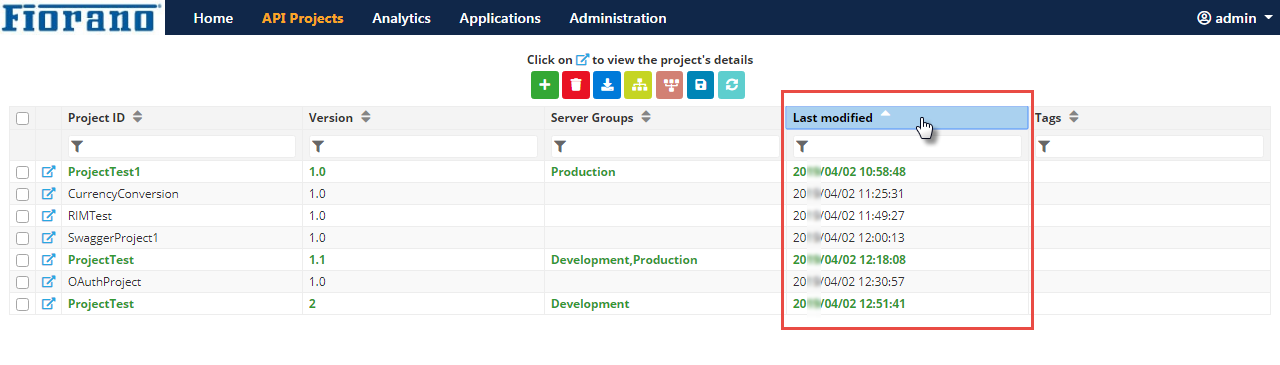
Sorts the projects in the alphabetical order of the Last Modified date/time. |
|
Filter |
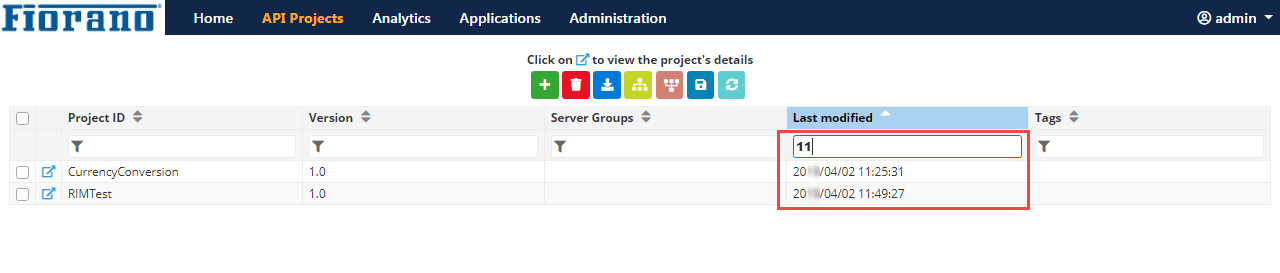
Type the numbers to filter the projects based on the specified date/time. |
|
|
Tags |
Sort |
To sort a project in the alphabetical order of the Tag name as provided in the Overview section of the project. |
|
Filter |
To search a project according to its Tag name. |
|