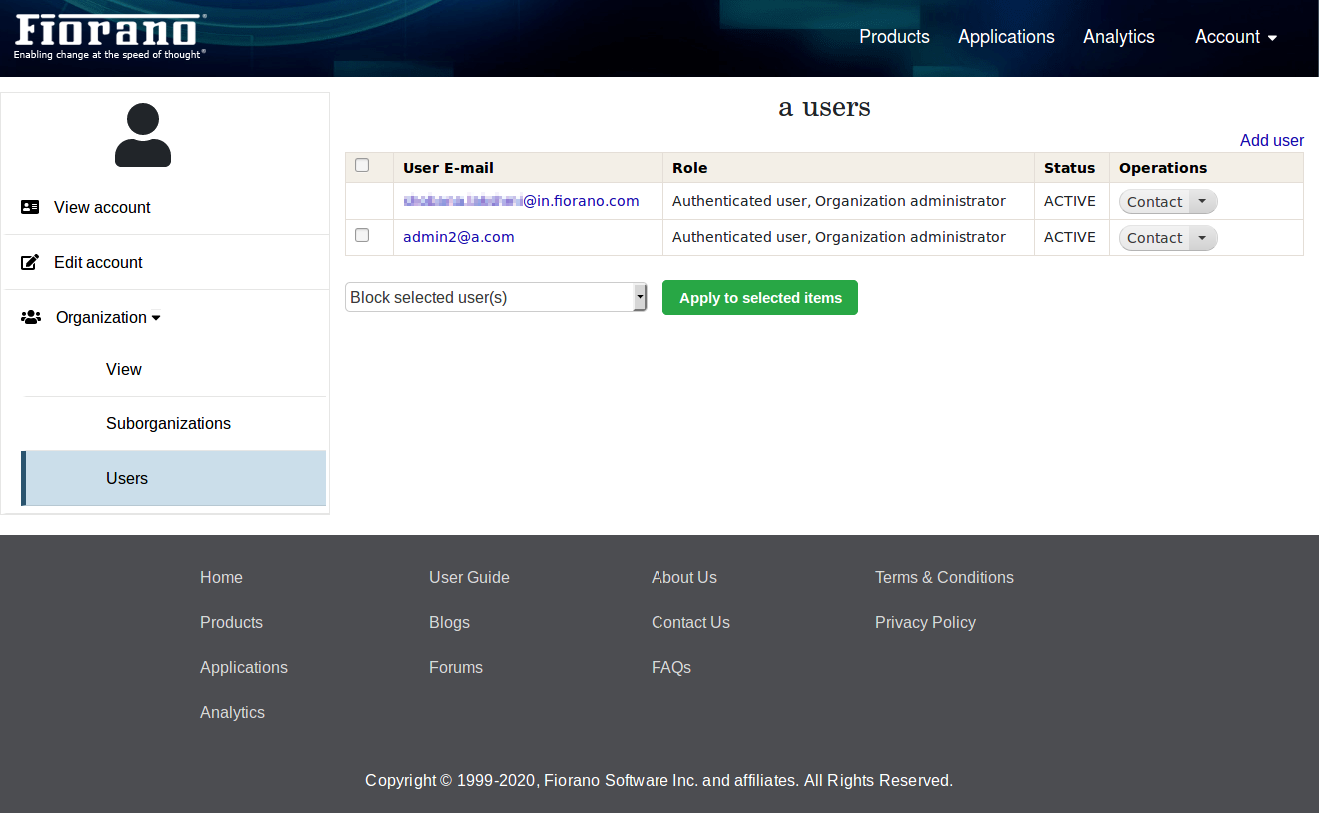
All the user related information can be viewed/modified in the Account section
Navigate to account details by clicking 'My account' in the Account dropdown of header.
Different Users
Developer Account
When the user is logged in as a developer, three tabs will be shown as below:
-
View Account
-
Edit Account
-
Security
For the security tab 'User: View security details' is a mandatory permission that is set by default.
Unlike organization administrator or site administrator, a developer cannot access the accounts of other users.
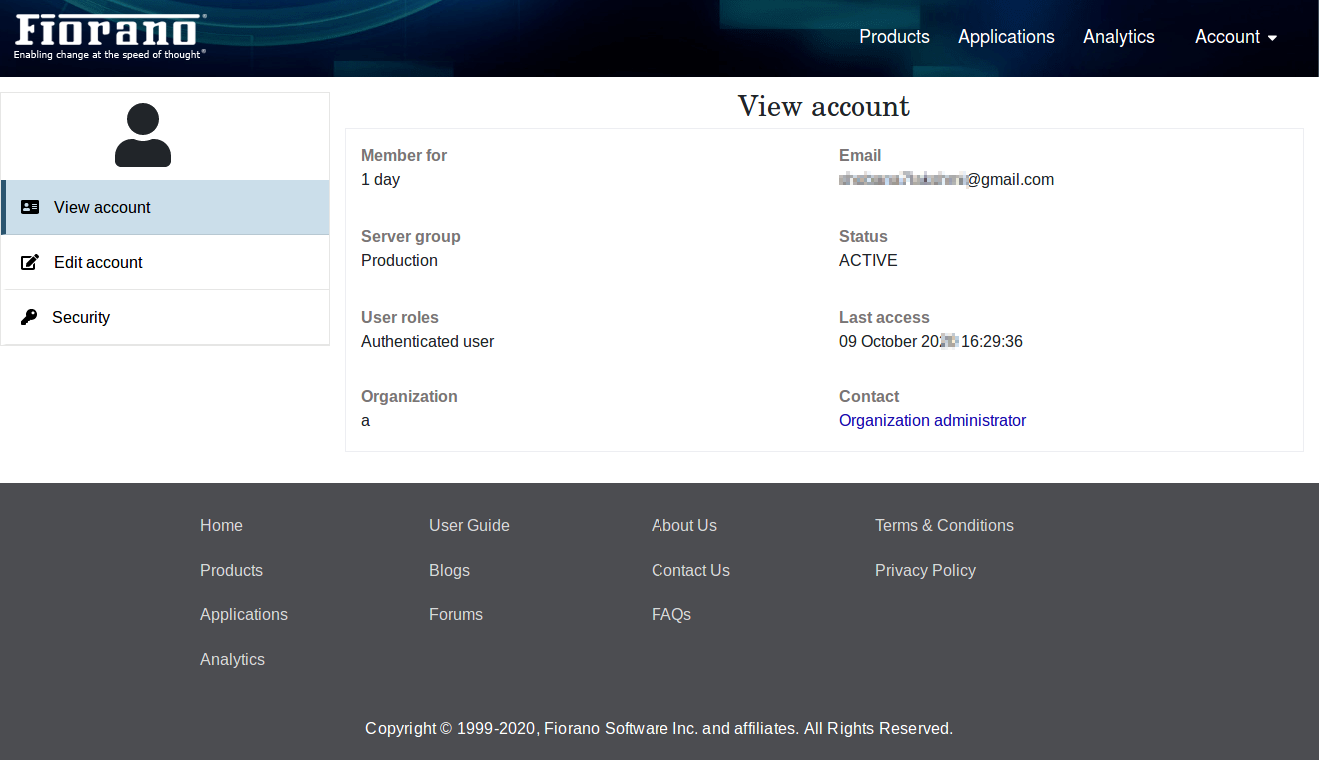
If a developer is a part of any organization, then the contact link to the Organization administrator contact link gets available to follow.
Organization Administrator
When the user logged in is organization administrator, then the following tabs will be shown:
-
View Account
-
Edit Account
-
Security
-
Organization
-
view
-
suborganization
-
users
-
The organization administrator can also view the organization user's account along with his own account. To do this, navigate to the Users section under Organization.
In the Users table, all the users of the organization including admins will be shown.
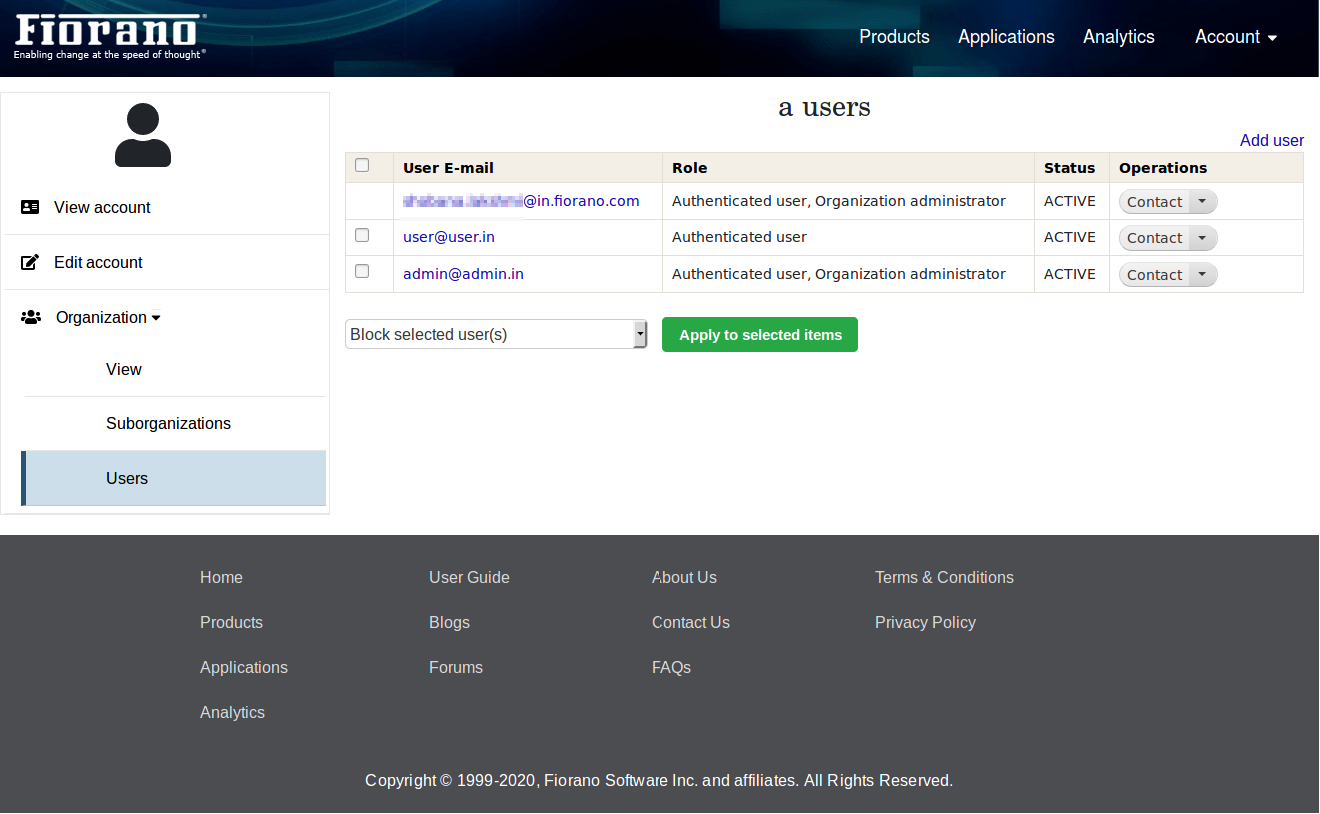
To access the account details of the organization users, organization administrator needs to click the user links in the table.
Organization administrator can only view the account details of his organization users.
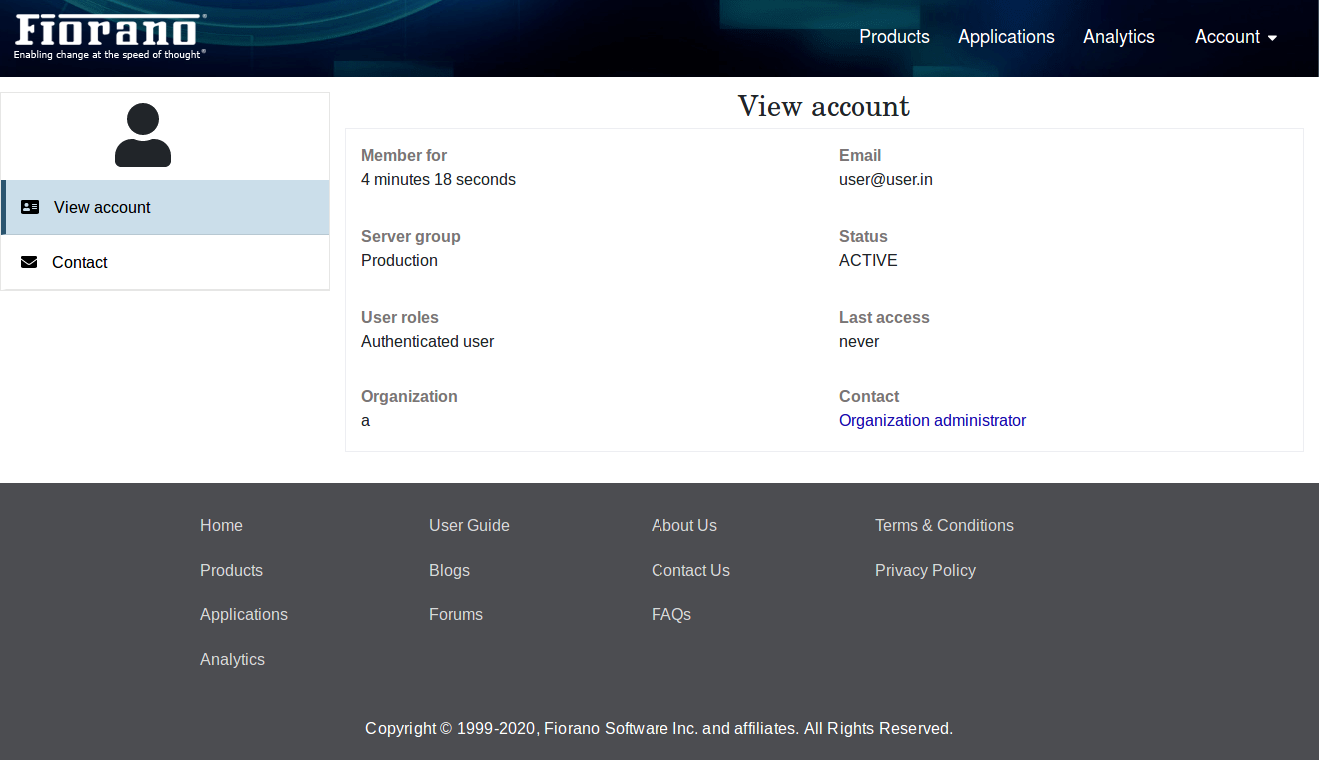
On viewing the user accounts and by clicking the Contact tab, he can contact the respective users.
Site Administrator
Site administrator has only two tabs when he is viewing his own account.
-
View Account
-
Edit Account
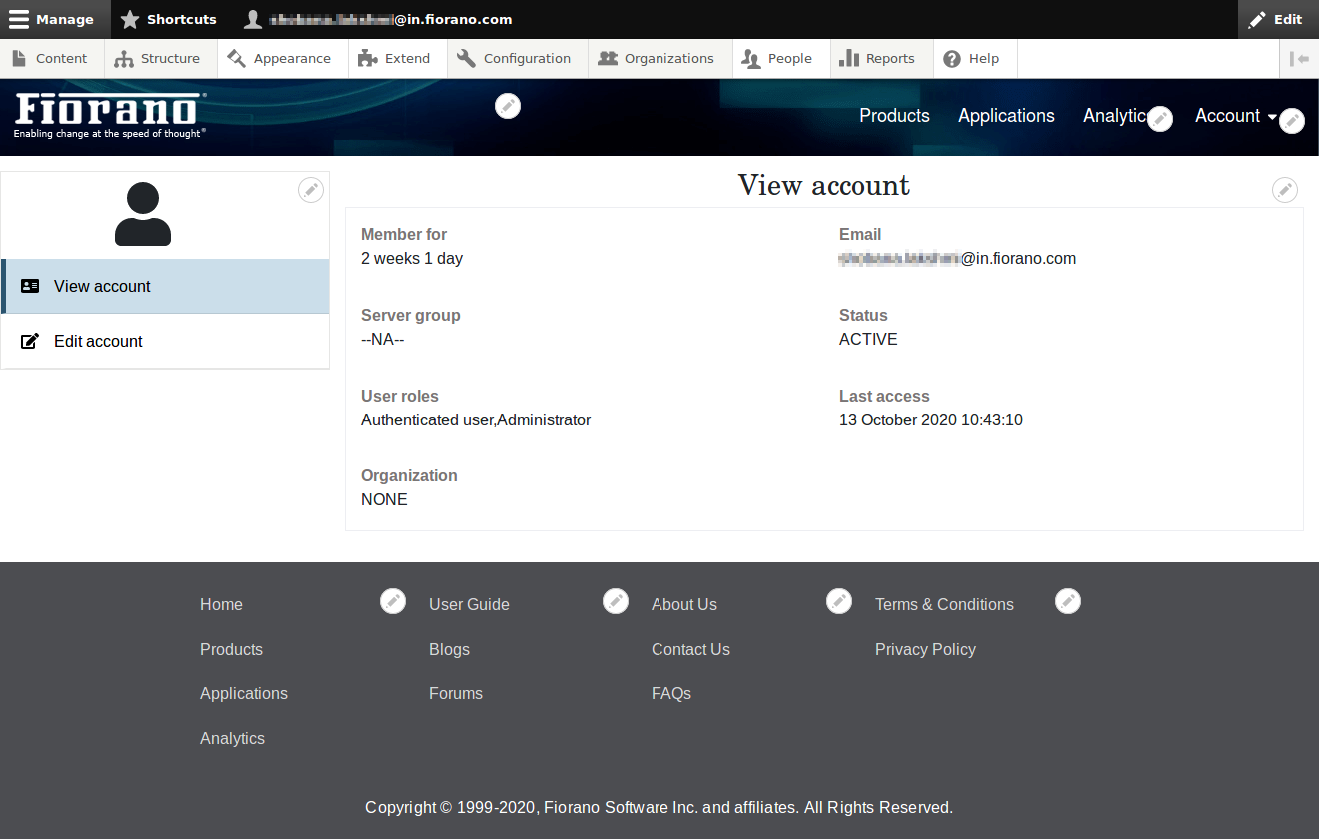
The site admin can also view the account details of any users by navigating to peoples page.
The table contains all the users created in the portal.
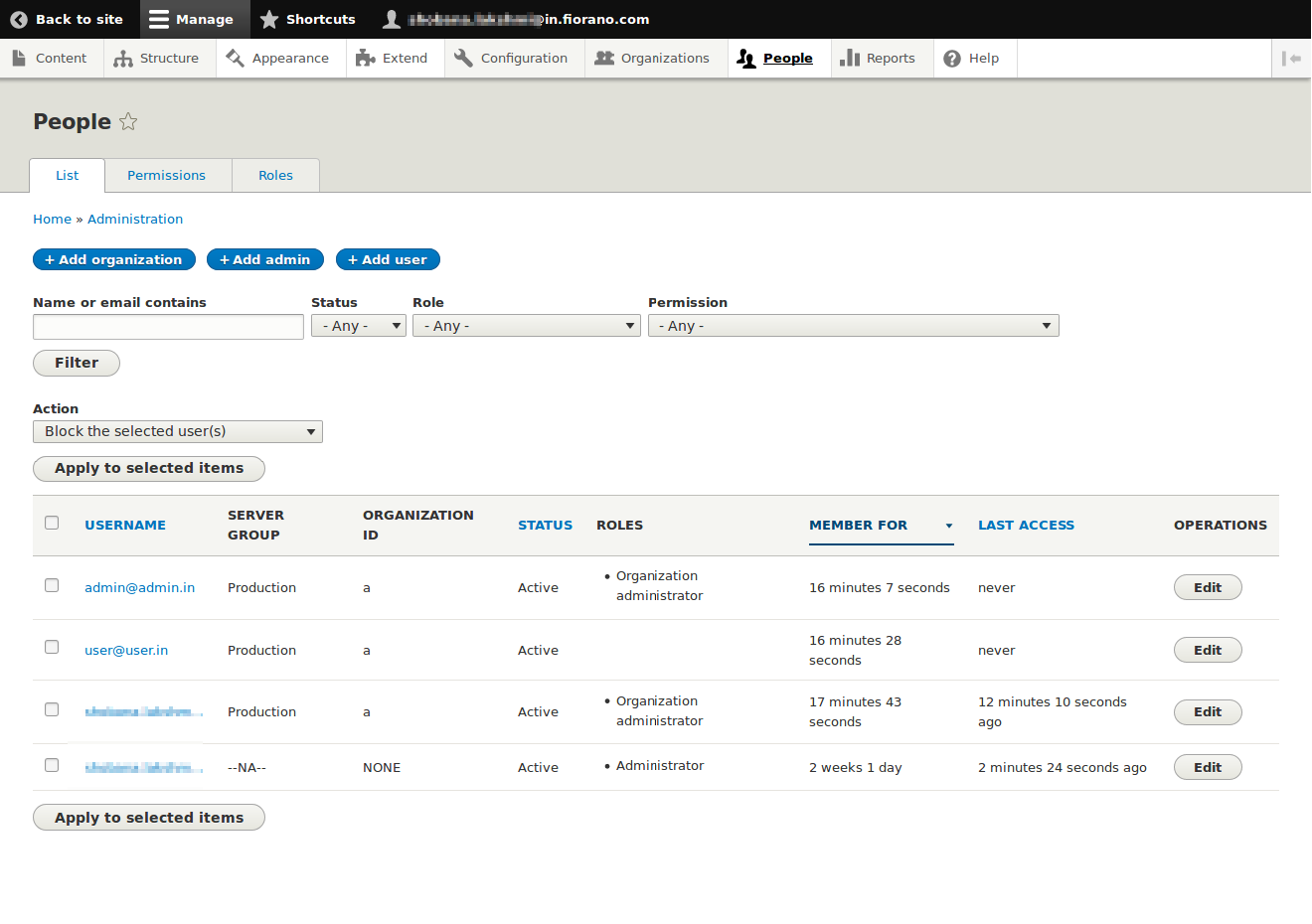
By clicking the user link in table,site administrator can view/edit the details of the selected user.
When site administrator opens account page authenticated user then the page.
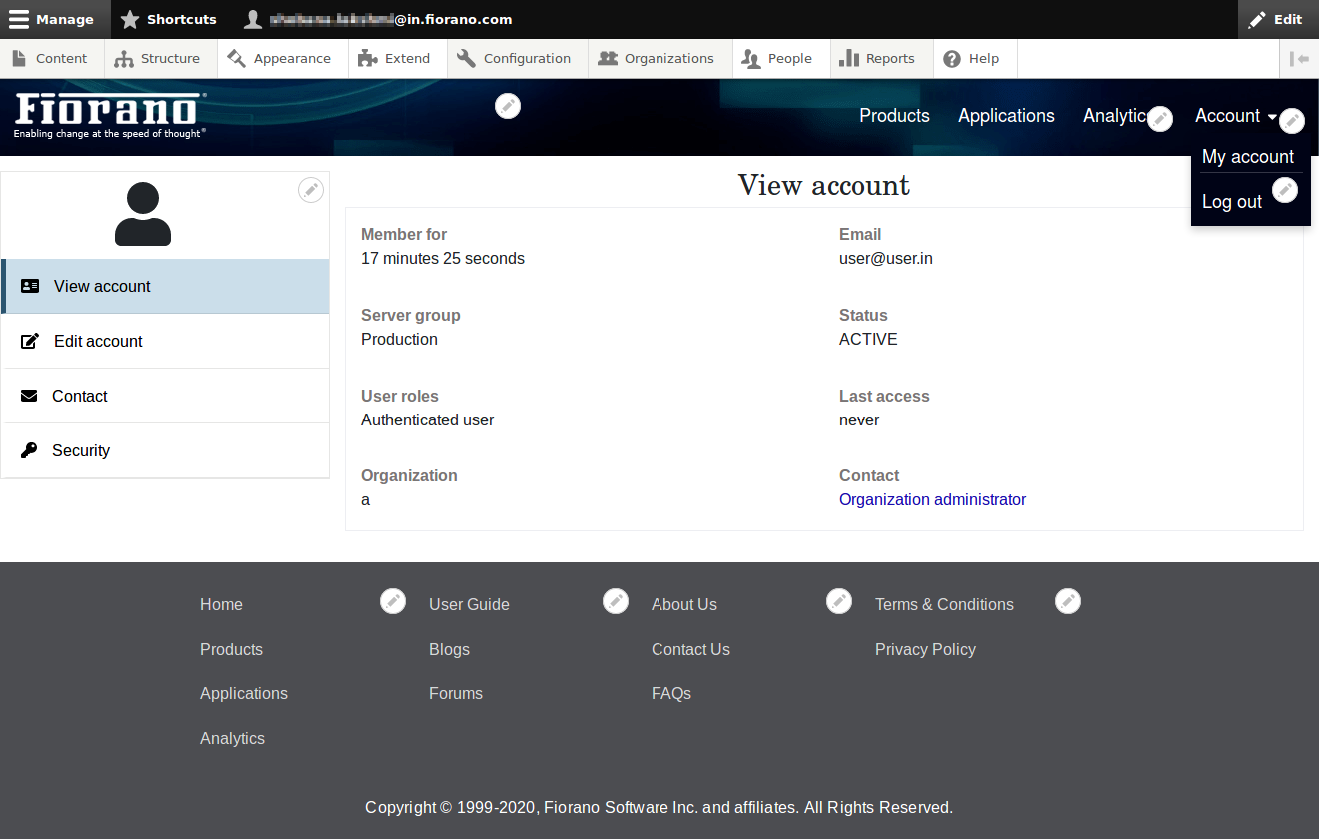
When site administrator opens account page of admin of organization.
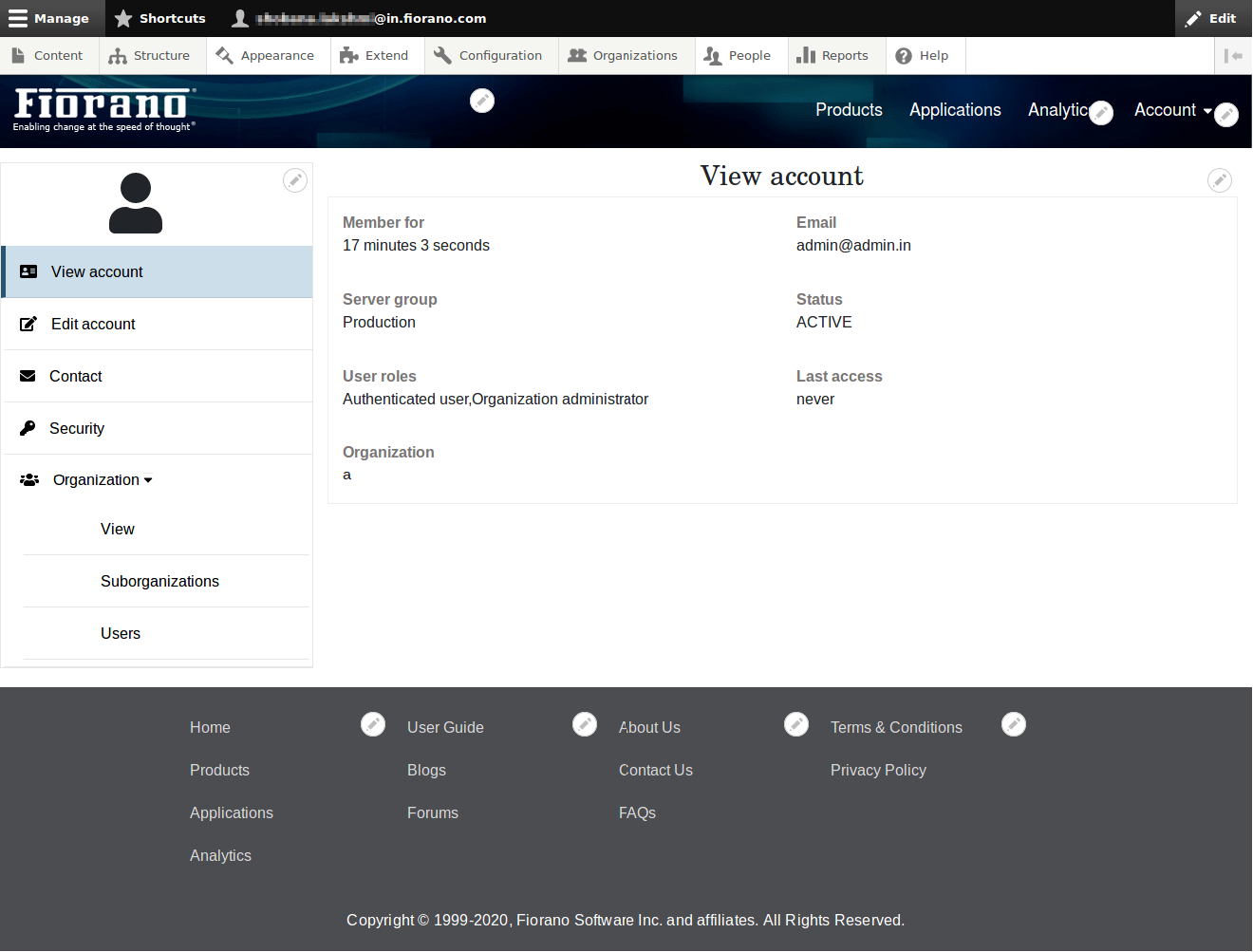
View Account
The basic details about the user account can be viewed. Information about server group, the status of the user, role of the user, last access, organization can be viewed.
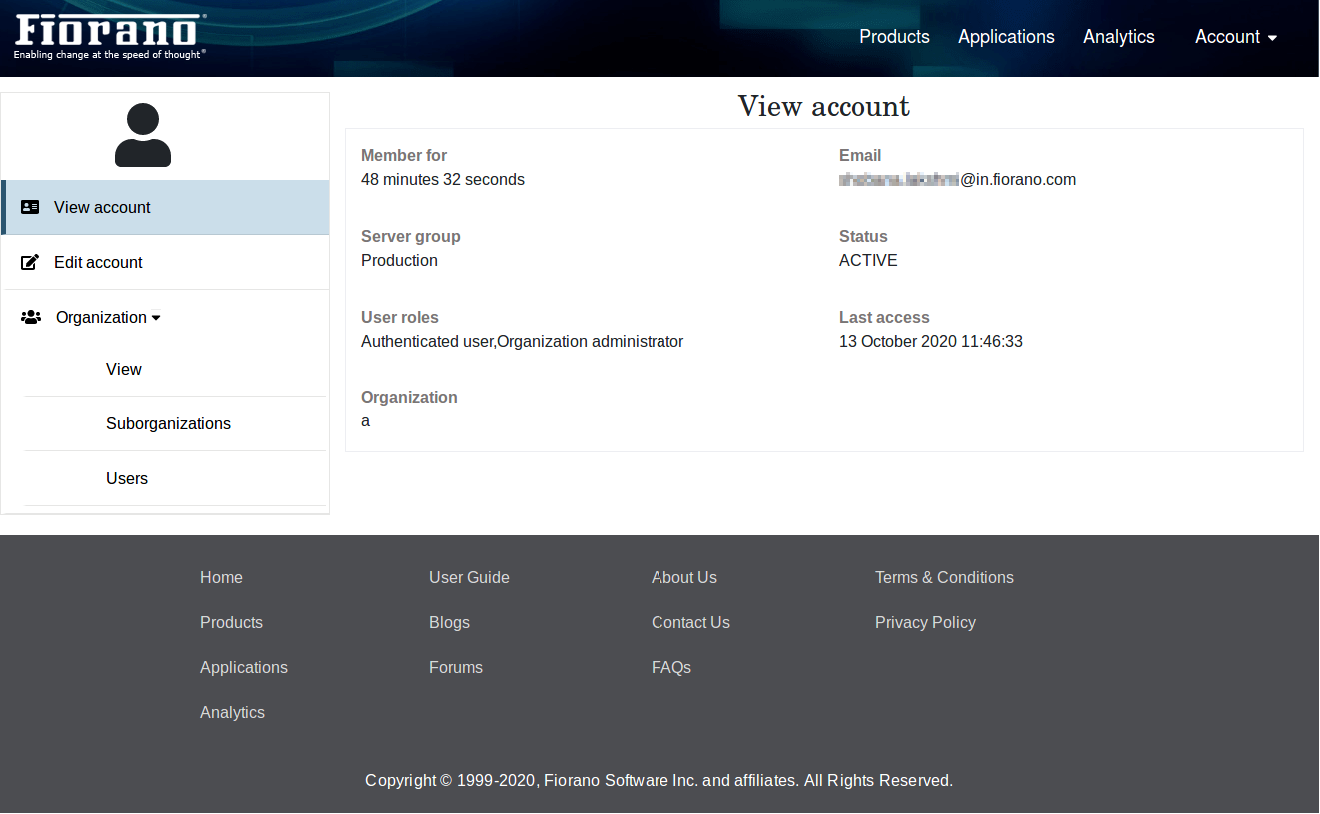
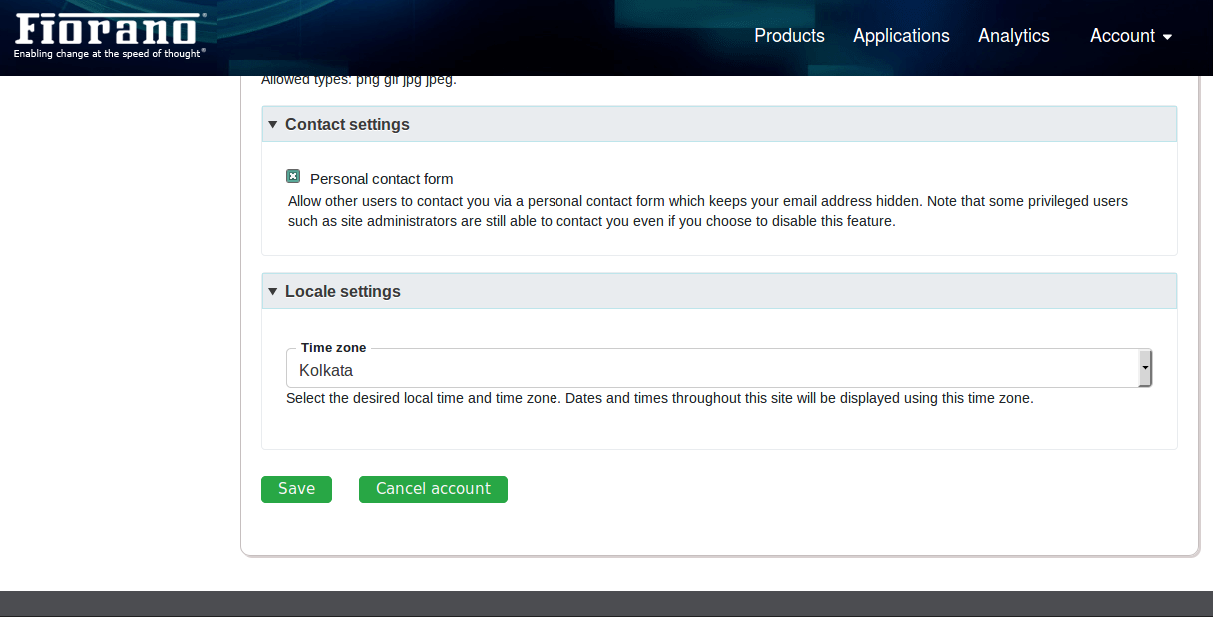
Edit Account
User details such as password,contact settings,locale settings,picture can be modified in this section.
Cancel Own User Account
The user is allowed to cancel their own account by clicking 'cancel' button only when the user has permission 'cancel own user account'.
If the user doesn't have this permission, then cancel button wont be shown.
By default, users wont have this permission.If required site admininstrator can configure this permission.
--Link to permissionpage---
Users can cancel their account only when they are not having any applications registered.
Security
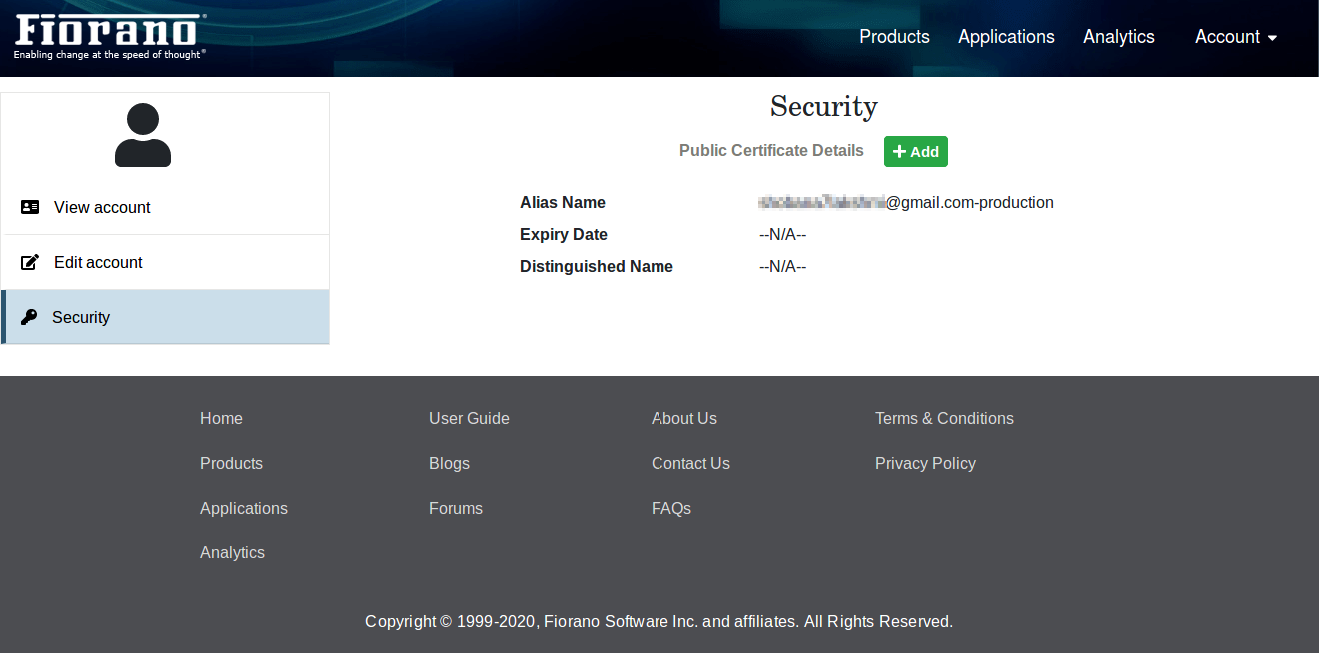
'User: View security details' permission is required to view this tab.
Certificates can be added, deleted and modified here.
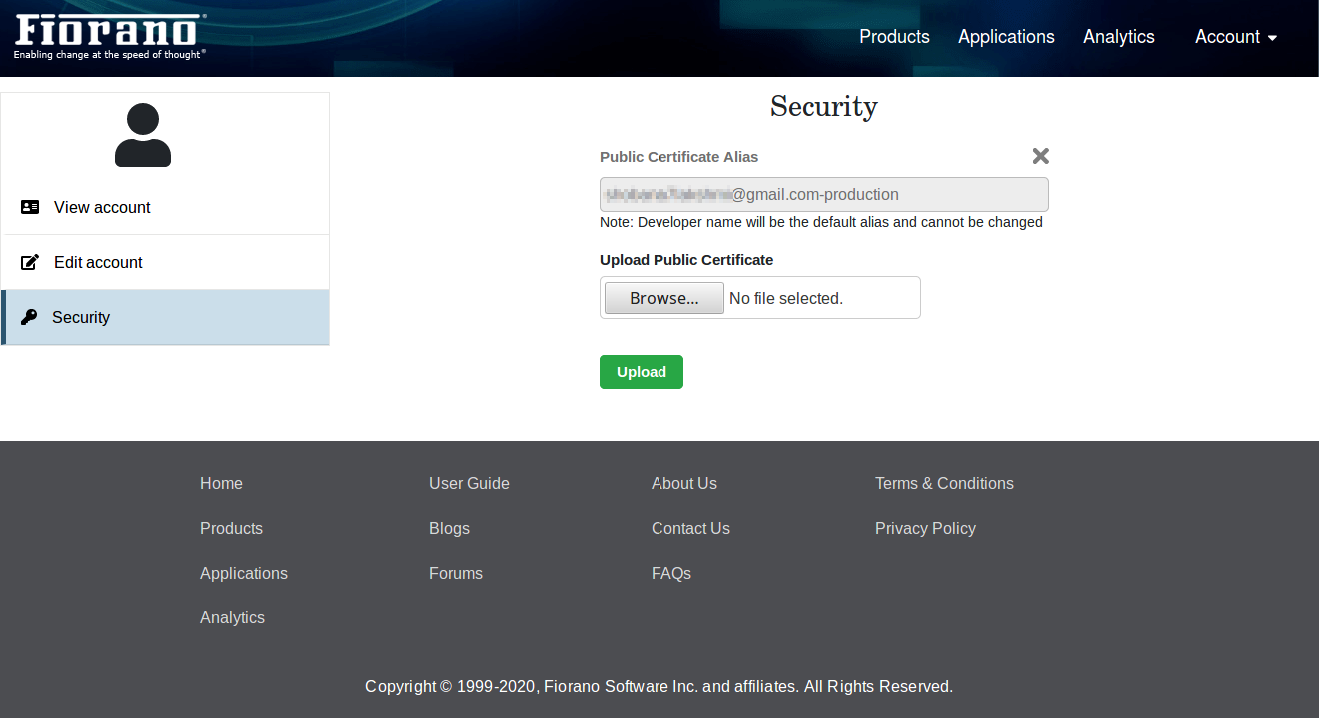
After adding certificate, it can be modified using 'edit' button which is shown below.
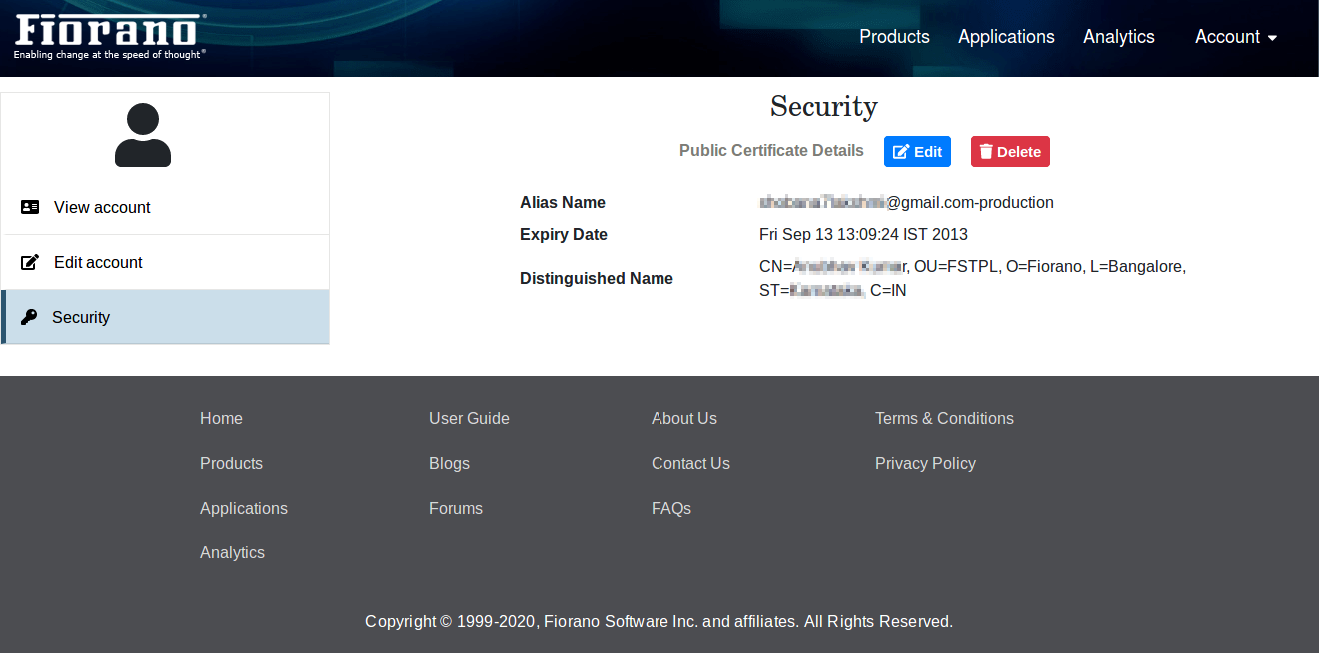
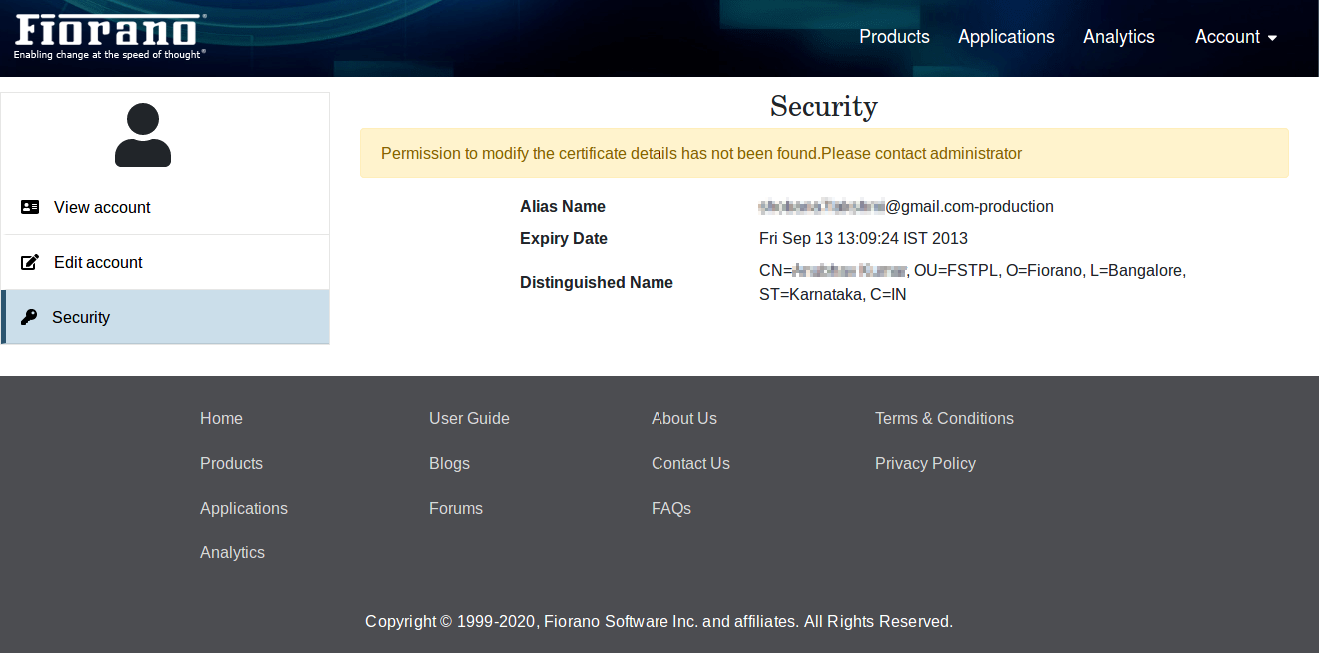
When a user is not having 'Modify security details' permission, the Add, Delete and Edit button won't be shown.
Organization
Organization section will be visible only for the organization administrator.
View
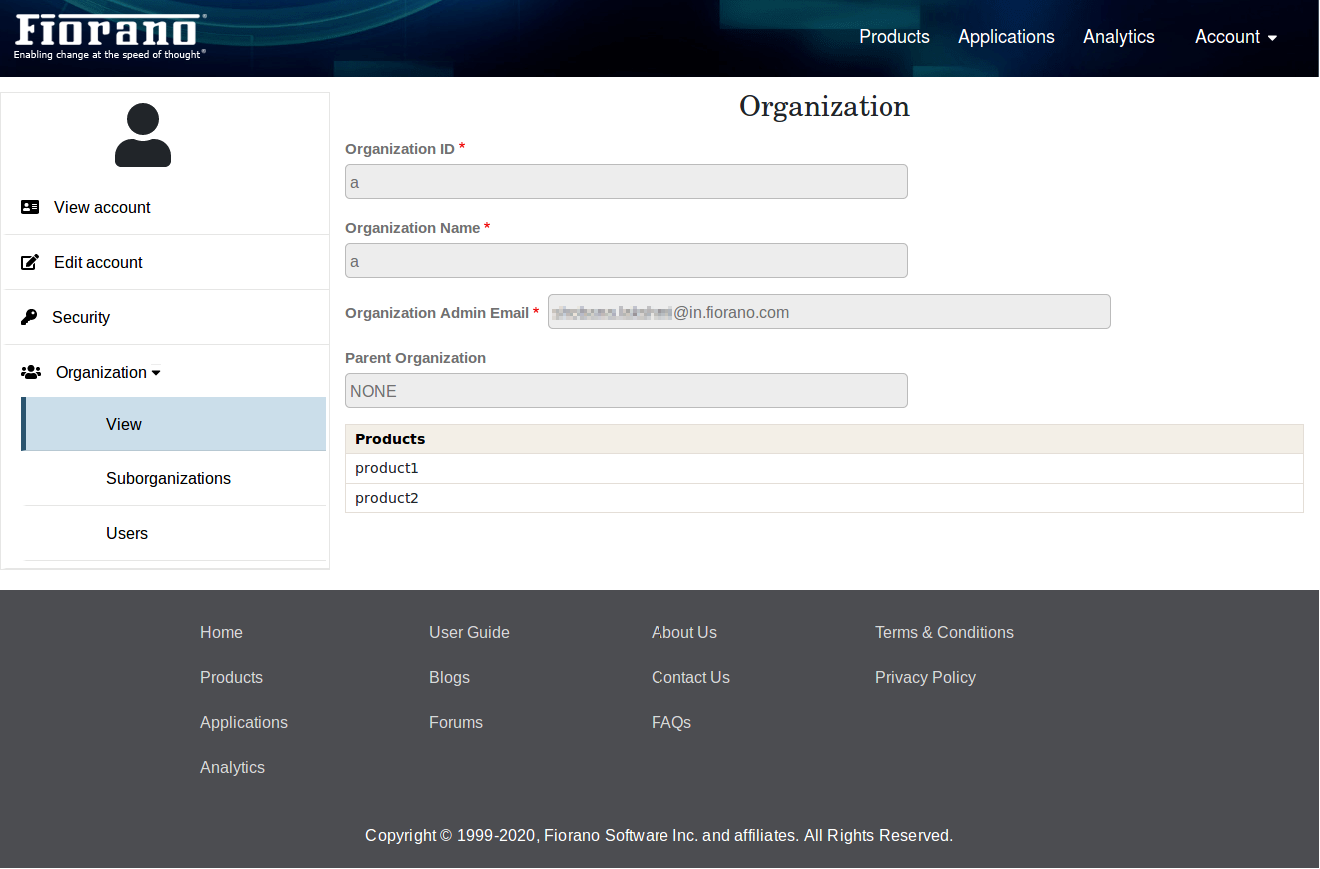
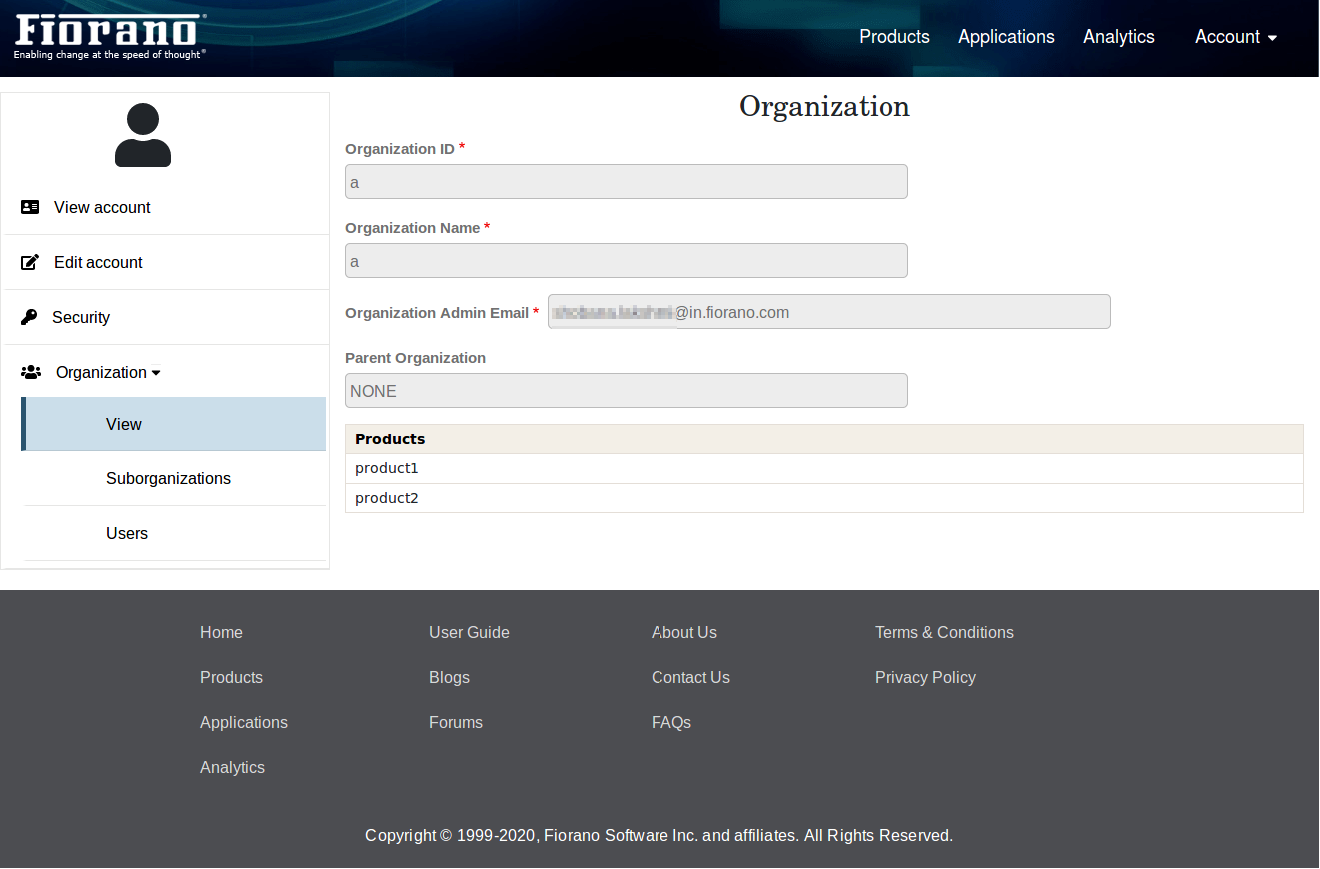
Here, the basic information about the organization is shown.
Suborganizations
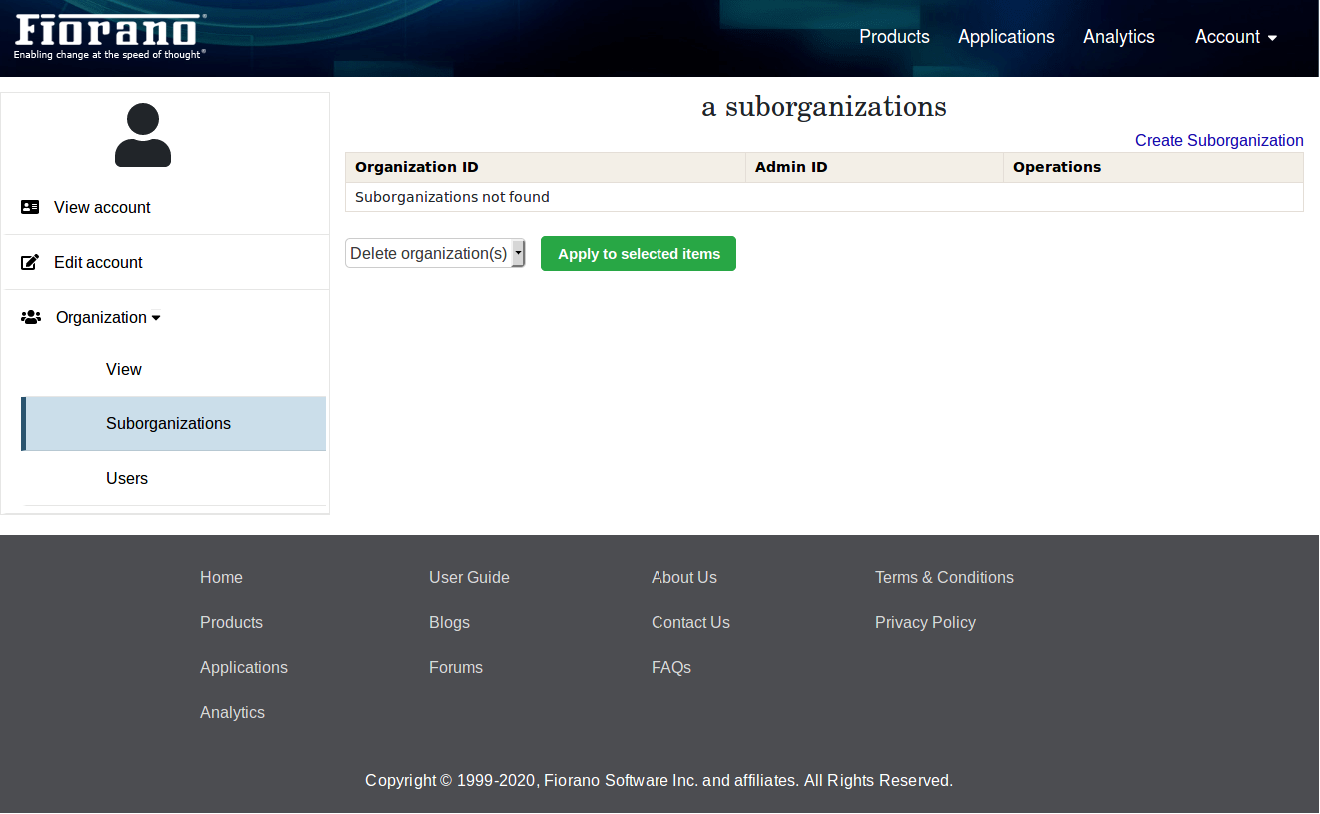
All the suborganizations of the organization can be viewed here. Organization admin can create, edit and delete the suborganizations but cannot have control over the applications and accounts created in its suborganization.
Creating Suborganization
A suborganization can be added by clicking the Create suborganization link.
All the products added to the current organization are available in the Products table for the suborganization.
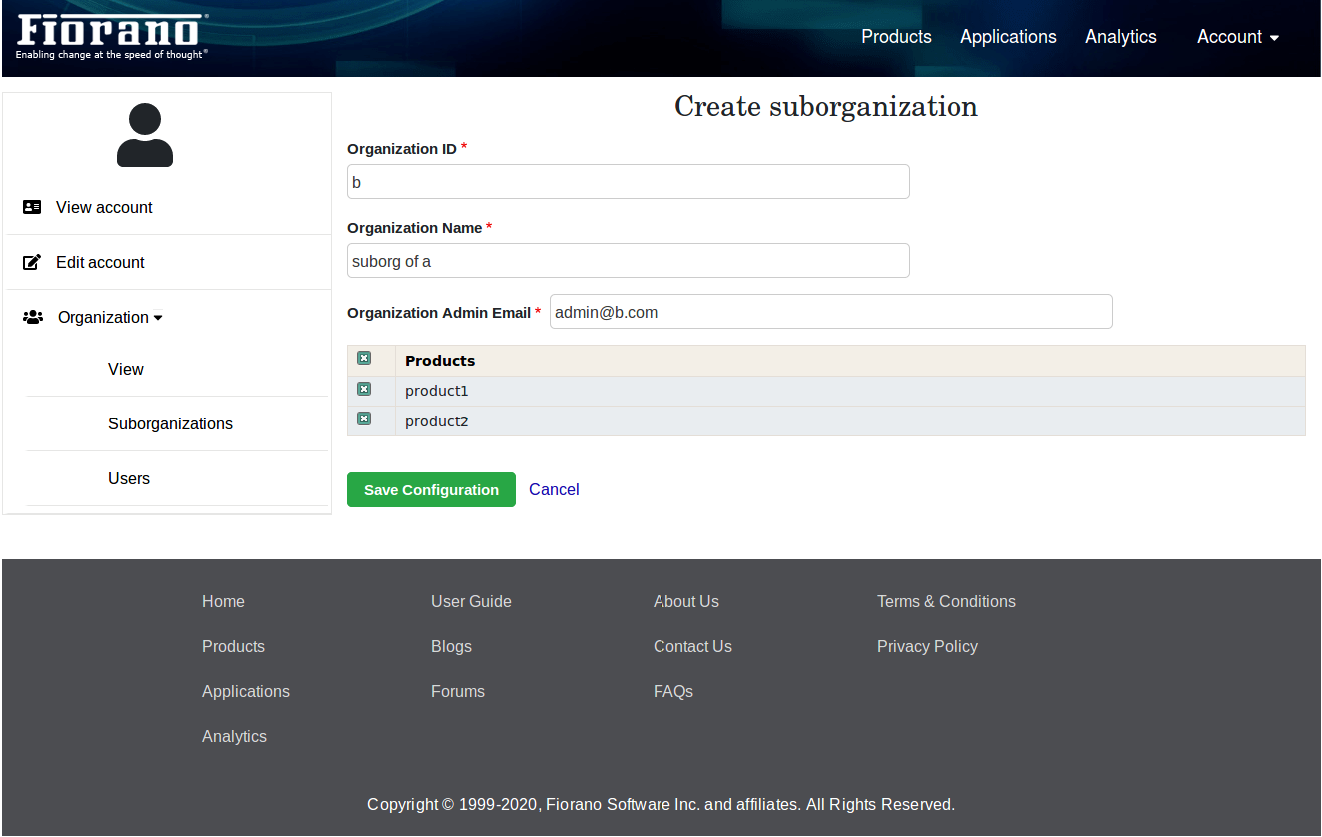
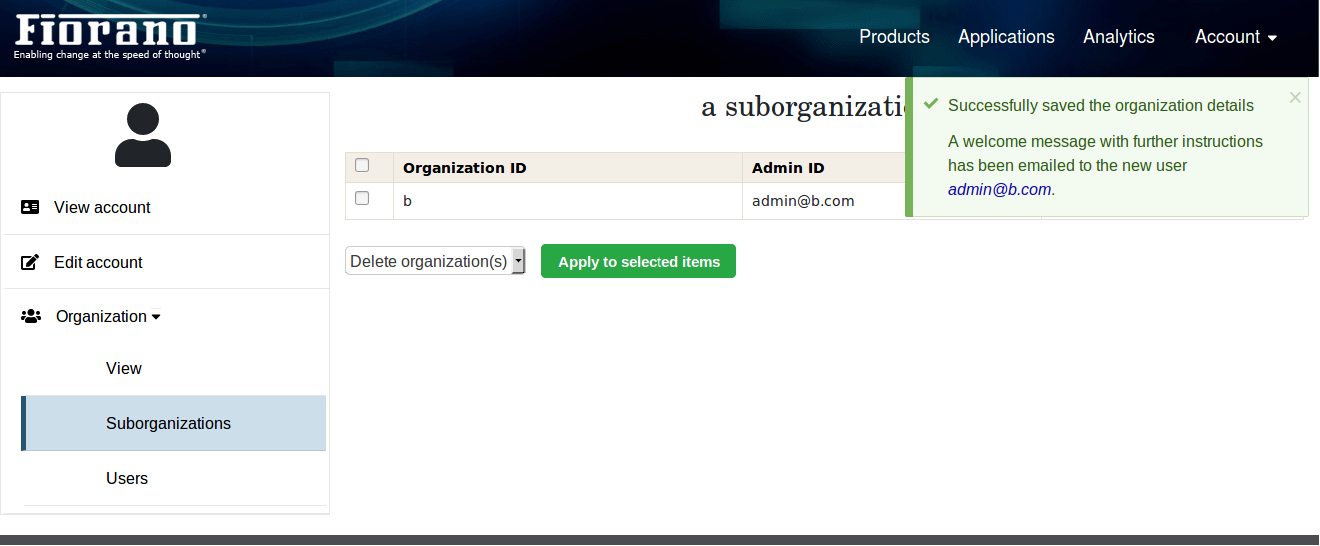
After adding desired products and by clicking the Save Configuration button, a suborganization will be created and an email with one-time login link will be sent to the created suborganization admin.
Editing Suborganization
A suborganization can be edited by clicking the Edit button under the Operations column of the suborganizations table.
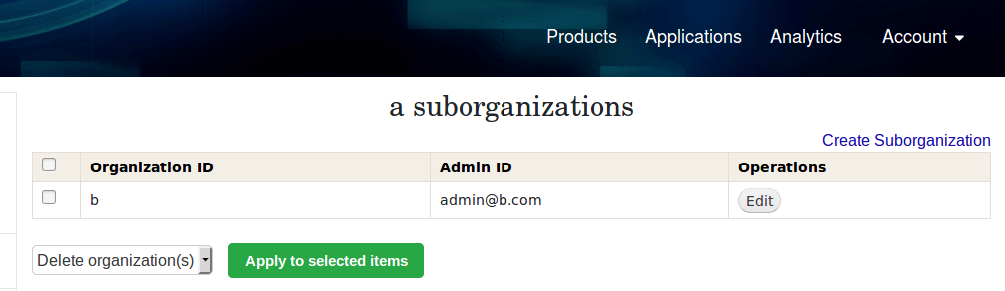
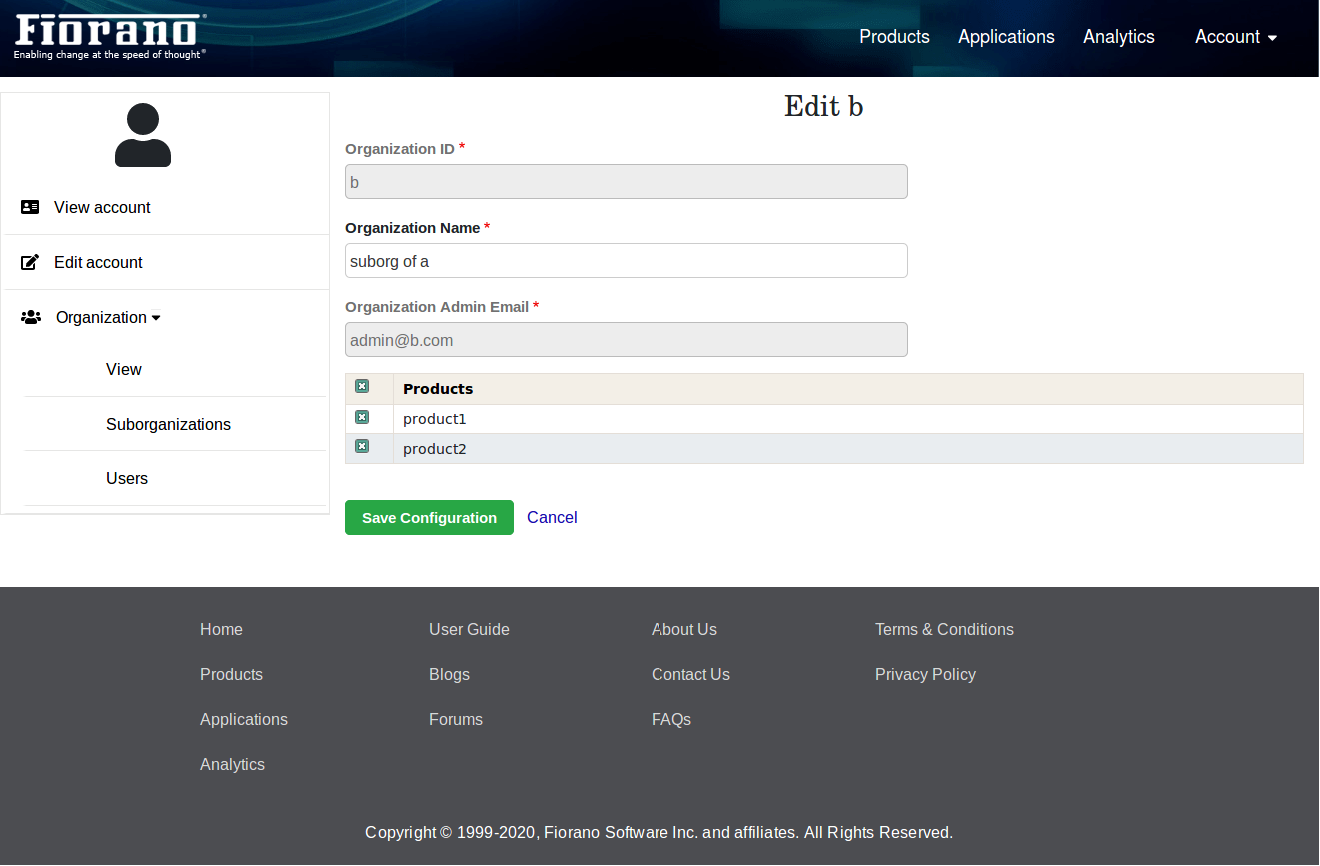
Products can be removed from suborganization, only if not used by the suborganization. After editing suborganization, details will be updated by clicking the Save configuration button.
Deleting Suborganization
Select the organizations that need to be deleted, select the Delete organization(s) option from the drop-down and click the Apply to selected items button.
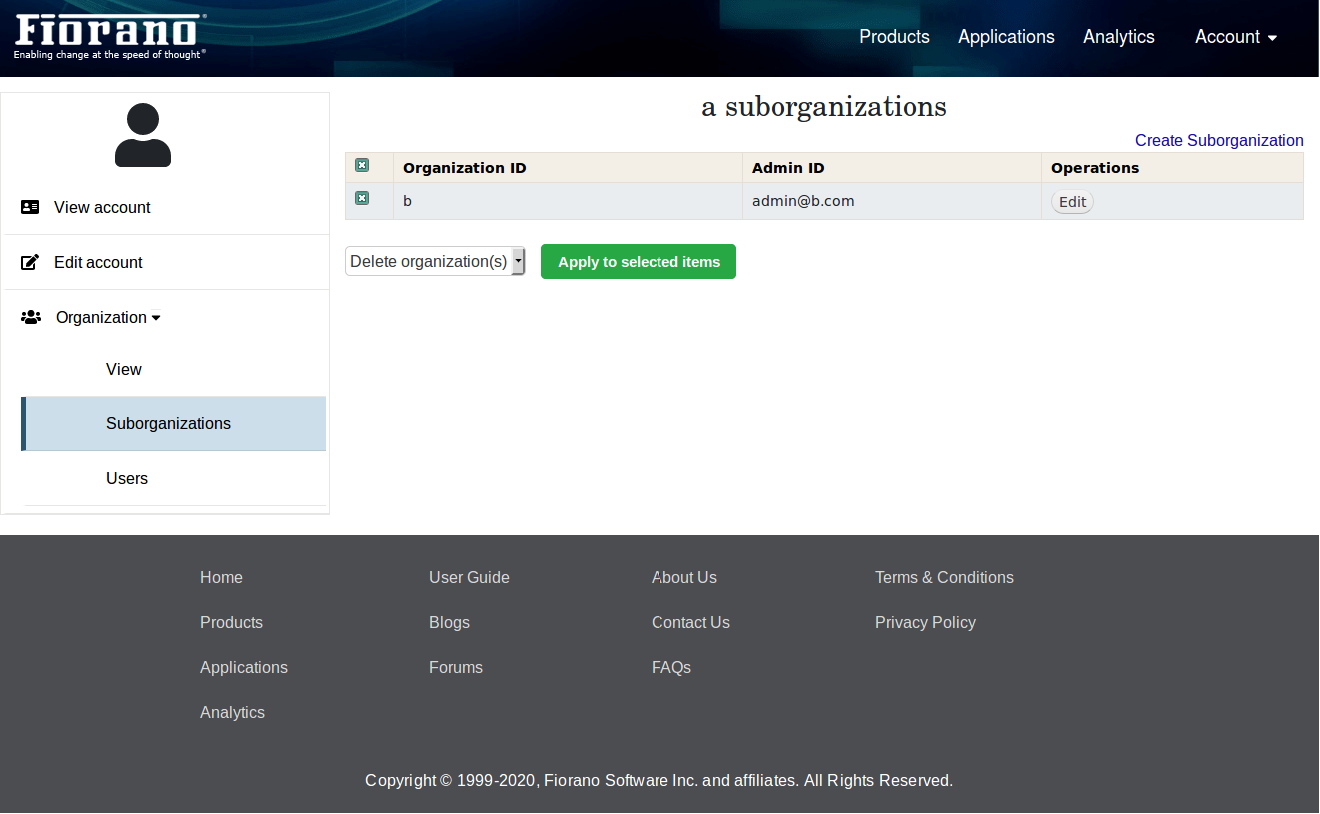
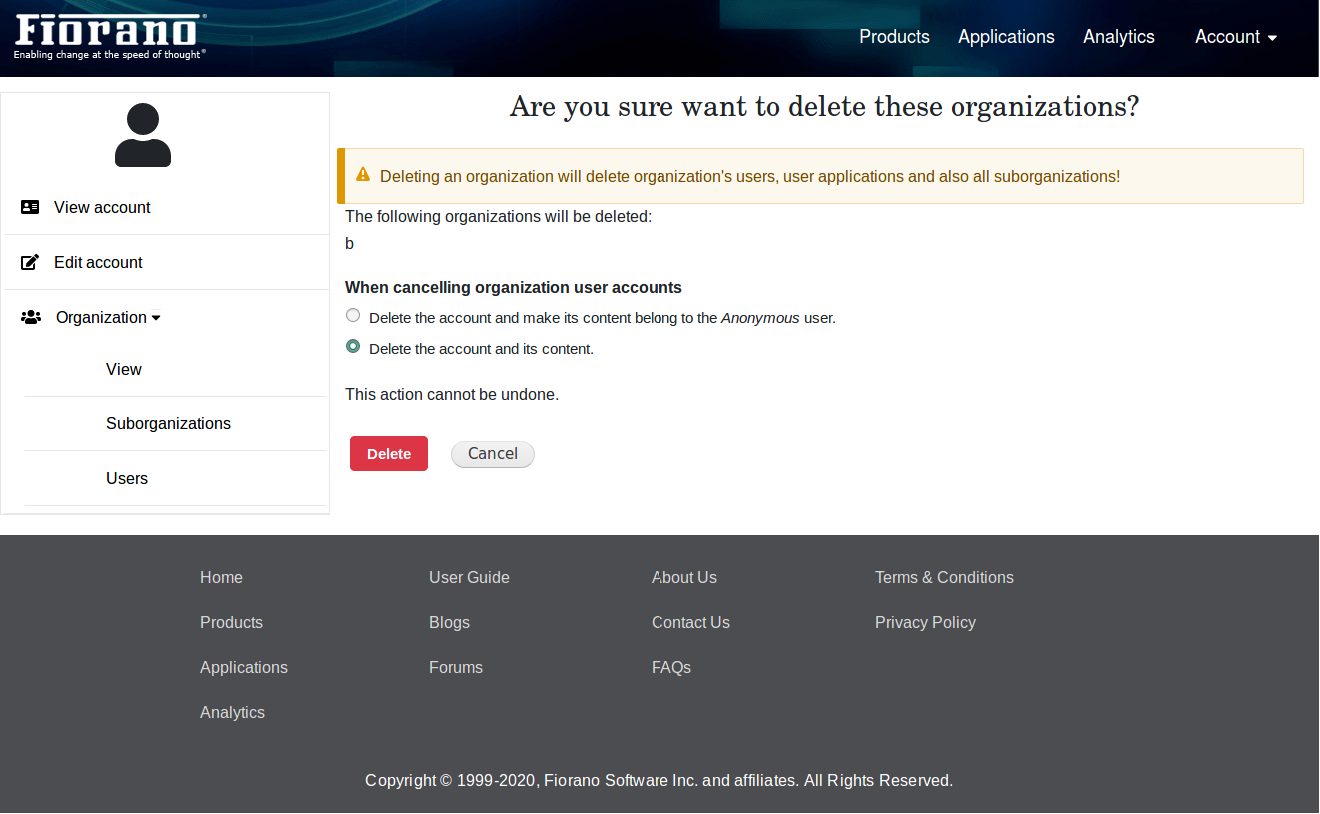
Deletion of organization will lead to deletion of all its suborganizations, users and user's applications as well.
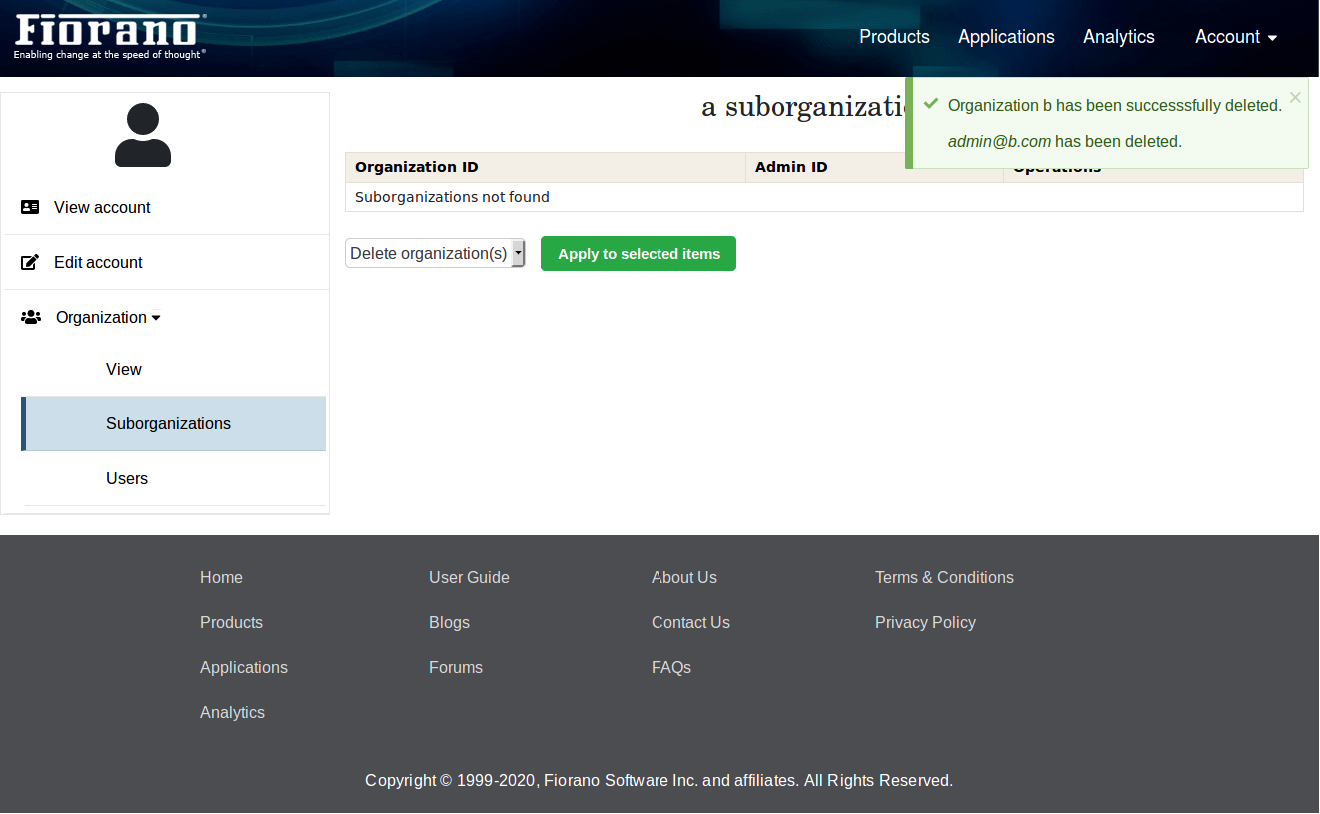
After successful deletion, the following message will be shown.
Users
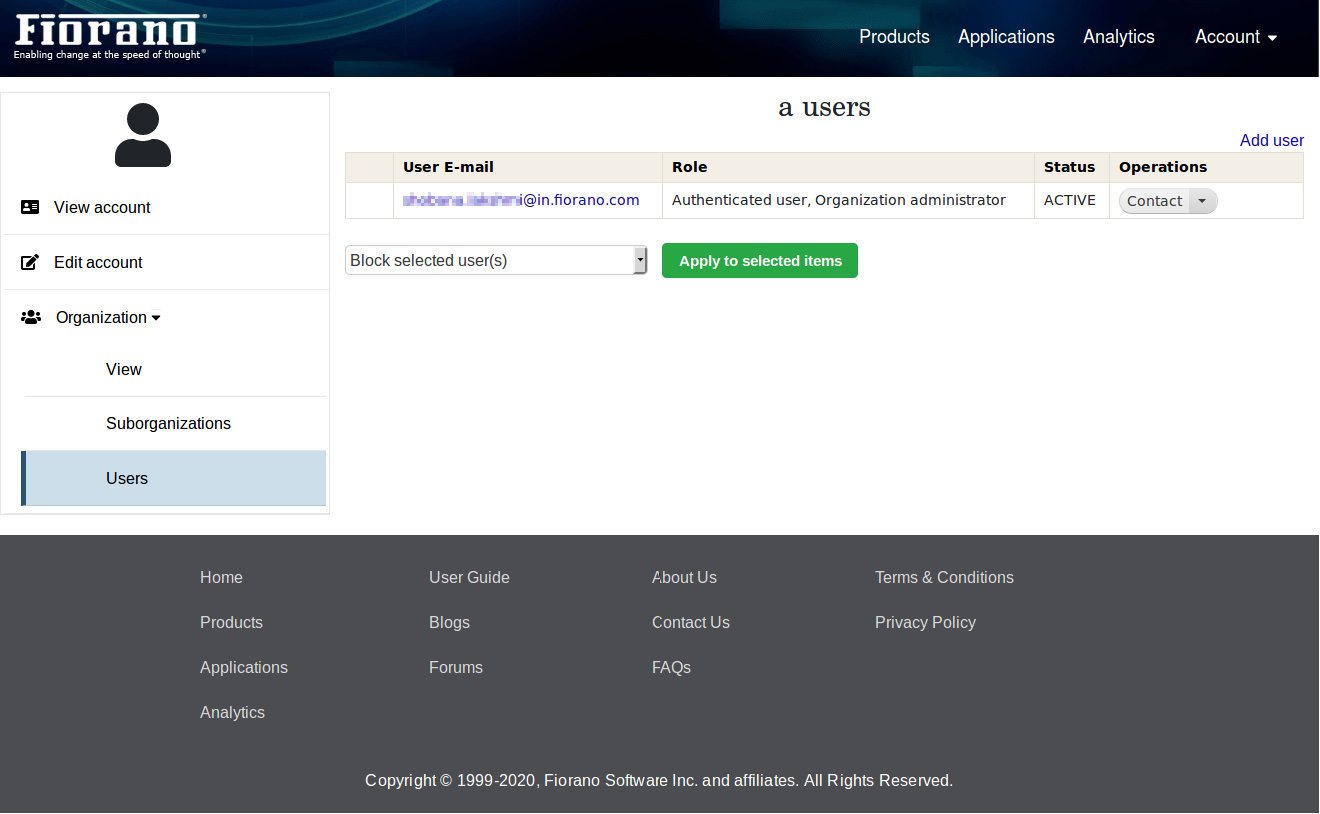
All the users in the organization and their details such as status, Role will be listed in the users table.
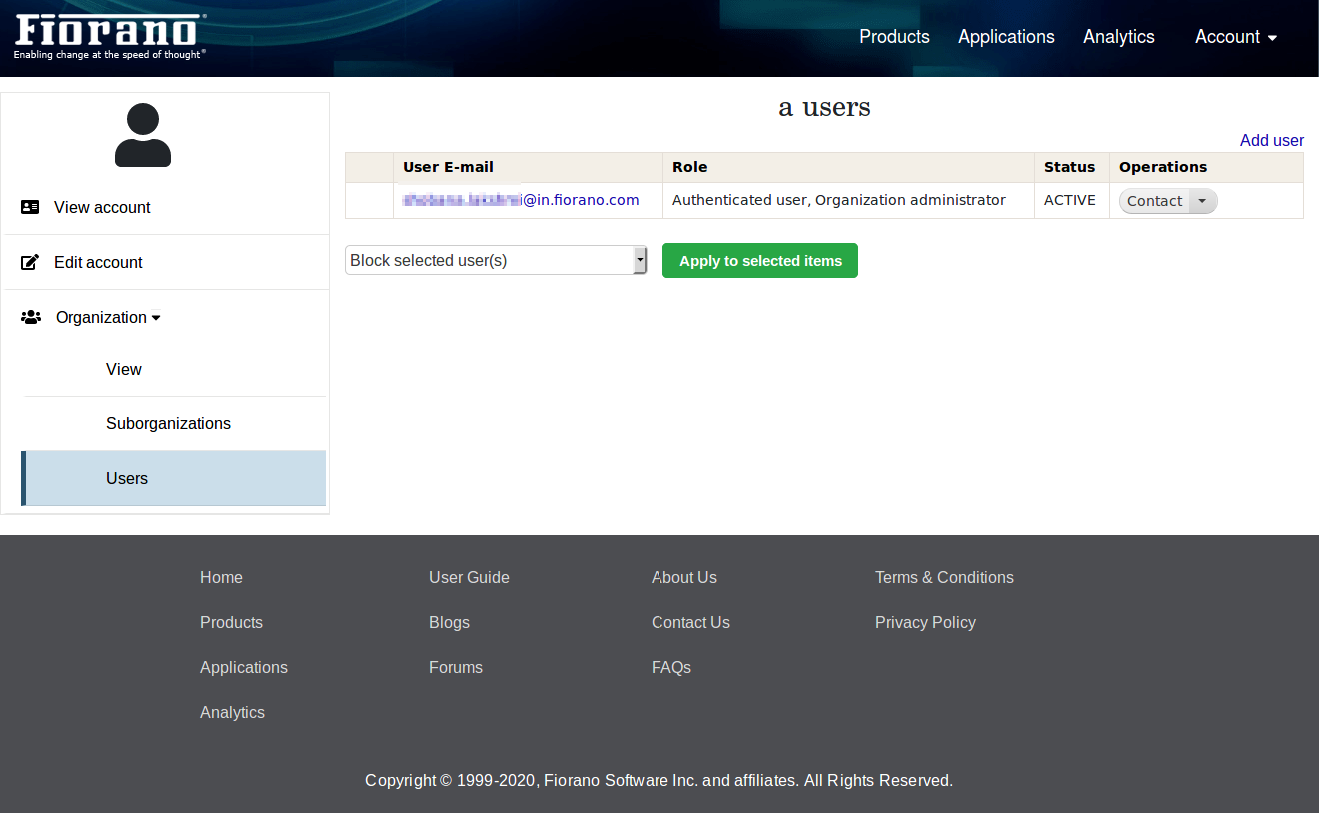
Adding New User to the Organization
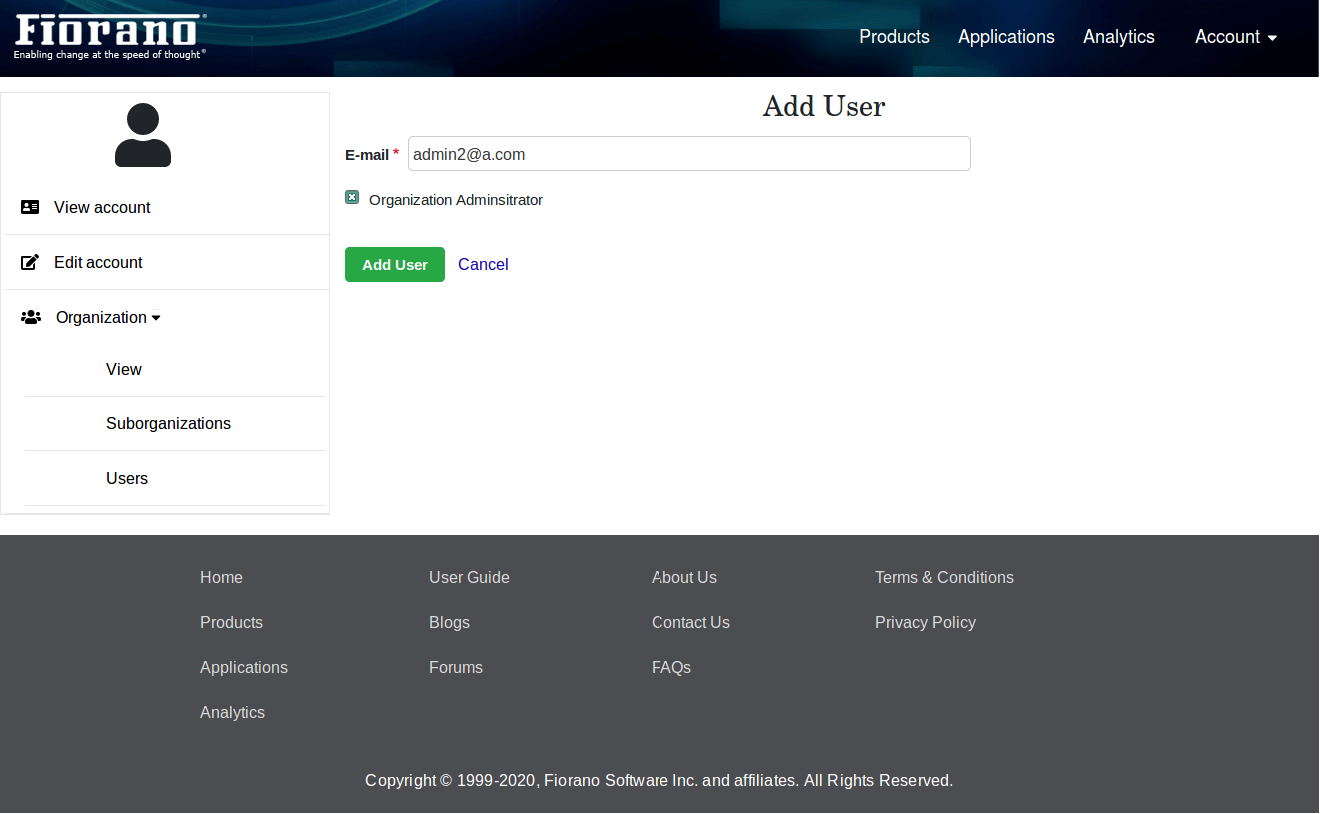
A new user can be added to the organization by clicking the Add user link, which is on the upper-right part of the table.
We can add both organization admin and a normal user here. Enabling Organization Administrator will create one more admin for organization.
Modifying User Roles/Accounts
Following operations can be performed on Organization users:
-
Adding organization administrator role.
-
Removing organization administrator role.
-
Blocking user accounts.
-
Unblocking user accounts.
-
Deleting user accounts.
Organization administrator cannot perform these operations on self account; There won't be any checkbox against the account in the table.
Deleting Users
Any user can be deleted only if the user is not having any applications.
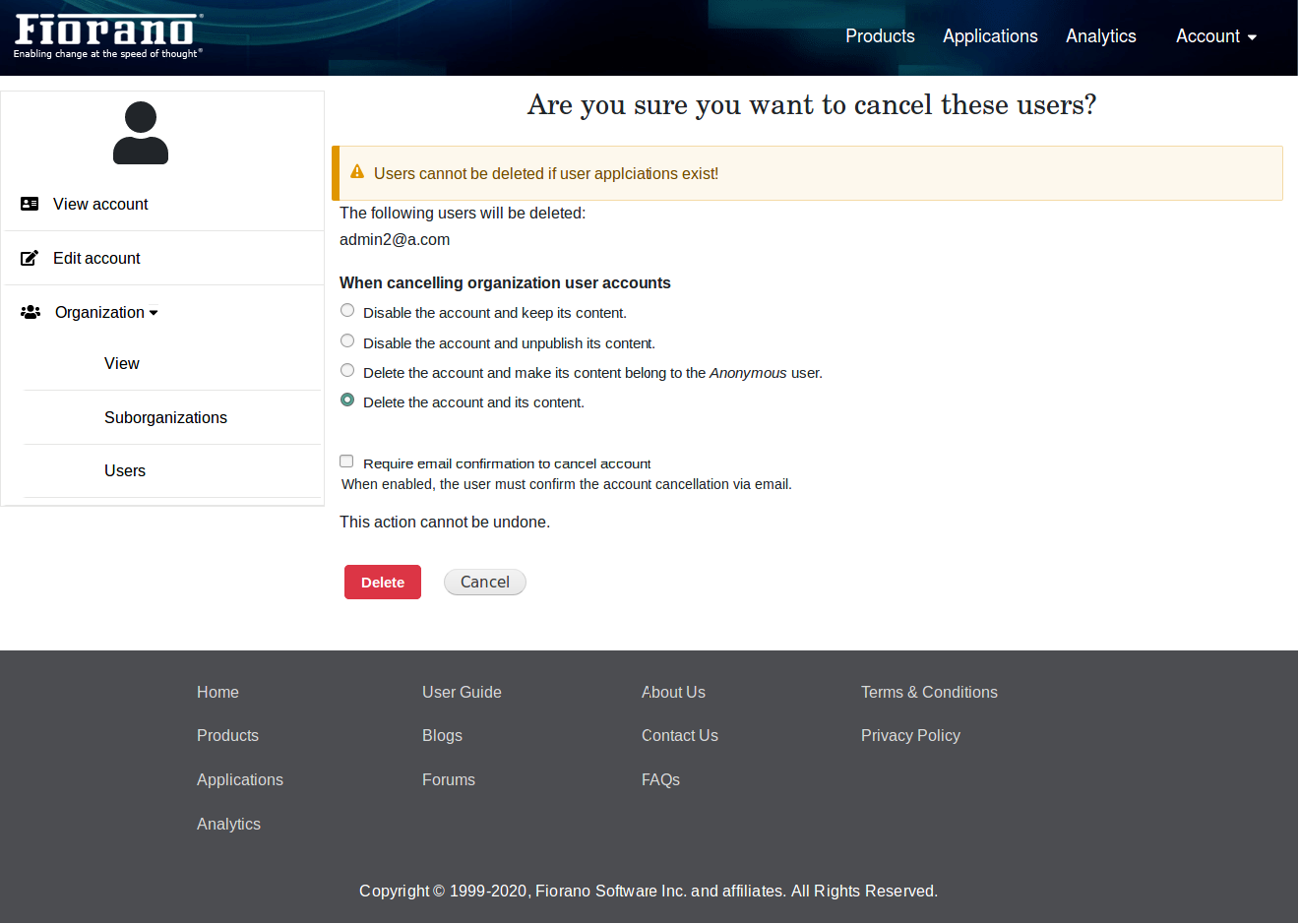
A confirmation message appears after the successful deletion of the user.
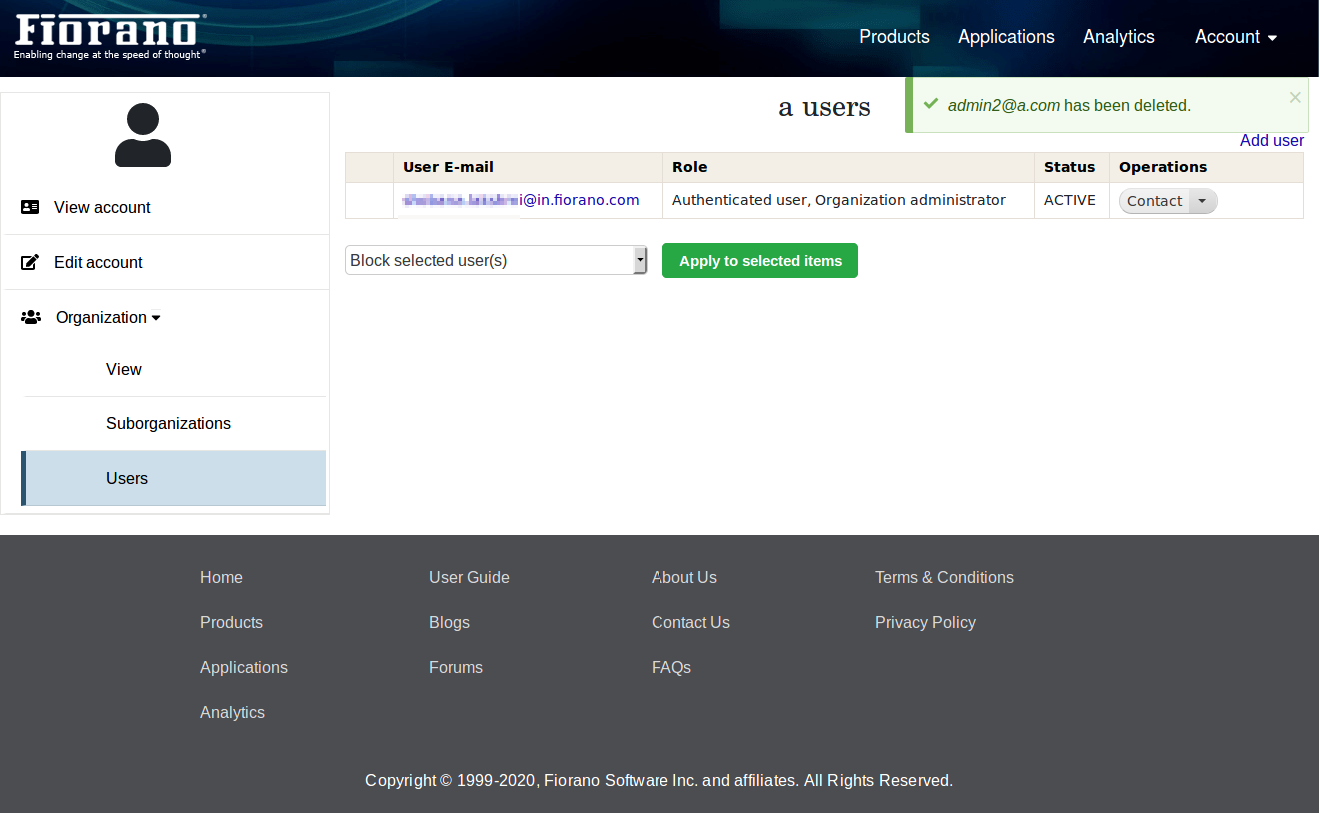
Contacting Organization Users
Organization admin can contact the users in the organization by clicking the Contact button.