
Fiorano provides an intuitive User Interface to create an API Project as well as manage the Projects already created.
What is an API Project? and, Why do we need one?
Fiorano's API Projects are basically a representation of a single application managing target calls to an API.
There can be multiple projects handling multiple or same target URLs depending on the requirements of the users. A Project enables managing policies that need to be implemented on a request before and after the target is called. For example, to allow Fiorano's Banglore office users alone to access the target API, a security policy may be added to the project that is created using an IP filter that prevents all other users from accessing this URL. To enable a similar scenario, create a project that accesses the target URL on the API Management server and deploy it on one of the Gateway (proxy) server.
Please refer to Creating a Server Group for Project Deployments to create a Server Group which is an environment for deployment on Gateways.
Managing API Projects
To add and manage API projects, navigate to the API Projects section in the API Management Dashboard.
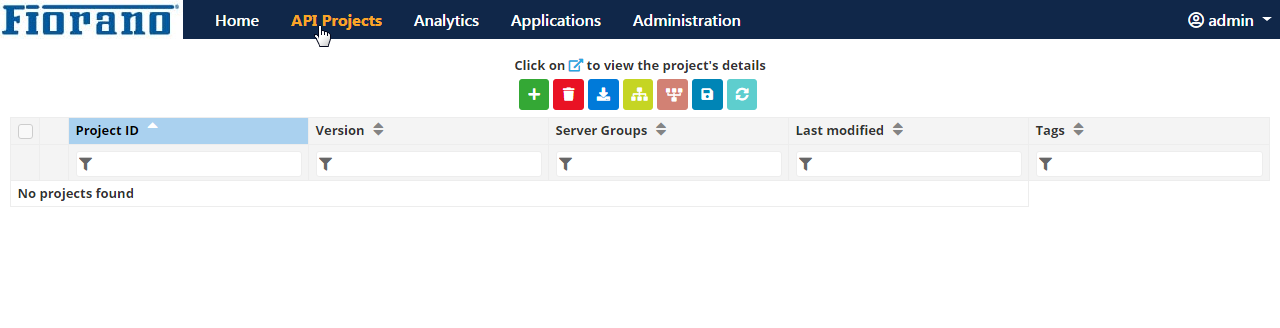
Figure 1: Fiorano API Management Dashboard with the API Projects button highlighted
Below is the list of icons in the API Projects landing page with their respective descriptions. However, you will get to know about each icon while working on projects.
|
Icon |
Description |

|
The Add icon helps in Adding Projectsfrom various services and destination. |

|
Remove Icon helps in removing added projects . |

|
Download icon helps to save projects to the system. |

|
Deploy icon helps to deploy projects on a Server Group. |

|
Deploy icon helps to undeploy projects on a Server Group. |

|
Save button helps to create a copy of an added project . |

|
Refresh button helps remove the selection of projects or if the page does not look updated after adding/removing/deploying a project. |
Each section in this page is explained in detail in the following sections: