
Developer Portal is the user-facing platform where developers can discover, test, and integrate APIs by communicating with the API Management Server.
This section illustrates how to sign up to the developer portal.
Login page
Use the URL below to go to the developer portal login page.
http://localhost:2020/
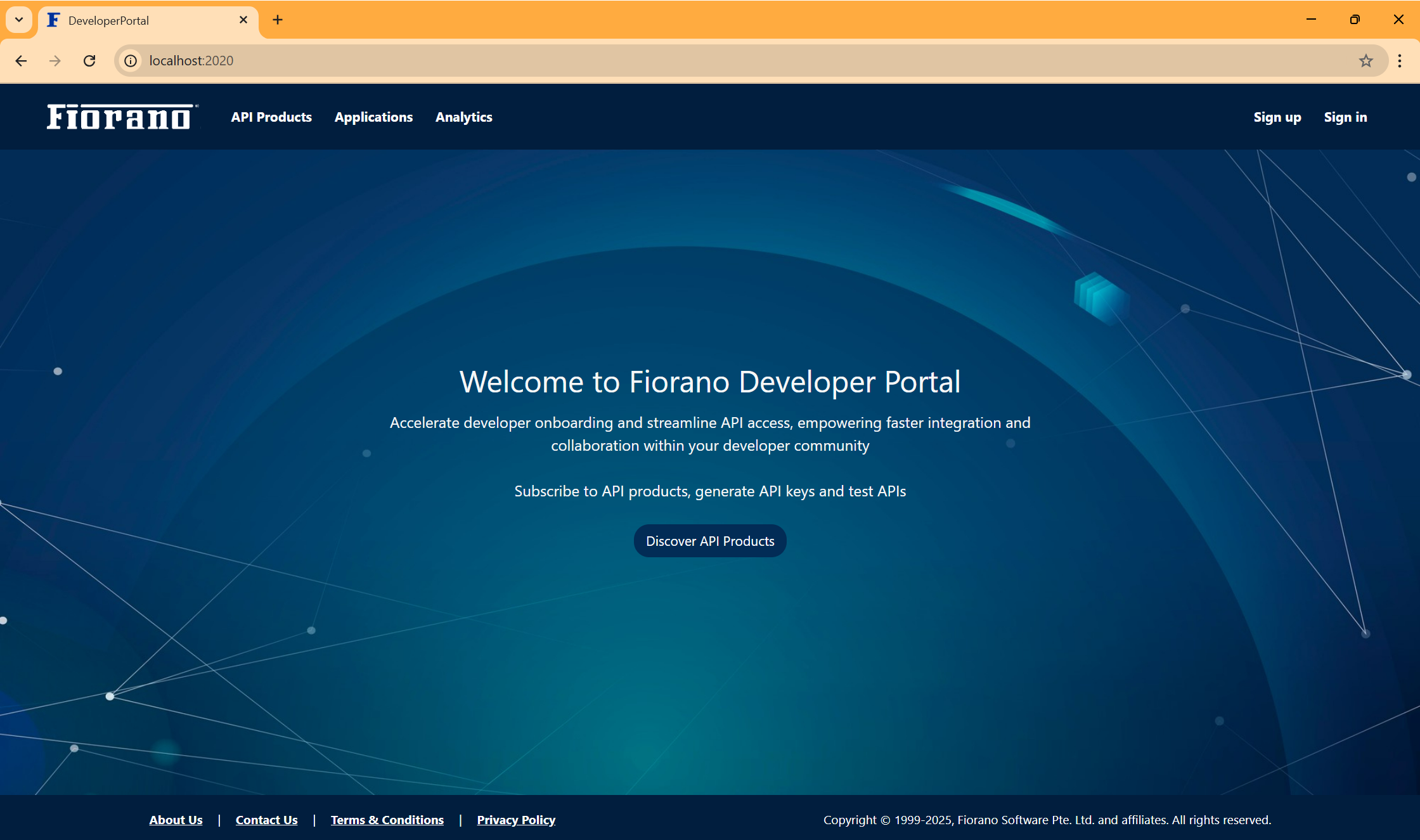
Options available before signing in
Enabling the following options in the Customize > Options > Enable options for developers section in the developer portal admin allows the display options mentioned below for the public or anonymous users.
View public API products without signing in
If this option is enabled, products under all server groups for which “Public” is enabled for the Access option in the Products section of API Management Dashboard will be displayed for anonymous users (without signing up or signing in) in the developer portal.
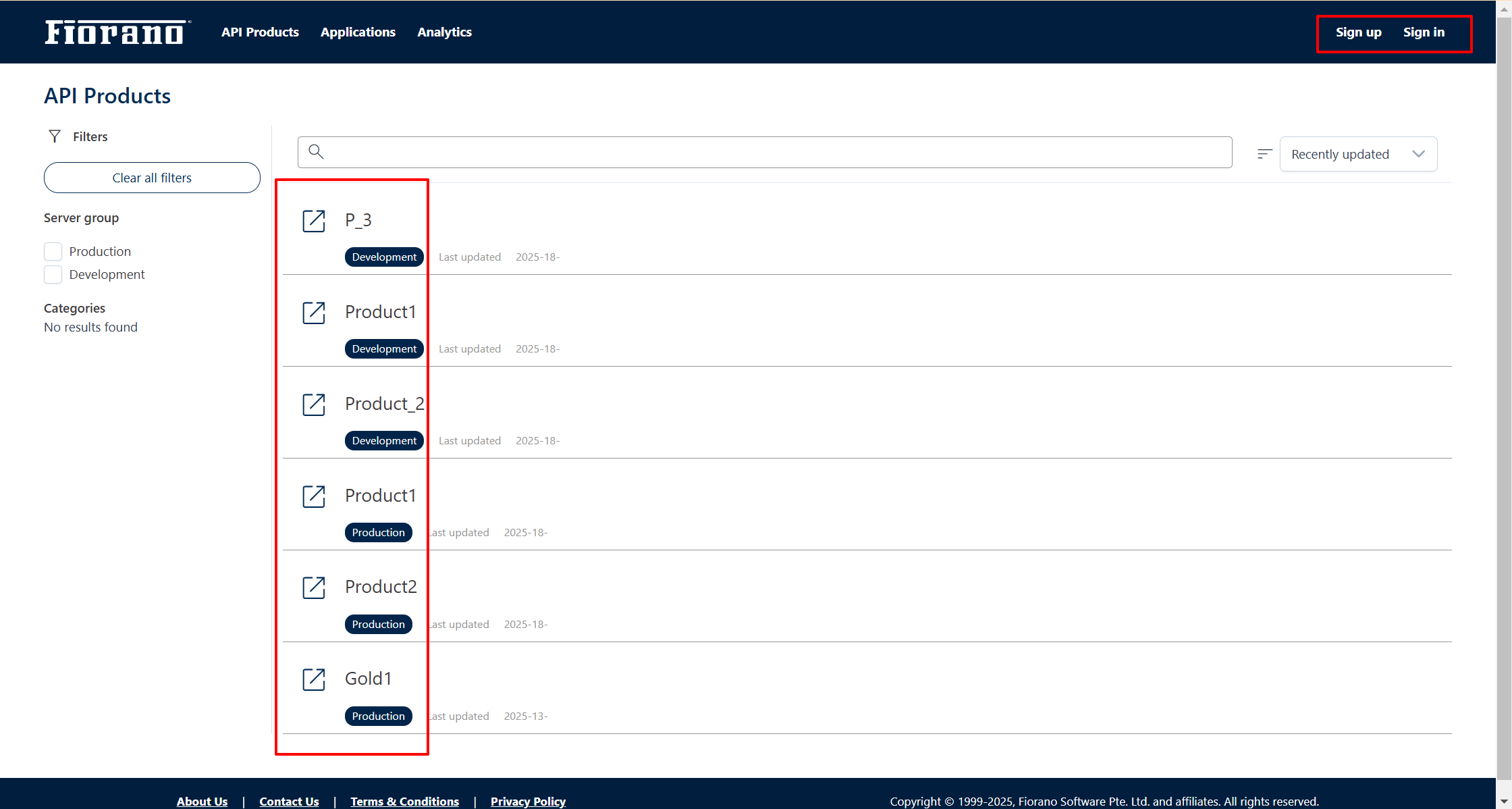
Enable API execution in swagger without signing in
Allows anonymous users to test and interact with APIs through Swagger UI.
Click the Explore 
Click the Try it out button and then the Execute button.
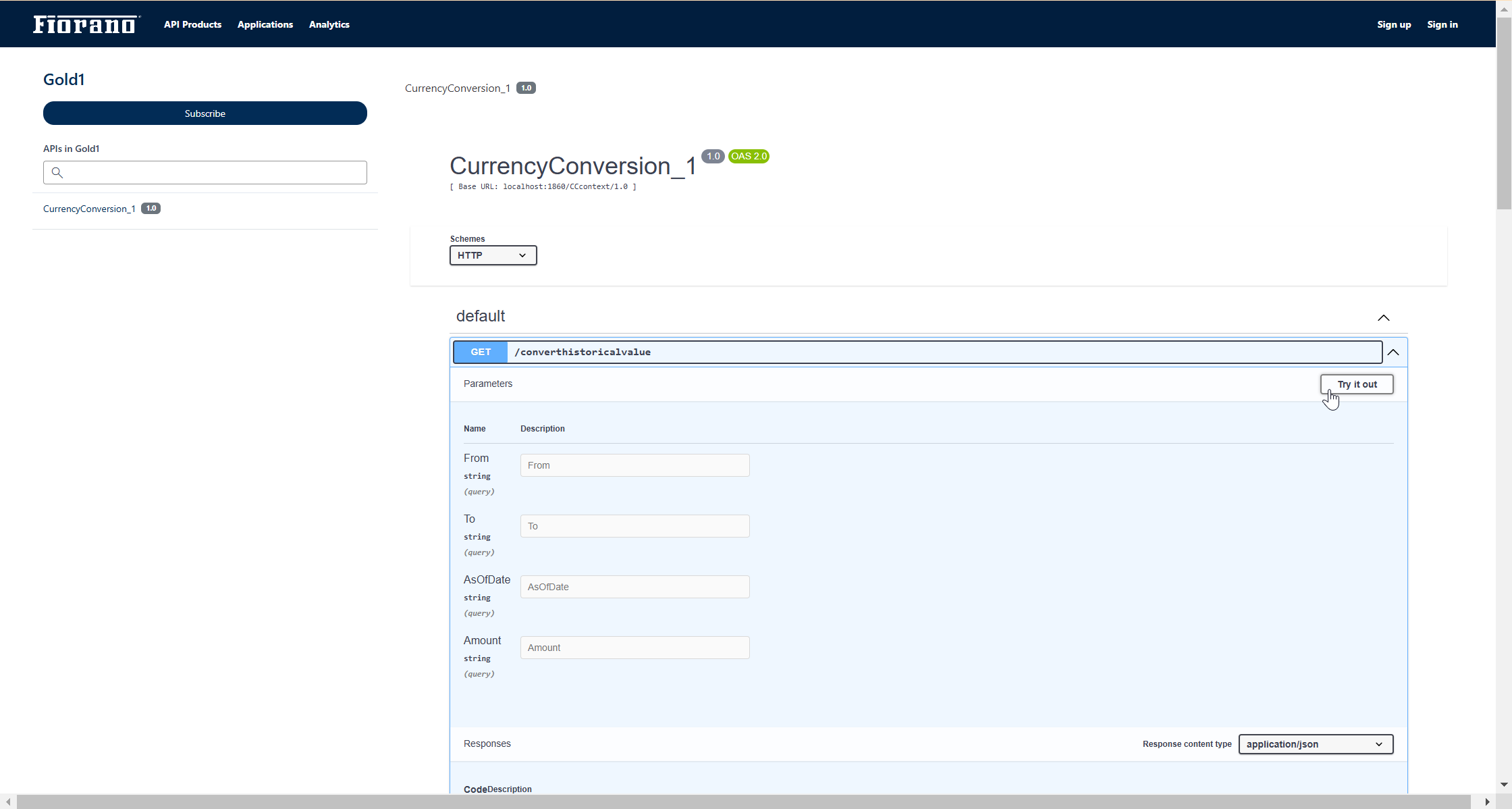
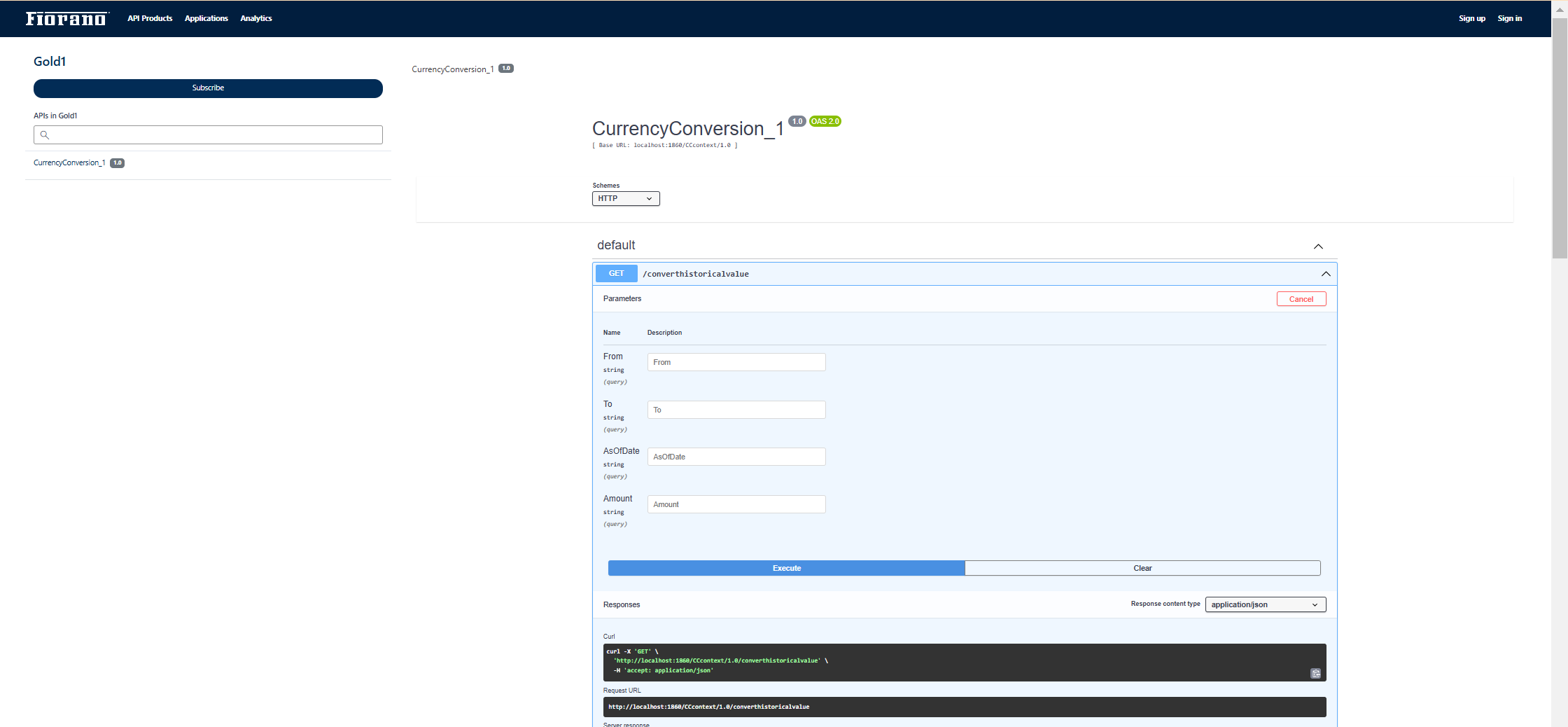
If disabled, the execute option won’t be available to the public.
Signing up
Prerequisite
Ensure that the email ID used to sign up is part of the domain set in the dev portal admin.
Registering with the developer portal
-
Click the Sign up button on the upper-right part of the login page.
-
Provide the Email ID that needs to be added as a developer/client.
-
Click the Verify e-mail address button.
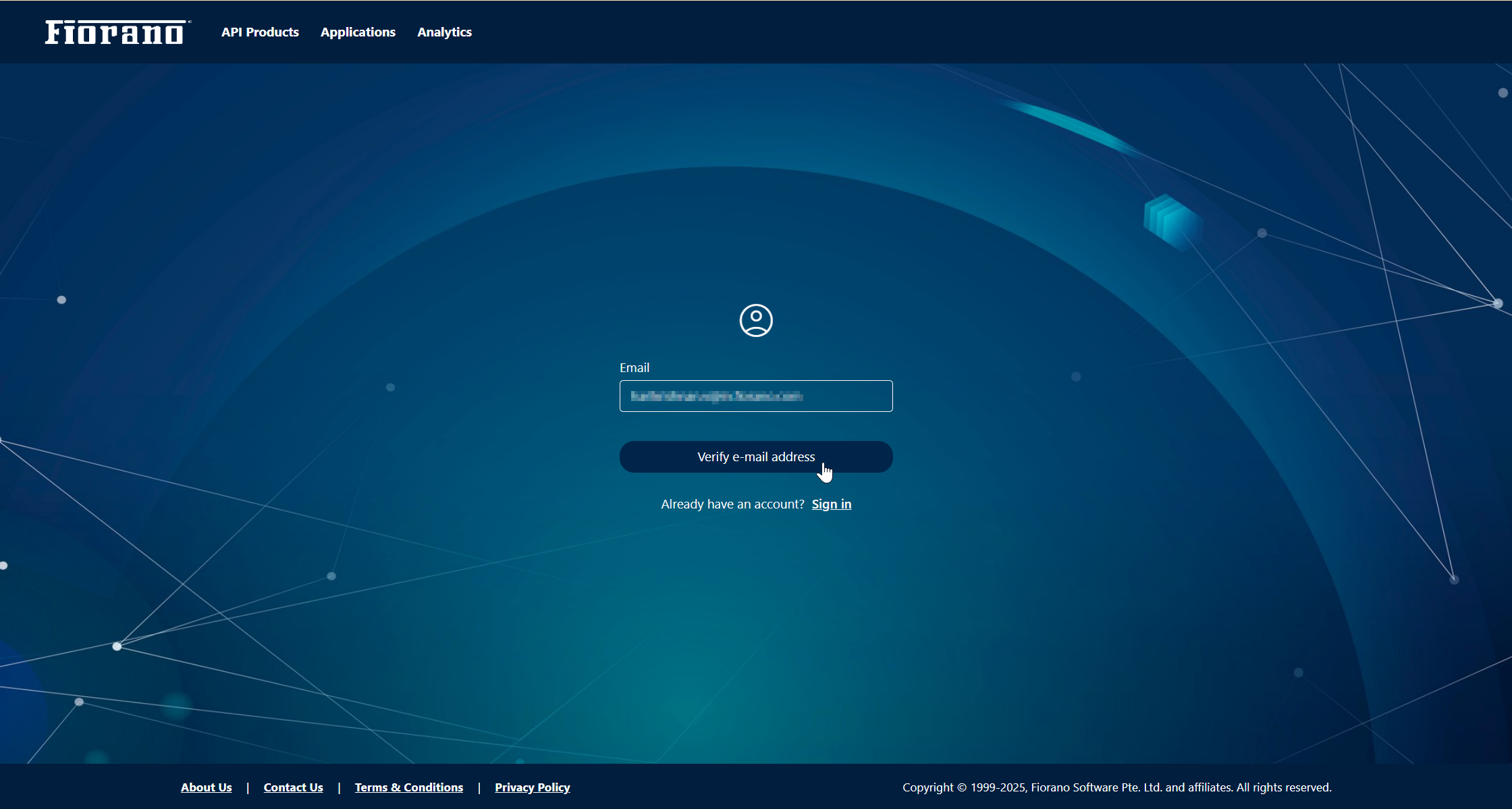
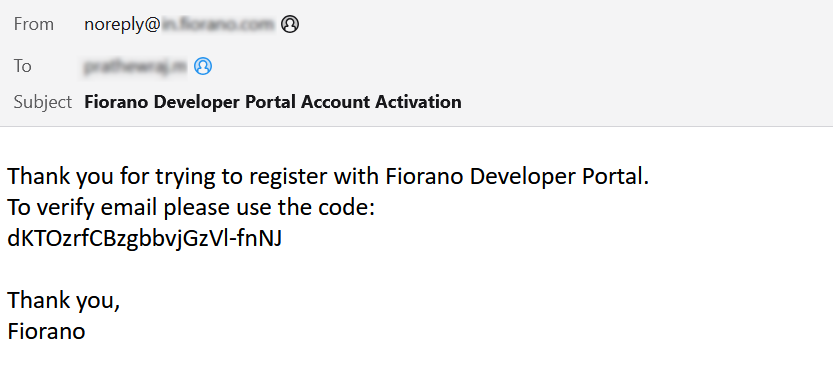
A random verification code will be sent to the mail ID.
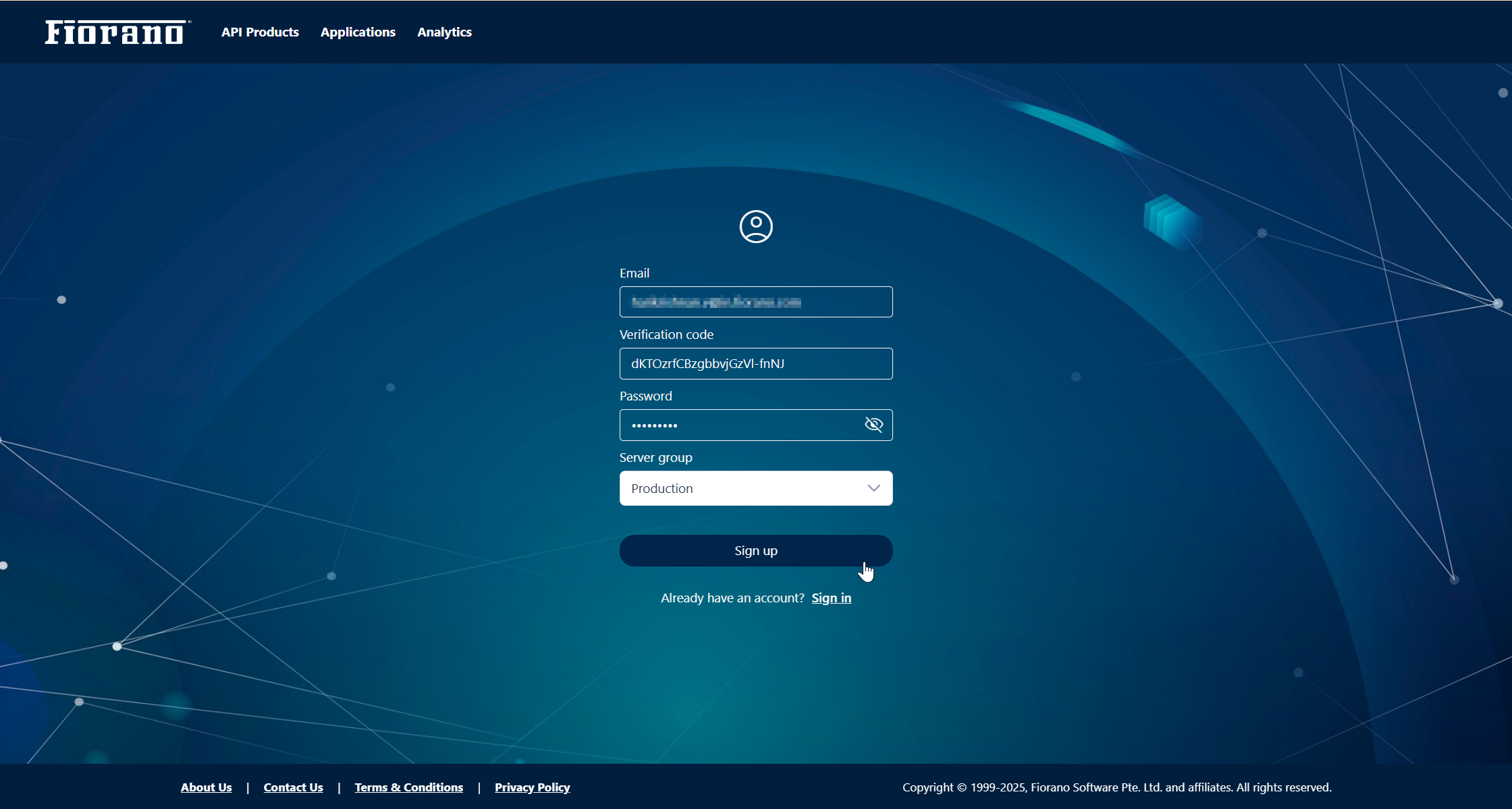
Signing up to the Server Group
The page navigates automatically to the Signup page.
-
Provide the following details:
-
Email: Email ID that needs to be added as a developer/client.
-
Verification Code: Use the verification code received in the mailbox.
-
Password: Provide a password following the rules below:
-
One alphabetic character (A-Z or a-z).
-
One digit (0-9).
-
One special character (from the set @$!%*?&-_).
-
The length must be at least 8 characters.
-
-
Server group: Provide the server group in which the applications need to be managed.
-
-
Click the Sign up button.
A confirmation mail will be sent to the registered email ID notifying the completion of the registration process.

The user gets added under the Developers section in the dev portal admin.
Activating the user
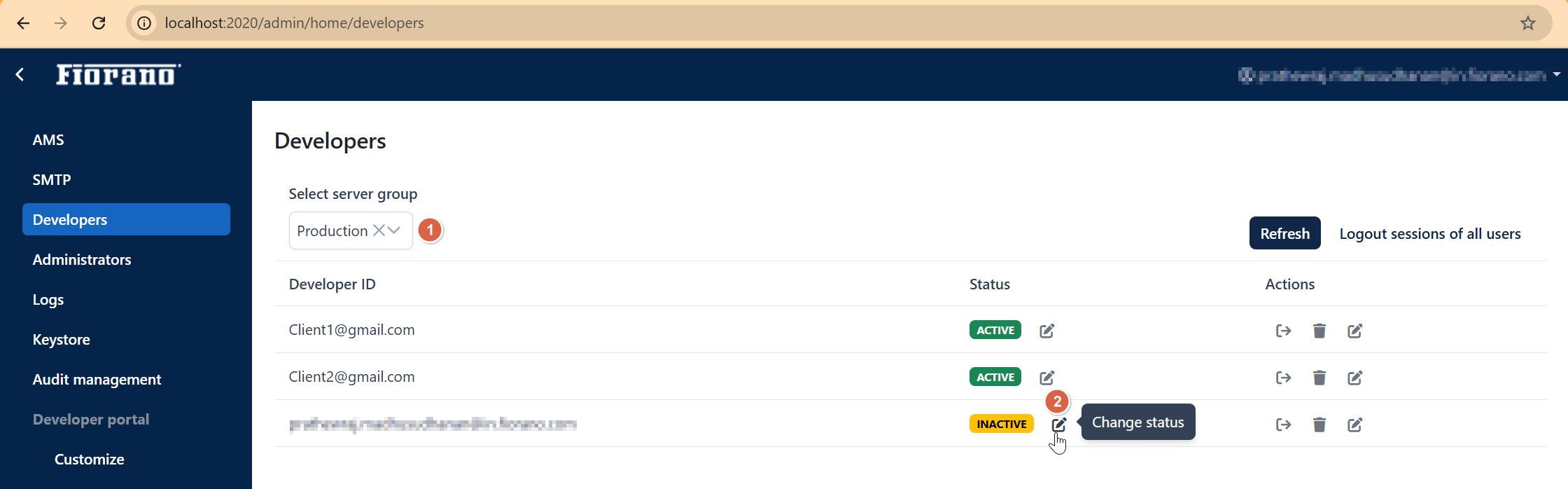
By default, the developer status will be “Inactive”. Login is possible only after changing the status to Active.
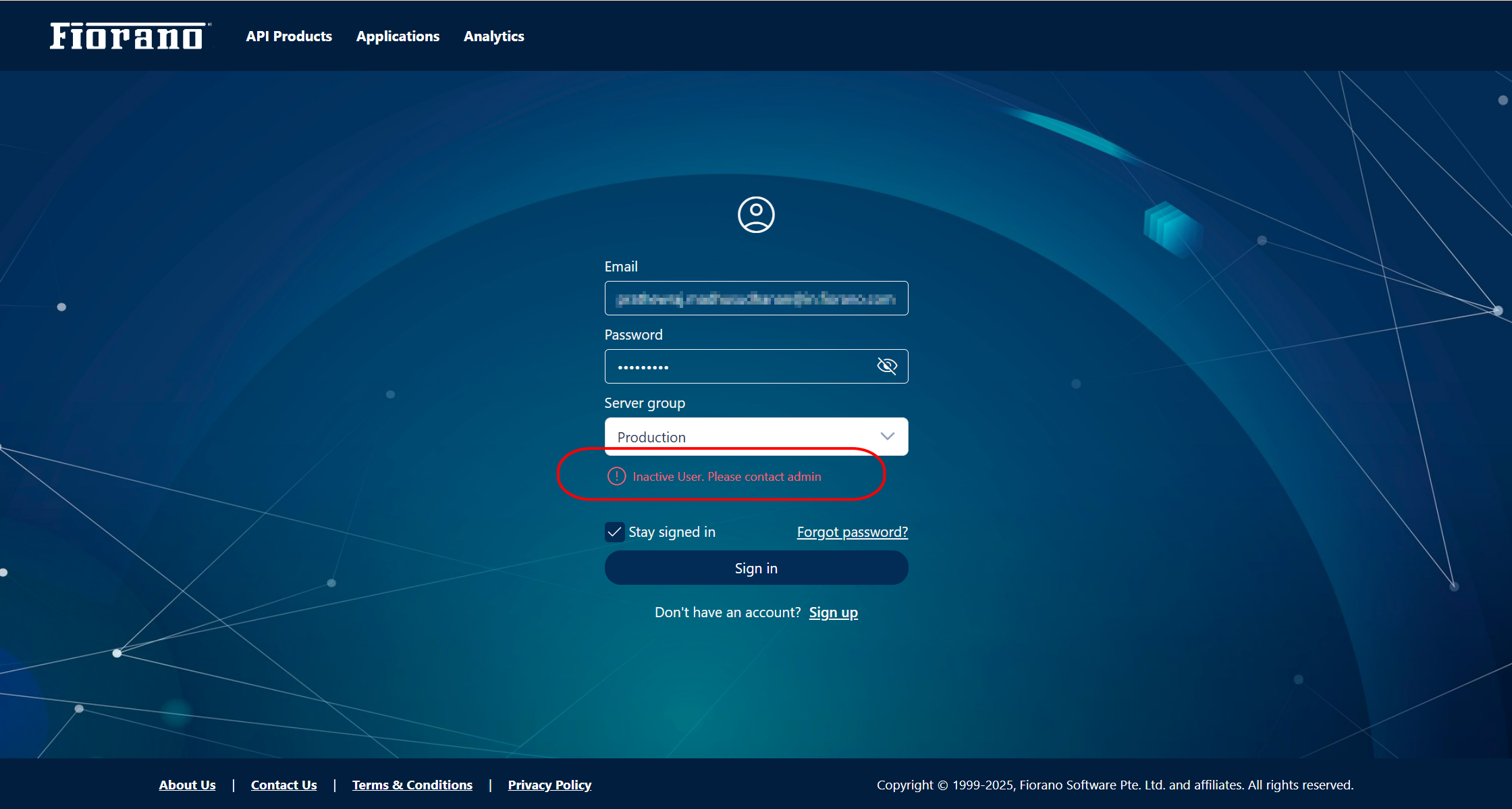
The added developer status needs to be changed from inactive to active in the Admin portal.
-
Go to http://localhost:2020/admin/home/developers.
-
Select the Server Group where signup was done.
-
Click the Edit

-
Click the Active option and click the Save

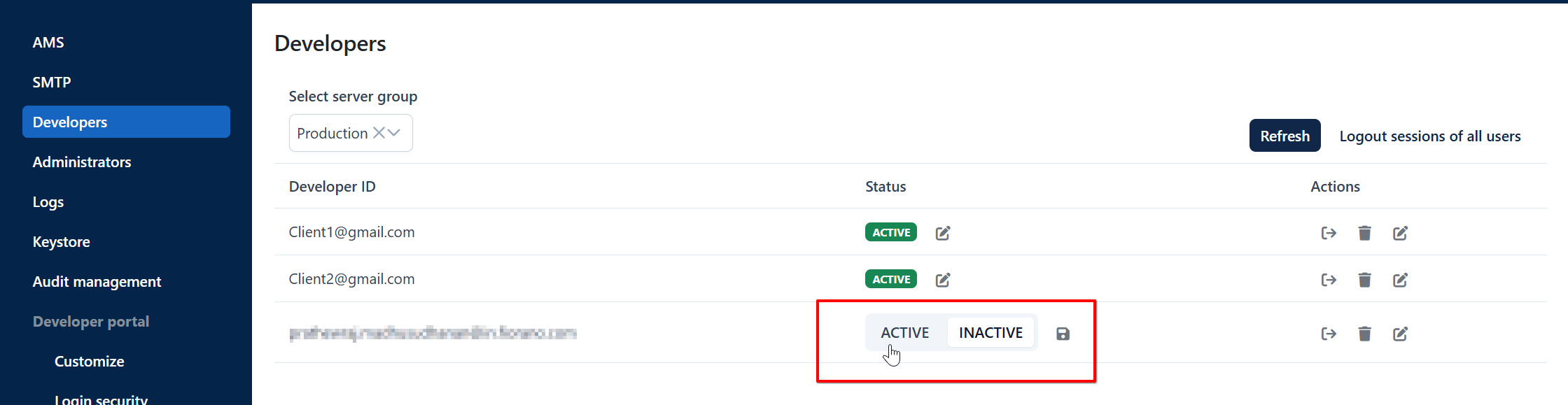
The default value can be set to “Active” by enabling the Set developer status to ACTIVE upon creation automatically option in the developer portal admin.