
Developer Portal is the user-facing platform where developers can discover, test, and integrate APIs by communicating with the API Management Server.
This section illustrates how to sign up to the developer portal.
Signing in
-
Use the URL below to go to the developer portal login page.
http://localhost:2020/signin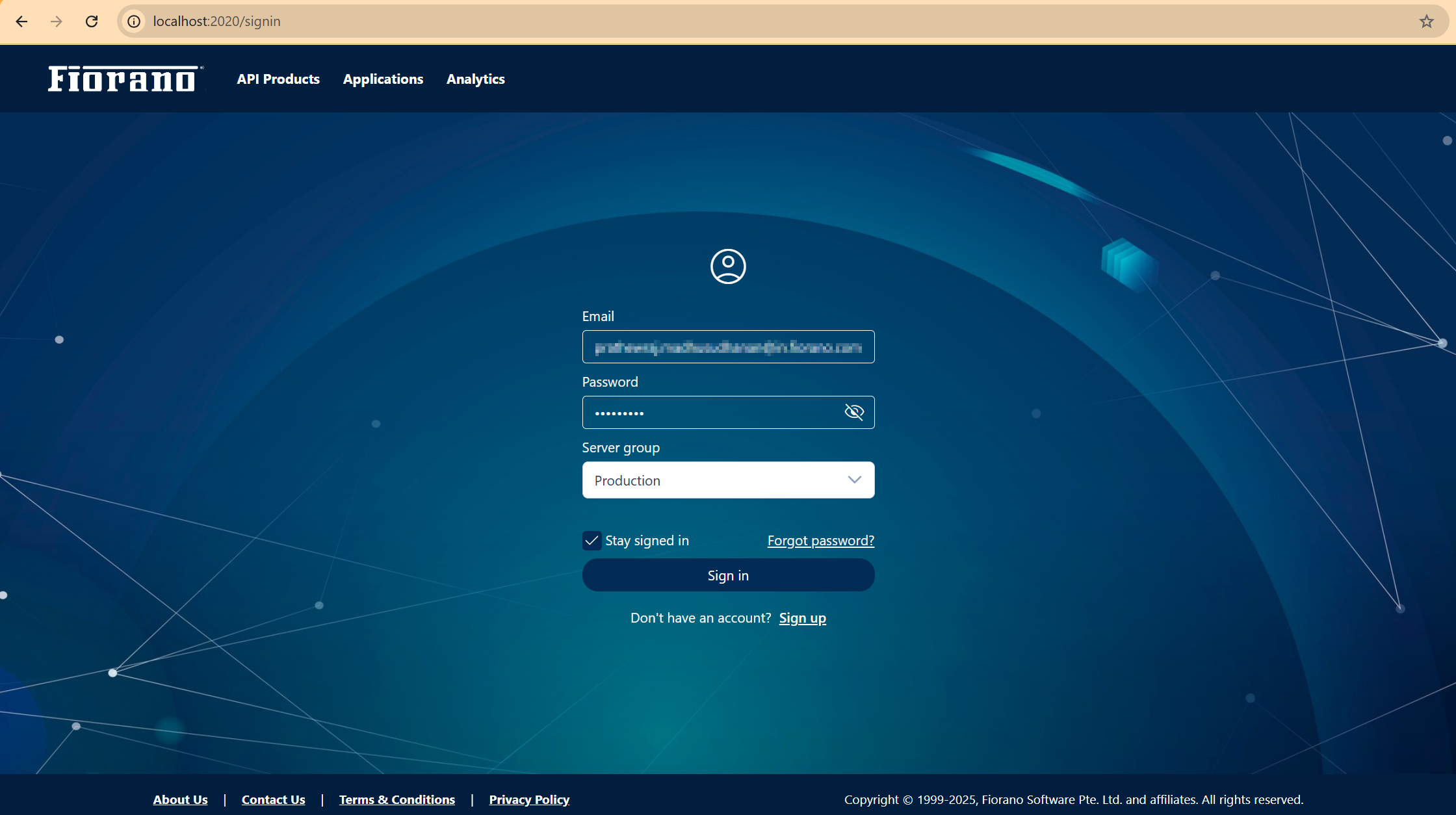
-
Provide the following details:
-
Email: Registered email address
-
Password: Password set while signing up
-
Server Group: Environemnt name selected while signing up
-
-
Click Sign in.
Enable the Stay signed in option to maintain your session and prevent logouts when updating and refreshing pages.
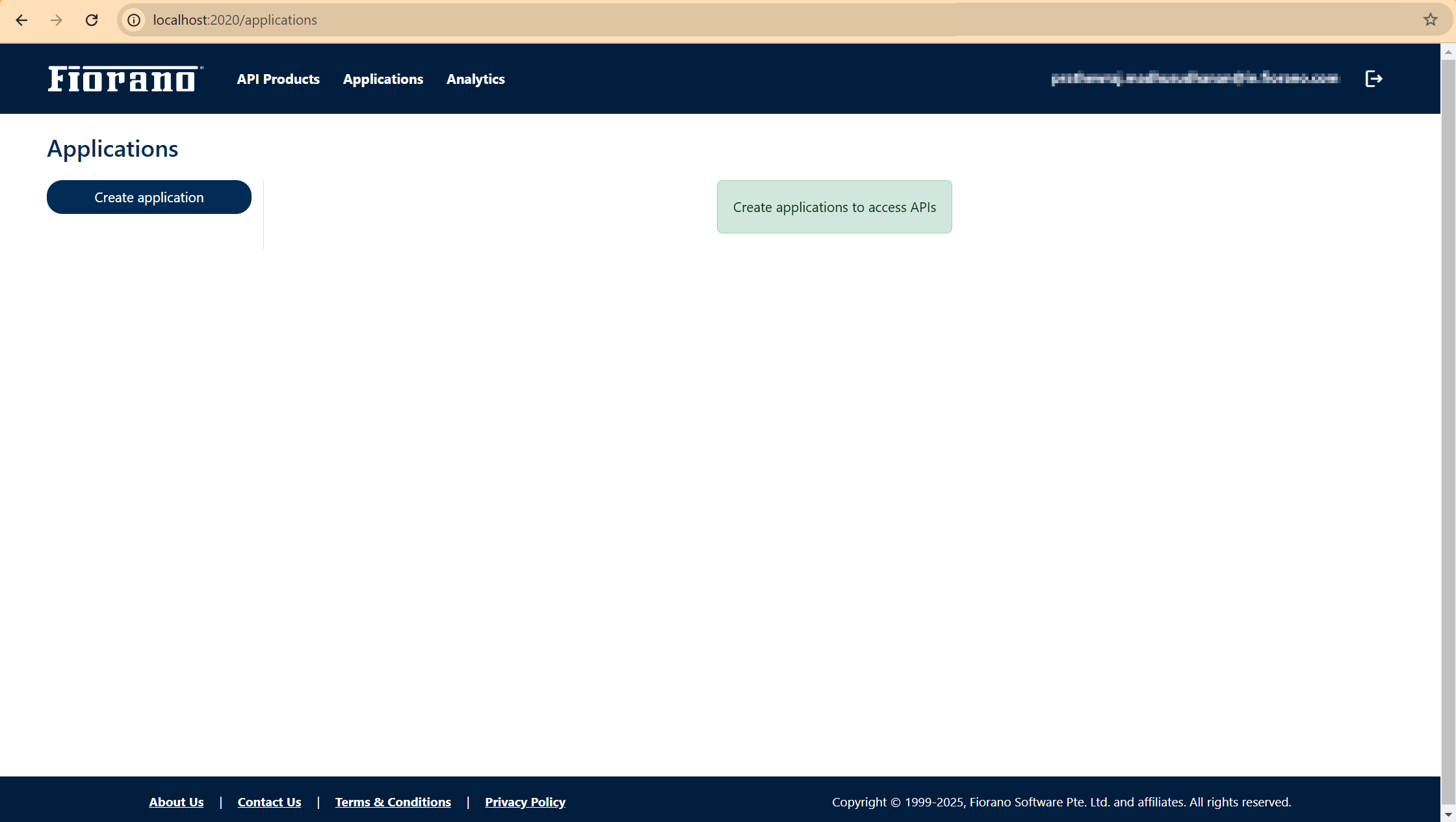
The landing page is the Applications page where applications can be created to access APIs.
Refer to the following sections to learn how to use the developer portal:
Managing the account
Changing Password
To change the login password,
-
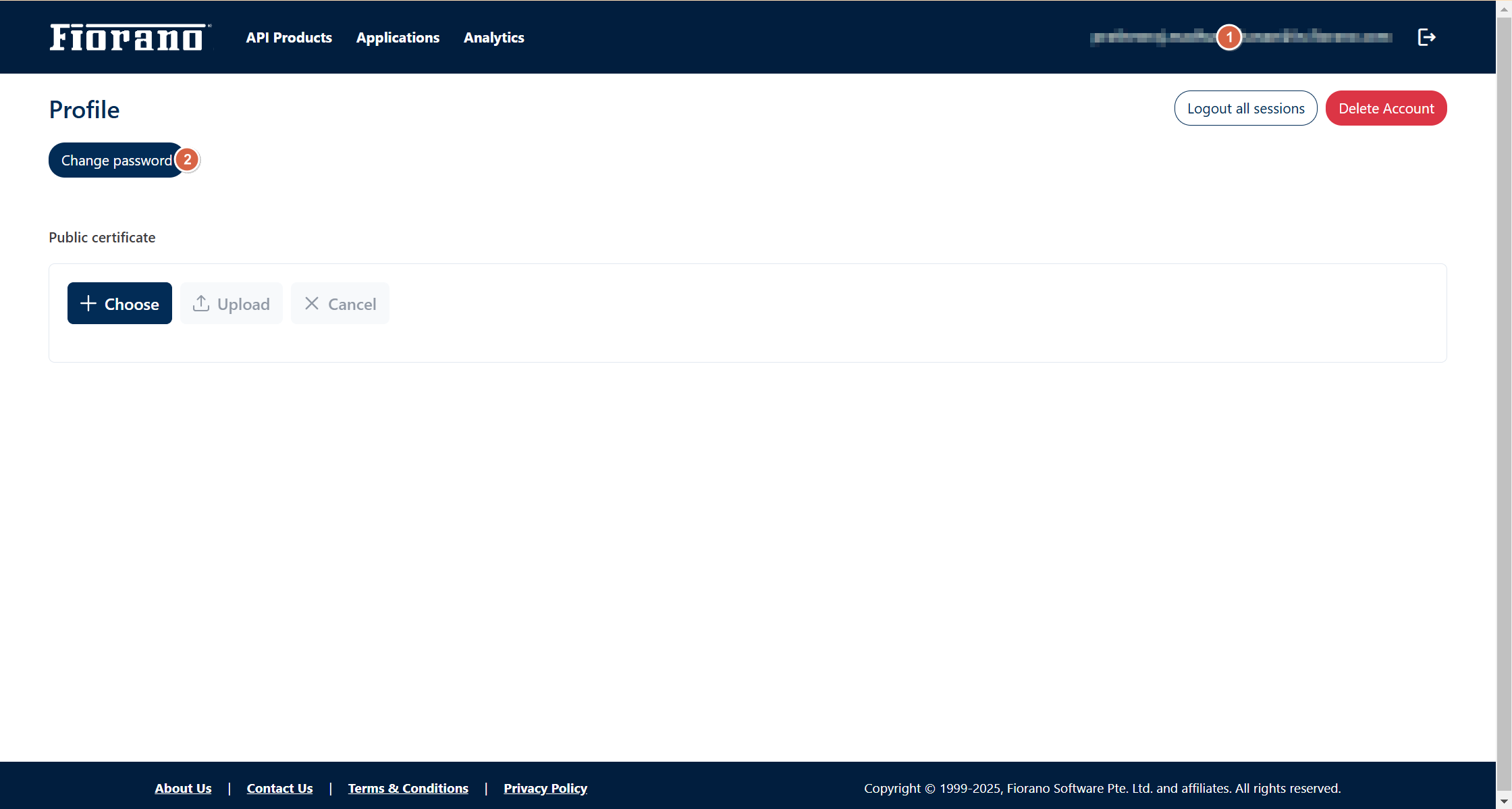
Click the signed-in name on the upper-right part of the page and click the Change password button.
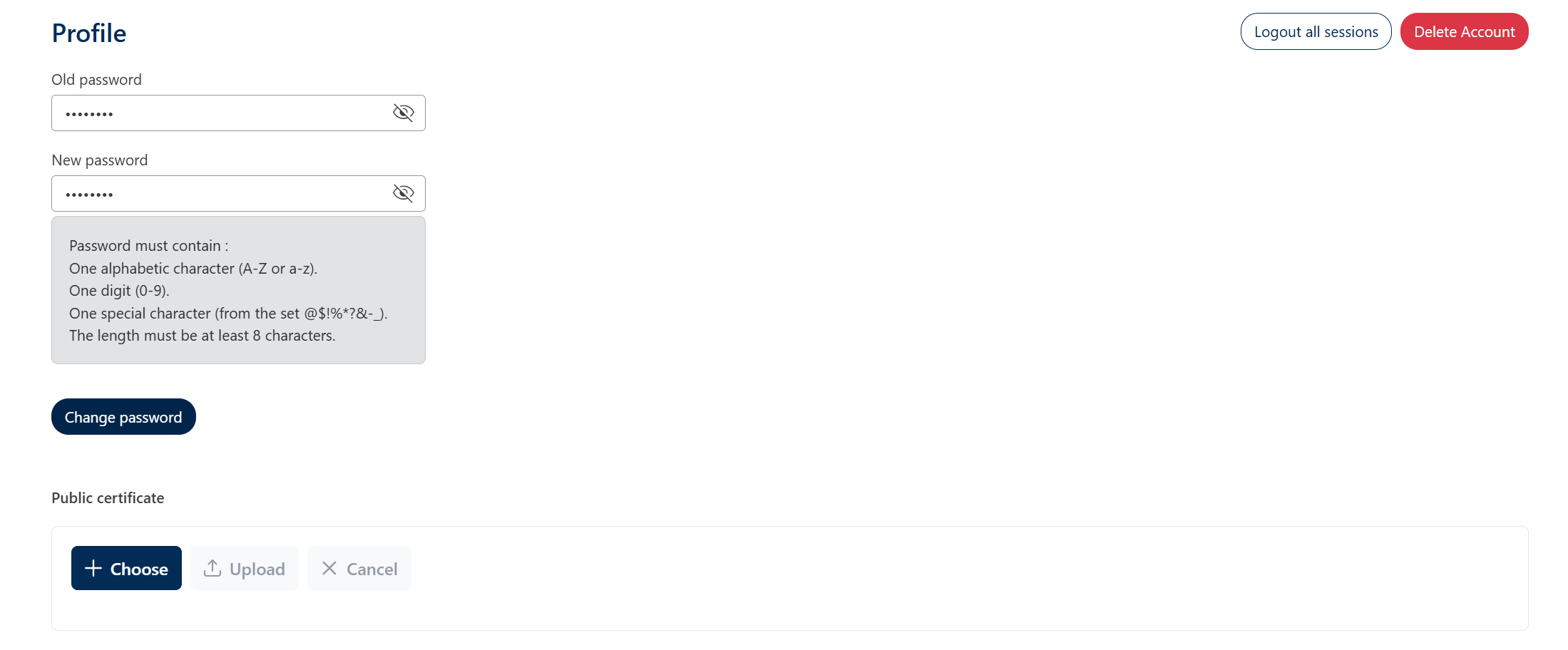
Password must contain:
-
at least 8 characters
-
One alphabetic character (A-Z or a-z)
-
One digit (0-9)
-
One special character (from the set @$!%*?&-_)
-
Provide the old and new passwords and click Change Password.
Logging out of all sessions
To log out from all sessions, click the Logout all sessions button.
Removing the account
Click the Delete Account option to remove the account and associated applications permanently.
Please note that once the account is deleted, it cannot be retrieved.