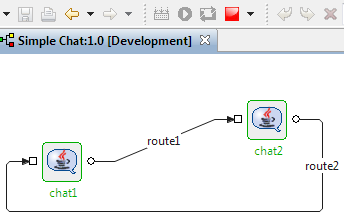
An Event Process: 'SimpleChat' is provided in eStudio application as a sample to understand the functionality of Chat component. To find the Simple Chat EP, Open Server Explorer window from Window > Show View and find under Samples folder in Event Process Repository. Double-click to open the sample.
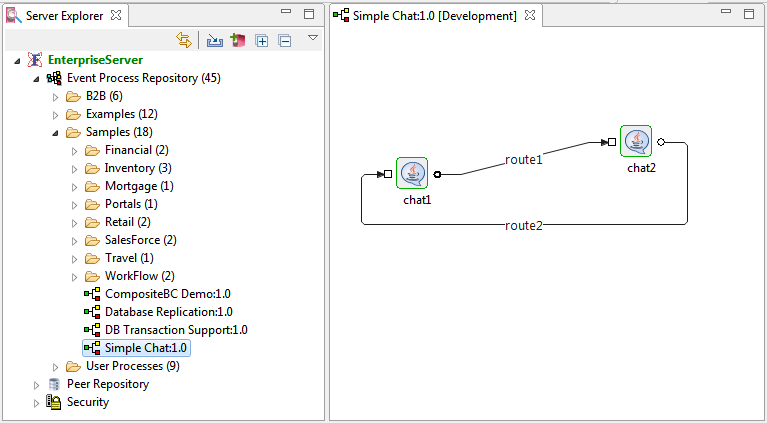
Functionality
For 2 chat components that are connected to each other,
-
Messages sent from chat1 appear in chat2.
-
Alternatively, messages sent from chat2 appear in chat1.
Execution
Refer the Running an Event Process section to understand how to use the icons responsible for running an Event Process.
To run the Simple Chat application available in Samples, follow the below steps:
-
Click Check Resource and Connectivity

Icons to check resource and connectivity, run event process, stop event process etc can be found in the figure above (on the tool bar).
-
Click Run Event Process

-
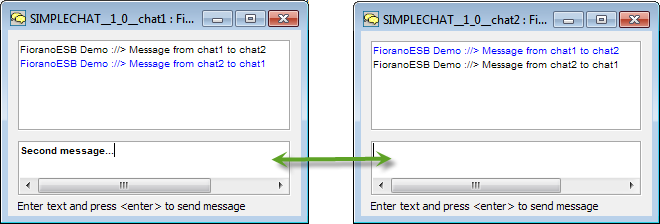
Two windows representing the Chat services appear (SIMPLECHAT__1_0_chat1 and SIMPLECHAT__1_0_chat2 in the figure below).
-
Type a sample message in SIMPLECHAT__1_0_chat1 and press Enter; notice that the message appears in SIMPLECHAT_1_0_chat2 window.
By default, the font color that appears on the window from which the message is sent will be black and that of the recipient will be blue. This can be changed in Component CPS.
-
Type a message in SIMPLECHAT_1_0chat2, press Enter and notice that the message appears in SIMPLECHAT_1_0__chat1.
-
Click Stop Event Process

While the application is running, the font colour of the services appear green and Stop