Obtaining access token from Google Authorization Server using Refresh Token
To use the Gmail API, a Gmail account is needed.
The Gmail API uses OAuth2 authentication with Tokens.
Creating Client ID and Client Secret
Perform the following actions to obtain tokens:
-
Open the APIs and Services page in the Google Cloud console using the URL https://console.cloud.google.com.
-
Follow the steps mentioned in
https://ei.docs.wso2.com/en/latest/micro-integrator/references/connectors/gmail-connector/configuring-gmail-api
to create a project and obtain client_id and client_secret.
-
Add the mentioned redirected_uri in Oauth Client ID credentials and preferred scopes to access in OAuth consent screen.
Obtaining Refresh Token
-
Open OAuth Playground using the URL
https://developers.google.com/oauthplayground
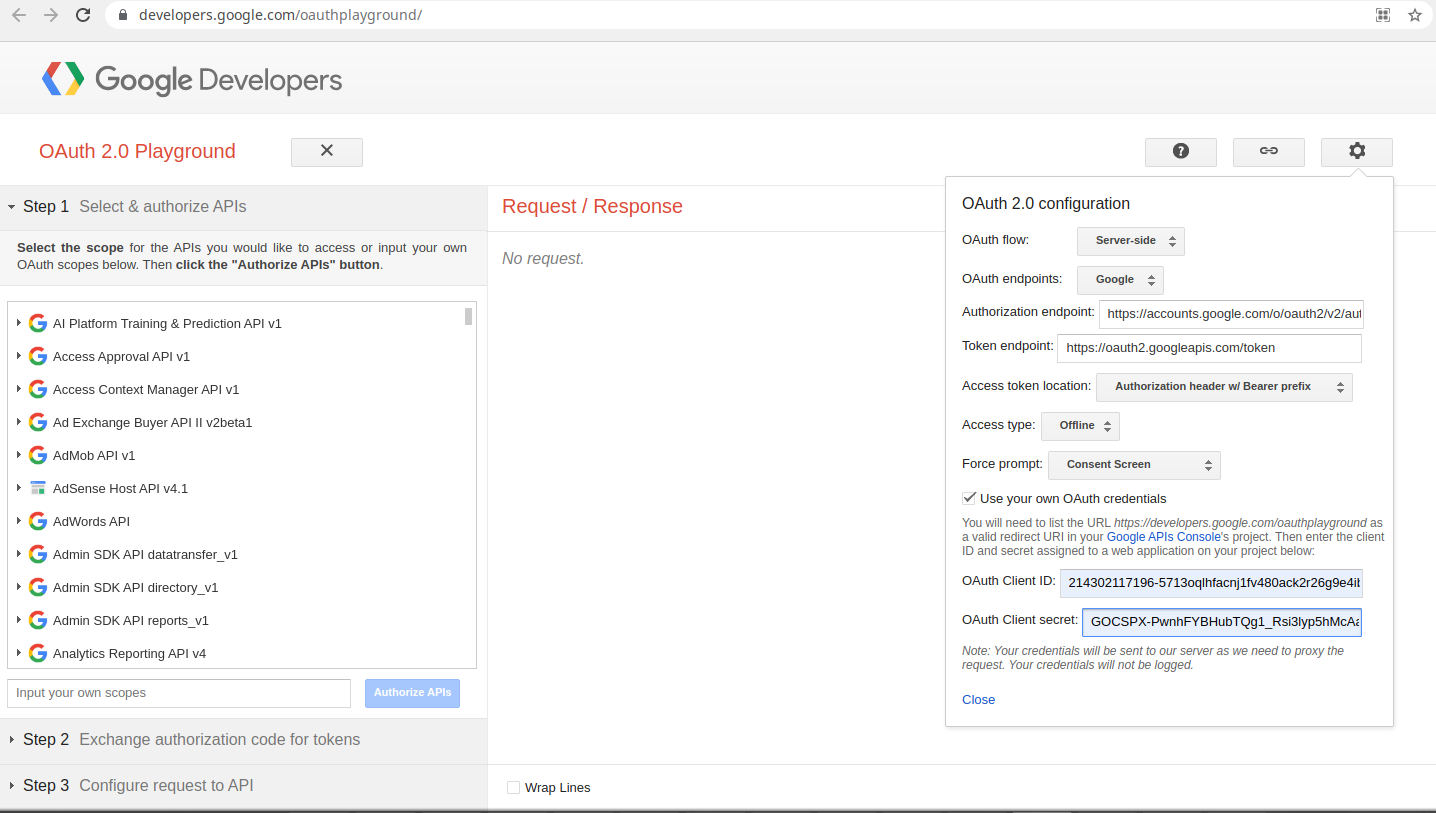
click the Settings icon on the upper-right side of the page.
-
In the Oauth2.0 configuration dialog box, enable the Use your own OAuth credentials option and provide the client_id and client_secret generated for the project.
-
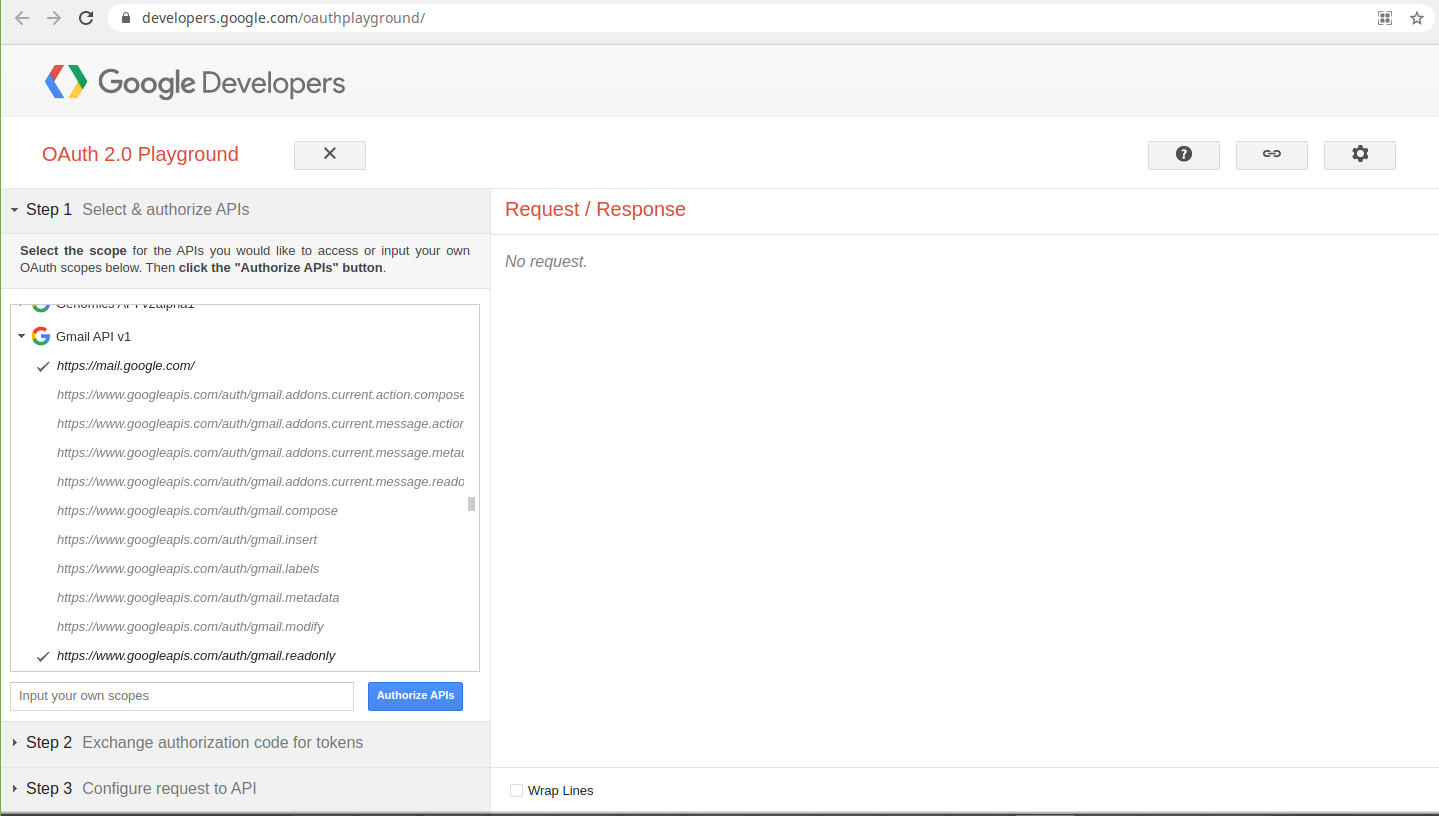
Expand the Step1 Select & authorize APIs section, navigate to Gmail API v1 and select the scopes to be authorized and click the Authoize APIs button.
-
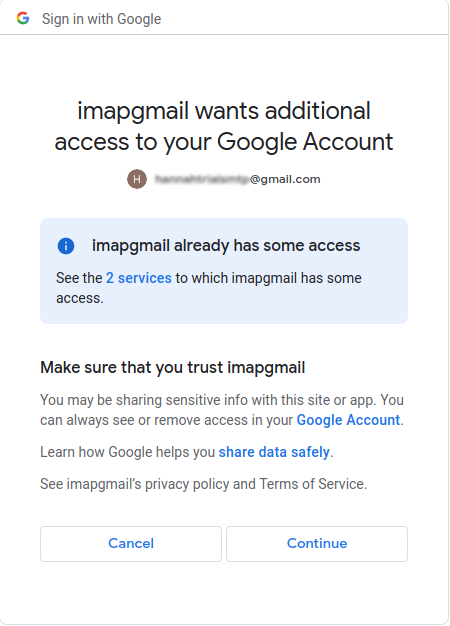
Choose the Google account that is associated with the API project and provide user consent for the scopes to be authorized.
-
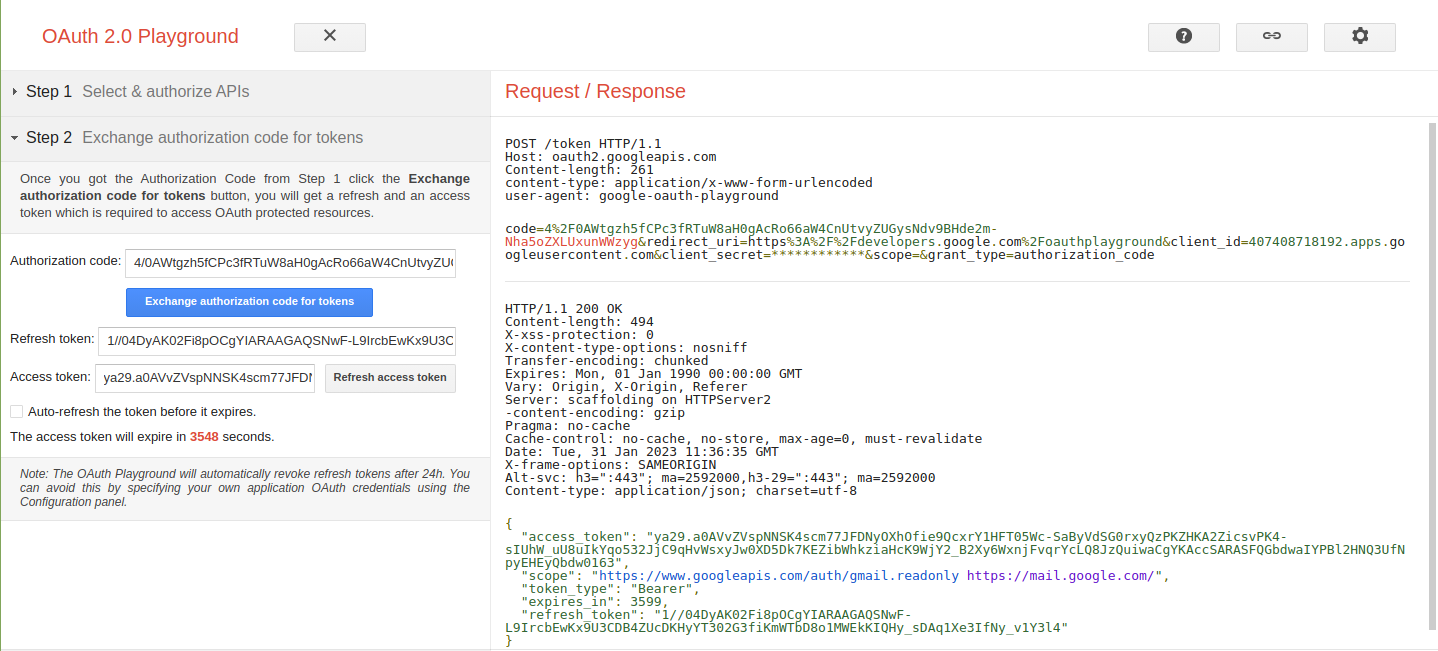
Expand the Step 2 Exchange authorization code for tokens section where an authorization code will be auto populated. Click the Exchange authorization code for tokens button.
-
Copy the refresh token that gets populated in the Refresh token text box.
Configuring the component
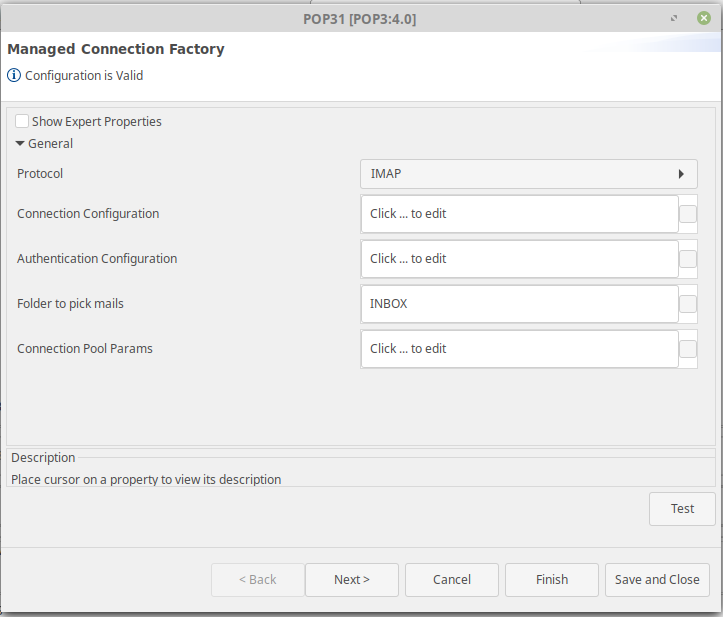
Managed Connection Factory configuration
-
Select the IMAP option from the Protocol drop-down.
-
Under Connection Configuration, provide the following property values:
-
MailserverURL: imap.gmail.com
-
MailServer Port: 993
-
-
Provide the following additional properties:
-
mail.imap.starttls.enable = true
-
mail.imap.socketFactory.class = javax.net.ssl.SSLSocketFactory
-
Authentication Configuration
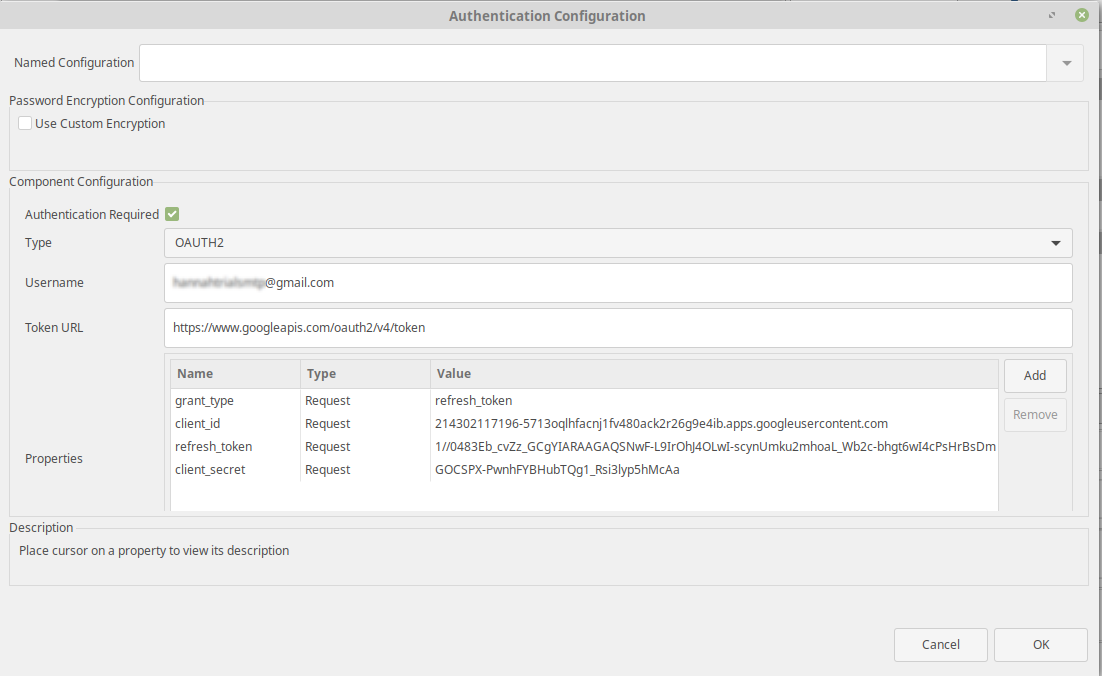
Select OAUTH2 as Authentication Type and provide the credentials:
-
Username - Mail Id that is associated with Google Cloud console or the mail id that's used for communication purpose.
-
Token URL -
Testing the configuration
-
Add the following Request Properties:
-
grant_type = refresh_token
-
client_id = Client ID value that is obtained from google console
-
refresh_token = Replace with the refresh token obtained above
-
client_secret = Replace with secret value obtained from google console
-
-
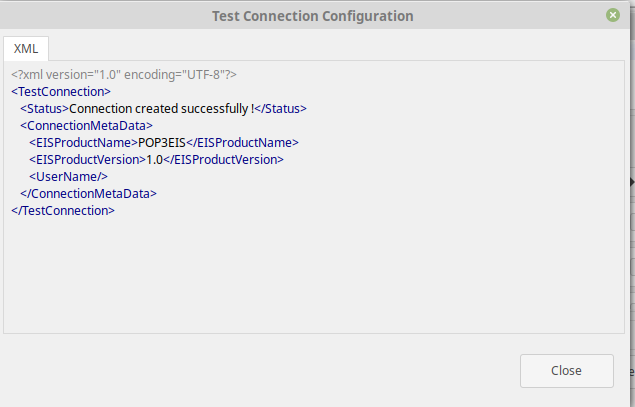
Test the connection using Test button in Managed Connection Factory.