
Configuring Peer Server Profile
Detailed documentation on how to use it in Fiorano is available in Fiorano documentation. Few screenshots are shown here for reference purpose.
-
Stop the Fiorano Peer server if it is running.
-
In eStudio, go to the Profile Management perspective and open the Peer server profile.
-
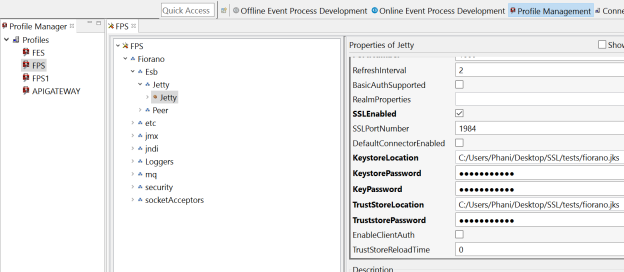
Navigate to FPS > Fiorano > Esb > Jetty > Jetty.
-
Enable SSLEnabled checkbox and provide values for the properties KeystoreLocation, KeystorePassword, KeyPassword, TruststoreLocation and TruststorePassword. In this example, the password used is "fioranopass".
-
Save the profile.
Configuring Stub microservices
-
Configure the REST Stub microservice.
-
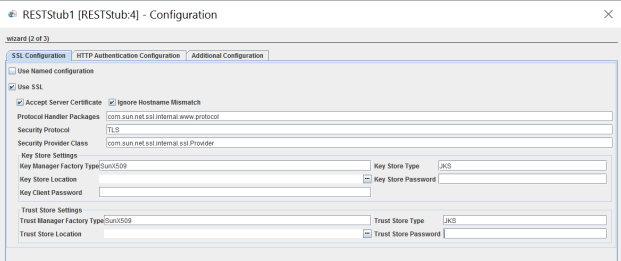
Open SSL Configuration. Enable the properties Use SSL, Accept Server Certificate and Ignore Hostname Mismatch.
-
Save the configuration and launch the Event process.
-
When the REST Stub microservice turns green, right-click the microservice and select the Copy WADL URL option.
-
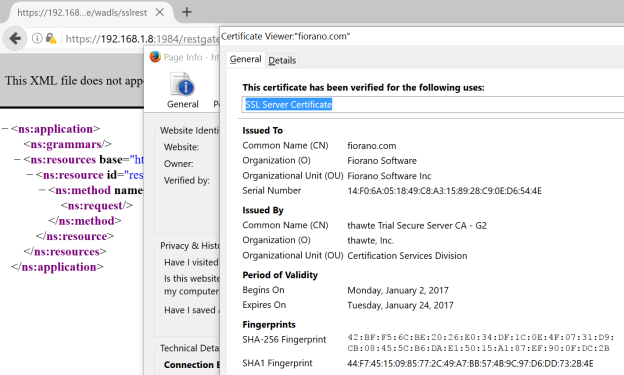
Open the WADL URL in the browser. An https URL and certificate details will be displayed.
-
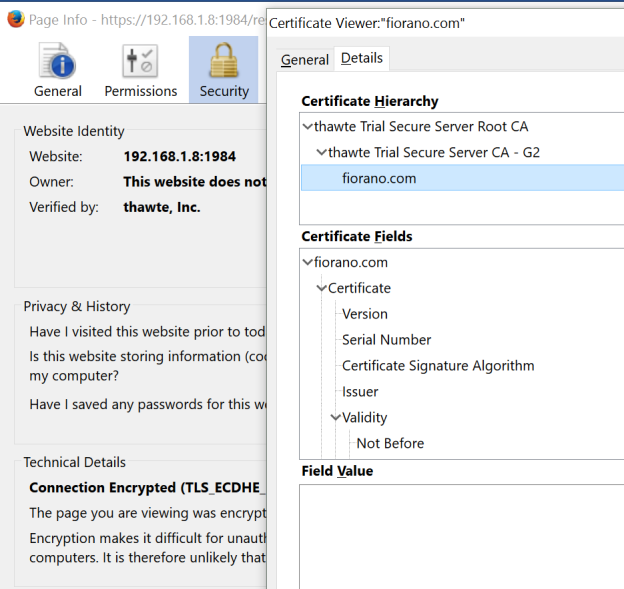
The Certificate chain can also be viewed in the Details tab.
Additional Options
-
In case of a 2-way authentication, provide values for Keystore Location, Key Store Password, Key Client Password properties, Trust Store Location and Trust Store Password in the Rest Stub configuration.
-
If the Accept Server option is disabled, then provide the truststore details in the configuration.