
The SMS component enables you to send short messages or SMS using a configured SMS Server. This component is extremely useful in sending SMS to notify specified recipient mobile phone users to initiate corrective action in the event of an error or any other configured event.
Points to note
-
To use the component, an account with http://www.simplewire.com/ is required.
-
If you are a beta-tester with http://www.simplewire.com/ then you should use the server name as wmp.
Configuration and Testing
To test this adapter, you need an account with http://www.simplewire.com which gives you the PIN, Subscriber ID, Password, and Callback number to send messages.
Managed Connection Factory Configuration
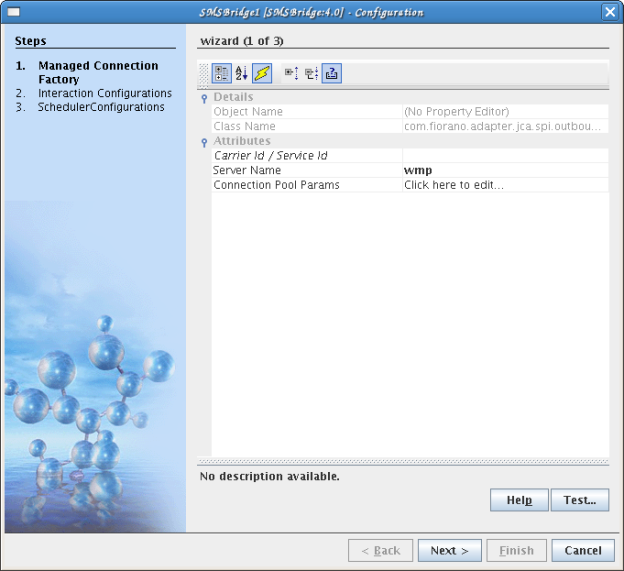
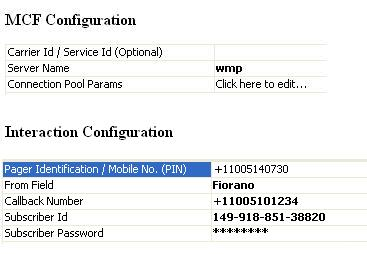
In the Managed Connection Properties panel of CPS, the following attributes can be configured.
Attributes
Carrier Id / Service Id
Sets the message carrier ID of the recipients wireless device. The message carrier ID is the ID number that Simplewire uses to identify carriers.
Unless a 345 error code is returned or the carrier is not listed on our carrier list, this property need not be set because Simplewire software now performs Global Carrier Recognition.
Server Name
Sets the name of the server for use in the connection. The server name works in conjunction with the server domain to produce the URL to which the current message gets posted. This value is preset and need not be changed unless you are a Beta-Tester (default – wmp).
Connection Pool Params
Here you can specify the details for maintaining the pool of connections in the component. When you click the ellipsis button.
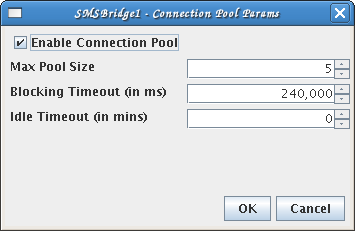
Please refer Connection Pool Params section in Common Configurations page for details.
Interaction Configurations
Attributes
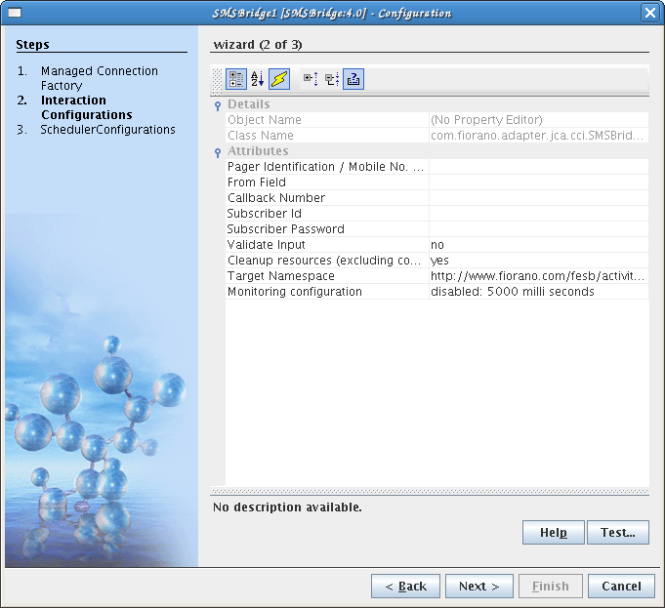
Pager Identification / Mobile No. (PIN)|
Sets the message pin which is also sometimes referred to as the mobile phone number, MIN, or MSISDN. This is the intended recipient of the message.
From Field
Sets the message name of the sender of the message. The message "from" text is sent as Unicode.
Callback Number
Sets the message callback number. The message callback is the number that gets dialed when the recipient presses "talk" on their device after viewing a message.
Subscriber Id
The subscriber ID is an ID number provided to paid subscribers that gives access to all of Simplewire's resources. The appropriate password must also be set.
Subscriber Password
Sets the password that goes along with the subscriber ID. Each paid subscriber has a unique ID. Each subscriber ID has an associated password. Both the ID and the password must be set correctly.
Validate Input (Yes / No)
Whether to validate a specified input with the input port XSD.
Cleanup resources (excluding connection) after each document (Yes / No)
Close interaction after each request.
Target Namespace
Target Namespace used while generating the input and output schema
Monitoring Configuration
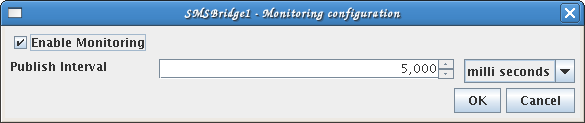
Please refer Interaction Configurations section in Common Configurations page for details on Enabling Monitoring and Publish Interval.
Scheduler Configurations
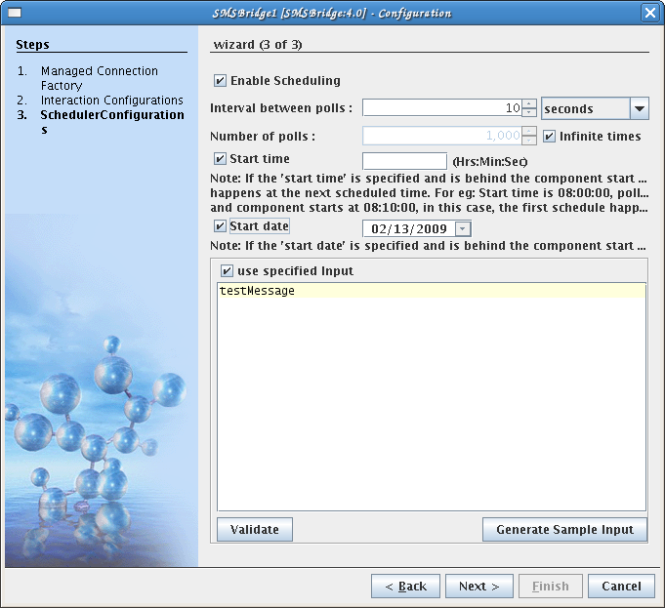
Intervals between polls
The time interval between the polls
Number of polls
The number of times that the input request will be sent to the input port of the adapter
Infinite times
Start time
The polling start time. If the start time is specified and is below the component start time, the first schedule will happen at the next scheduled time. For example, the start time is 08:00:00, the poll interval is 30 minutes, and the component starts at 8:10:00, in this case, the first schedule will happen at 08:30:00.
Start date
The polling start date. If the start time is specified and is below the component start time then it will be ignored.
Use specified Input
By enabling this property, you can specify the inputs that will be sent to the input port of the adapter.
Validate
Validates the specified input with the input port xsd
Generate sample Input
Generates the sample input
Transport Configurations
Transport configurations are specified only when Scheduling is enabled (in the previous page).
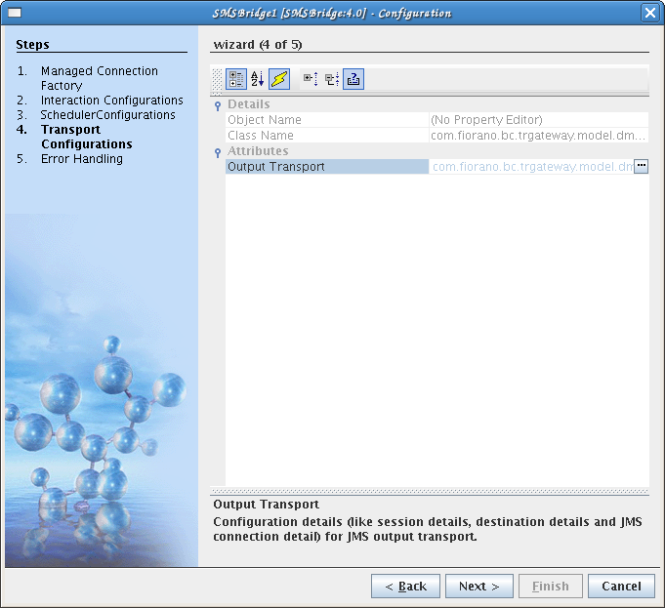
Attributes
Output Transport
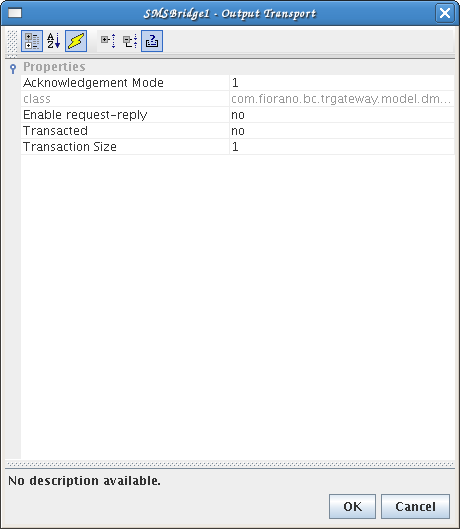
Properties
Acknowledgement Mode
The acknowledgement mode of the JMS session. The acknowledgement mode is set at the time the session is created. If the session is transacted, the acknowledgement mode is ignored.
Class
Enable request-reply (Yes / No)
If "Enable request-reply" is set to "yes" then responses will be sent to "JMSReplyTo" if it is present, else response is sent on the output port.
Transacted (Yes / No)
Set "yes" if the JMS session created should be transacted, and "no" otherwise.
Transaction Size
Transaction size is the number of messages after which the commit will be called on the corresponding JMS session.
Error Handling
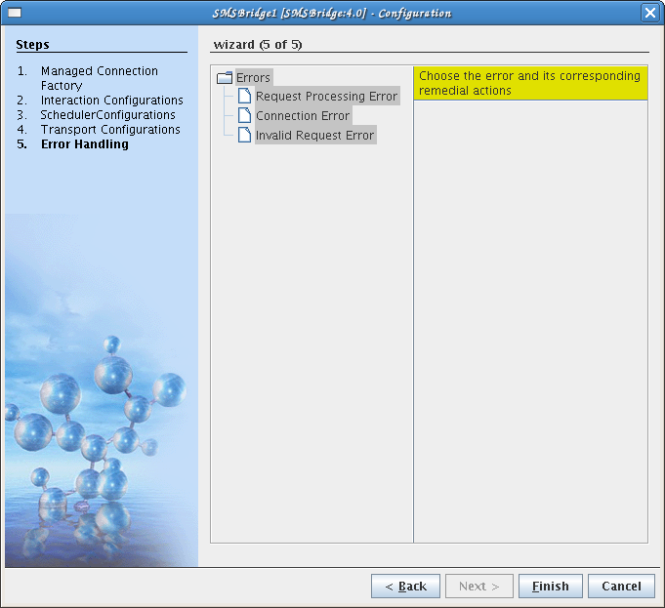
Please refer Error Handling section in Common Configurations for details regarding Request Processing Error, Connection Error, and Invalid Request Error.
Functional Demonstration
Scenario 1
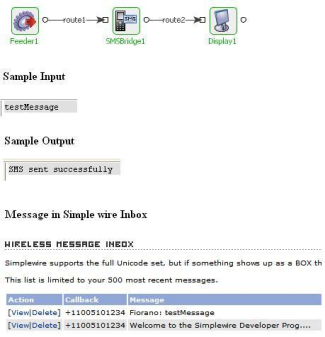
This scenario demonstrates the usage of the SMSBridge component to send short messages.
Configure SMSBridge as described in Configuration and Testing section and use feeder and display components to send sample input and check the response respectively.
For the sake of convenience, the configuration used in this scenario is presented here.
Useful Tips
-
To use the component, an account with http://www.simplewire.com/ is required.
-
If you are a beta-tester with http://www.simplewire.com/, then use the server name as "wmp".