
The JMS selector can be defined to check a particular value for a JMS message property and route messages based on the definition specified.
Defining a JMS Selector
To provide a JMS property string, select the route, click the Selectors property tab and provide a property along with the corresponding value. An empty string is treated as null and implies having no message selector set for the message consumer.
The order of evaluation of a message selector is from left to right within precedence level. However, this order may be changed using parenthesis.
Operators used in Syntax
Below operators may be used to create a logical condition
Logical operators:
-
NOT
-
AND
-
OR
Comparison operators:
-
=
-
>
-
>=
-
<
-
<=
-
<>
-
LIKE
-
NOT LIKE
-
IS NULL
-
IS NOT NULL
Examples
Below are a few examples using operators listed above.
age >= 10 AND age <= 20
age < 10 OR age > 20
(Country = ' UK') OR (Country = ' US') OR (Country = ' France')
NOT ((Country = ' UK') OR (Country = ' US') OR (Country = ' France'))
EmpID LIKE '12%3'
EmpID NOT LIKE '12%3'
prop_name IS NULL
prop_name IS NOT NULL
Scenario
Consider a flow with a feeder and a display connected by a route. Define a selector on the route which allows only those messages which have a property 'testProperty' with value chk.
Steps
To create a JMS selector,
-
Click the route and type-in the text below in the JMS text box under Selectors properties tab and save the event process.
testProperty='chk'
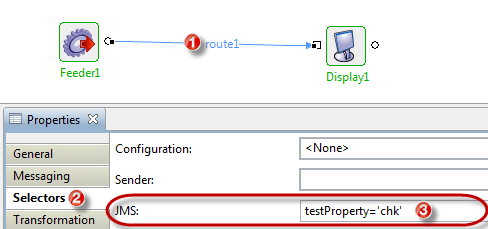
Figure 1: Configuring JMS Selector on a route
-
Run the Event Process after checking the resource and the connectivity.
-
Add the testProperty property to the input message sent from the Feeder. To do this, edit the Name and Value columns by clicking the Add button under the Headers & Attachments tab in the feeder. The message sent will be filtered based on this value.
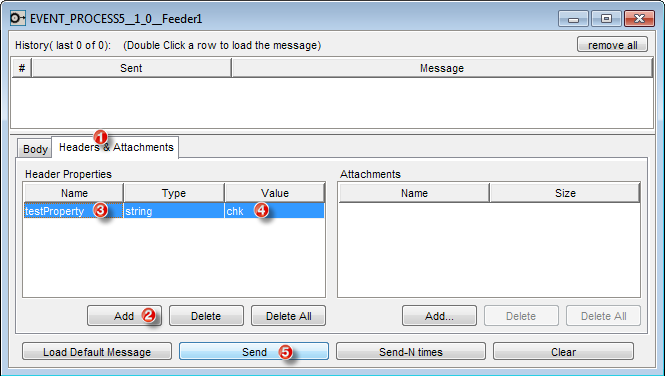
Figure 2: Setting property value on a message from the Feeder
-
Display window shows the message received, because the properties match the ones that were given under the JMS Selectors property.
-
Try sending messages with different properties other than what is set for JMS under Selectors and notice that only the messages with the matching properties get through and will be displayed in the Display window.
-
To select all the messages whose value of the testProperty is not chk, create a JMS selector with the expression testProperty<>'chk'