Online Event Process Development
Server Explorer
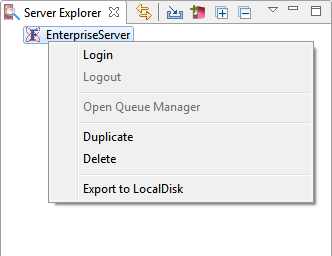
Enterprise Server before logging in
|
Option |
Description |
|
Login |
Provide credentials (Default: admin/passwd) to login to the Enterprise Server. Ensure that the FES (Fiorano Enterprise Server) is running. |
|
Duplicate |
To create a copy of the Enterprise Server. |
|
Delete |
To delete the duplicate of the Enterprise Server or an added server. The Main Enterprise Server cannot be deleted. |
|
Export to Local Disk |
To save the server with all configuration changes as made. This is performed when the server with a customized configuration has to be used on another instance or a future point of time. Refer to the Exporting and Importing Servers section. |
Enterprise Server after logging in
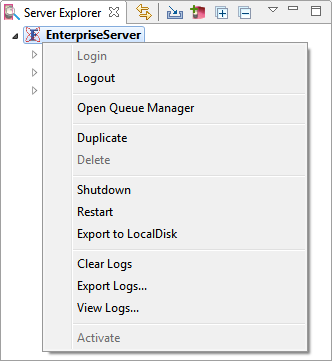
Below descriptions explain the options excluding the ones mentioned in the Enterprise Server before logging in section above.
|
Option |
Description |
|
LogOut |
To log out from the logged in Enterprise server. |
|
Open Queue Manager |
Fiorano Queue Manager tool provides a single view to see all the pending messages in an Event Process. Refer to the Fiorano Queue Manager section. |
|
Shutdown |
To stop the running server instead of performing it from the command prompt. Once the Server is shutdown using this option, it needs to be restarted using the Script files or from the Start menu. |
|
Restart |
It shuts down the running server and restarts. |
|
Clear Logs |
To delete Output and Error logs pertaining to the Enterprise Server. |
|
Export Logs |
To save the Enterprise Server logs for future reference or analysis. |
|
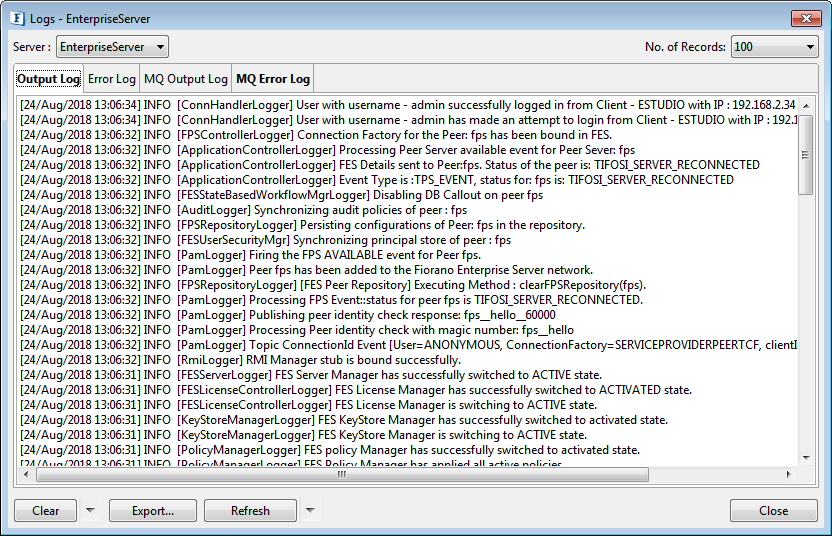
View Logs |
Displays the various message logs in segregated by tabs.
Clearing/Exporting logs is possible from this dialog box too. |
|
Activate |
To explicitly activate an inactive server; this option gets enabled in scenarios where multiple servers are running. Refer to the Working With Multiple Servers And Perspectives section. |
Event Process Repository
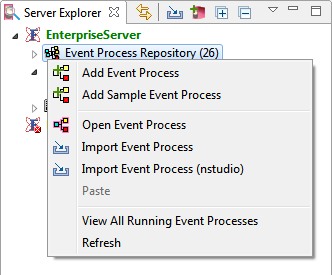
|
Option |
Description |
|
Add Event Process |
To add a new event process to the Event Process Repository. Refer to the add event process section. The new event process will be created under a new folder named "User Processes" other than the B2B and Samples folder of prebuilt event processes. |
|
Add Sample Event Process |
To open a pre-configured sample event process from the ones which are shipped with the Fiorano installation Refer to the Opening Sample Event Processes section. |
|
Open Event Process |
To open an already saved event process. |
|
Import Event Process |
To add an Event Process that is saved in a local disk or a server. Refer to the Importing an Event Process section. |
|
Import Event Process (nstudio) |
To add an Event Process that is exported from nStudio. Refer to the Importing an Event Process section. |
|
View All Running Event Processes |
To view all the running processes consolidated in a single window. Refer to the Managing all Running Event Processes section. |
Folder in the Event Process Repository
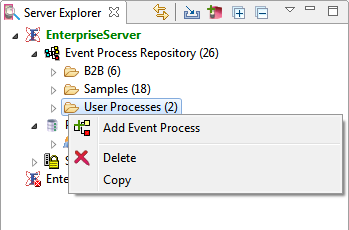
|
Option |
Description |
|
Add Event Process |
To add a new event process to the category under Event Process Repository. |
|
Delete |
The Delete option helps to remove both or one of the below from the particular folder:
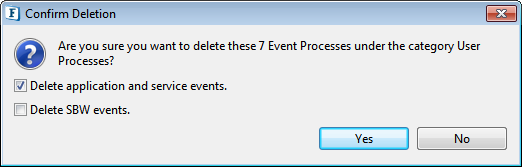
|
Event Process
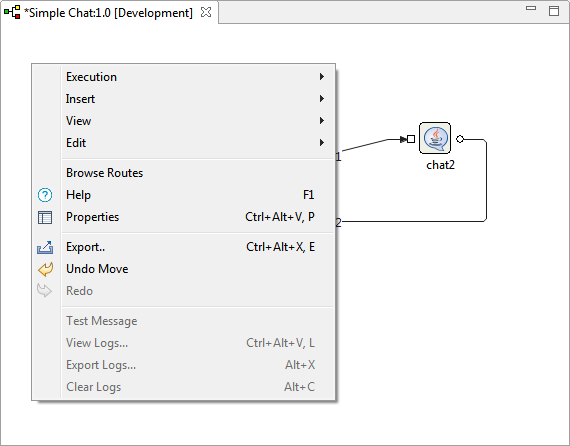
|
Option |
Description |
|
Team |
|
|
Validate |
|
|
Compare With |
|
|
Check Resources and Connectivity |
To do a connectivity and resource check for the Event Process. Refer to the respective section in the Running an Event Process section. |
|
Run |
To launch the event process after checking resource connectivity. Refer to the Launch Event Process section in the Running an Event Process section. |
|
Synchronize |
To modify running applications on the fly. Refer to the Synchronizing an Event Process section in the Running an Event Process section. |
|
Stop |
To stop a running event process. Refer to the Stopping an Event Process section in the Running an Event Process section. |
|
Open |
To open an event process for editing. |
|
Delete |
To delete an event process or SBW events in the event process. Refer to the description in the Folder in the Event Process Repository in the Running an Event Process section. |
|
Fetch from Server |
|
|
Refresh |
|
|
Rename |
To rename an event process. |
|
Add/View Documents |
To add additional information or any particular remarks regarding an event process and attach as a document to the Event Process for future reference purposes. Refer to the Adding Documents to an Event Process section for detailed information. |
|
Open Queue Manager |
To provide a single view to see all the pending messages in an Event Process. Refer to the Fiorano Queue Manager section. |
|
Export |
To save the event process as a zip file in the desired location. Refer to the Exporting an Event Process section. |
|
Export to File |
|
|
Save As |
To create a copy of an event process. |
|
Upgrade Version |
To create a different version of an event process. |
|
View Logs |
To check Output and Error logs of service instances in the event process. |
|
Export Logs |
To export logs of service instances in the event process. |
|
Clear Logs |
To remove the event process logs. |
|
Show Configuration Usages |
|

Fiorano Orchestrator
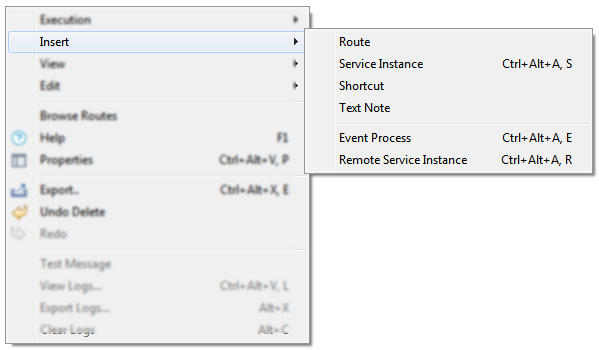
In an Event Process
|
Option |
Description |
|
Execution |

|
|
Insert |
|
|
View |
|
|
Edit |
|
|
Browse Routes |
|
|
Help |
|
|
Properties |
|
|
Export |
|
|
Undo Delete |
|
|
Redo |
|
|
Text Message |
|
|
View Logs |
|
|
Export Logs |
|
|
Clear Logs |
|
Closing Windows
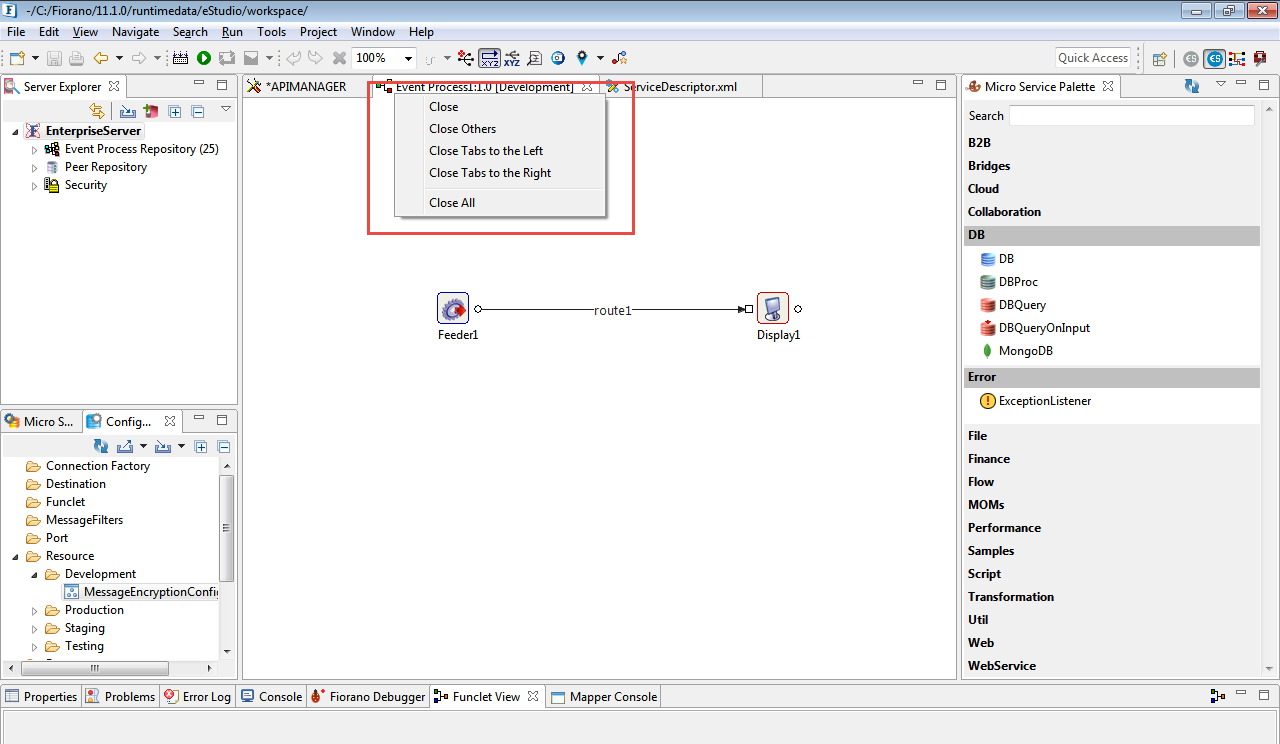
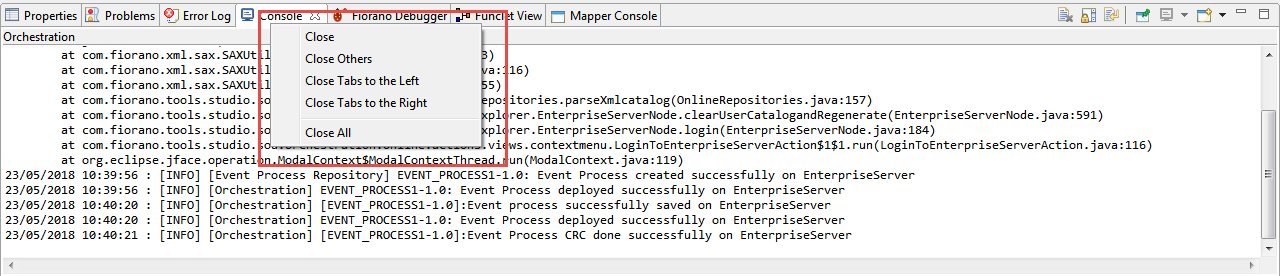
When multiple windows are opened in eStudio, it may be closed
-
Close: Closes the selected event process.
-
Close Others: Closes all other event processes other than the selected one.
-
Close Tabs to the Left: Closes the windows on the left side of the selected event process.
-
Close Tabs to the Right: Closes the windows on the right side of the selected event process.
-
Close All: Closes all event processes including the selected one.