
To assigned a specific server to a particular Component Instance, perform the actions below:
-
Select the Component instance in the Fiorano eStudio window and click on the button against the Nodes property of a component as shown in the figure below.
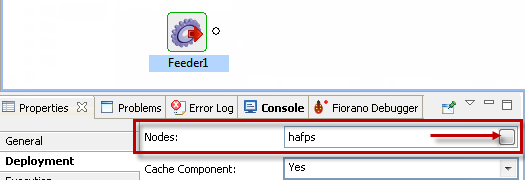
Figure 1: Nodes property for a component
-
This displays a list of current peer servers available on the network. Select the peer server (move from the Available Nodes section to the Selected Nodes section) that needs to be assigned to the component and click the OK button.
Operating System-specific icons assist the user in identifying the Operating System on which the Fiorano Peer Server is running.
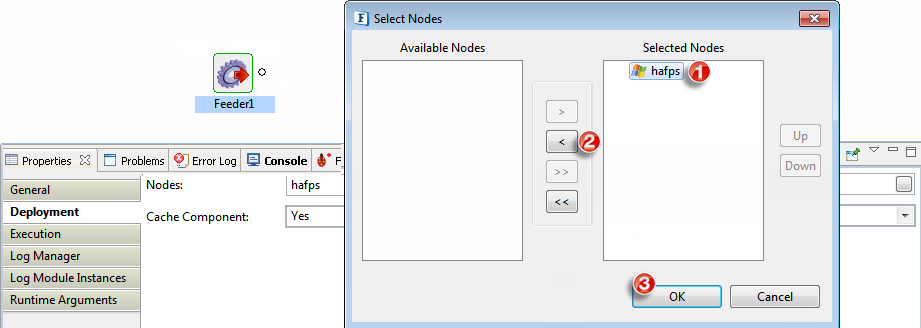
Figure 2: Fiorano Peer Server name on which the component will run
The Fiorano eStudio menu includes the Check Resources and Connectivity as well as the Synchronize features (as shown in Figure 3) to dynamically deploy the resources and dependencies of a component from the Fiorano Enterprise Server to the Fiorano Peer Server so as to launch and execute a component locally on the peer.
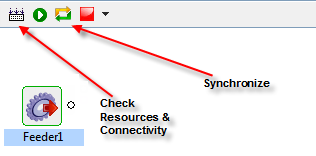
Figure 3: Fiorano eStudio menu items for dynamic deployment