
Importing from Local Disk
An Event Process can be imported from the local disk and from the Server.
To import an Event Process from the local disk, perform the steps below:
-
Right-click the Event Process Repository node and select Import Event Process from the menu.
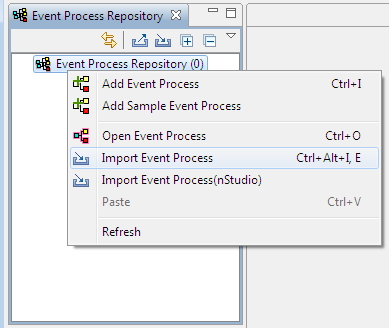
Figure 1: Import Event Process from the local disk
-
Browse the location of Event Process zip file(s) (where the exported Event Processes are saved) and click Open in the browse window or double-click the zip file(s).
A list of all Named Configurations used in or referred by the Event Processes are available; select the Event Processes and configurations to be imported along with the Event Process in the Import Applications wizard.
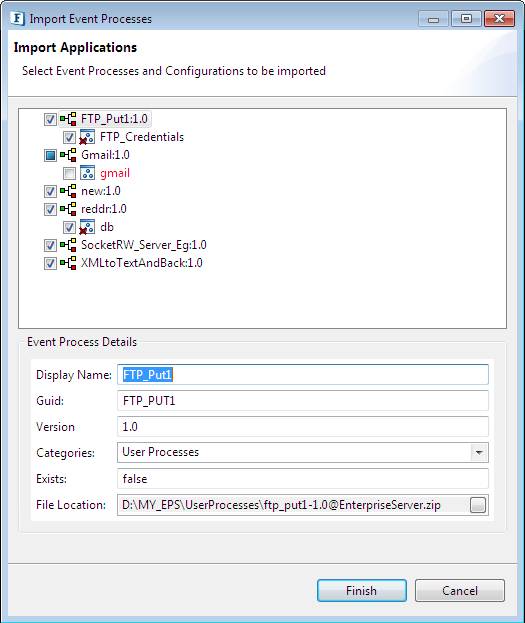
Figure 2: Import Application Wizard-
Event Processes or Configurations that are already present in the repository are shown in Red font.
-
The configurations used in the Event Process which are presently missing in the ZIP file are indicated using a Red cross (

-
Importing from Server
To import an Event Process from the Server, perform the steps below:
-
Click the Import Event Process from Server

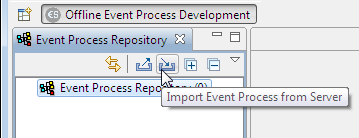
Figure 3 Import Event Process from Server
-
The Select a Sever dialog box is displayed with a drop-down menu listing all servers specified in the Fiorano ESB Connection Preferences page. Select the Server from which the Event Process is to be imported and click OK.
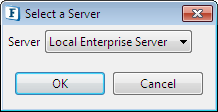
Figure4: Select the Enterprise Server
-
The Select Event Process To Be Imported dialog box is displayed listing all the Event processes deployed in the server. Select the Event Process to be imported and click OK.
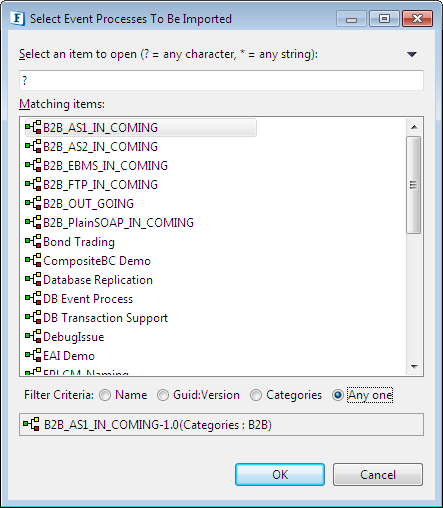
Figure 5: List of Event Process in the server