
Event Process can be exported to local disk or to a server from the Offline Event Process Development perspective.
Exporting to Local Disk
To export an Event Process onto a local disk, perform the steps below:
-
Right-click the Event Process to be exported from the Event Process Repository view and click Export from the menu.
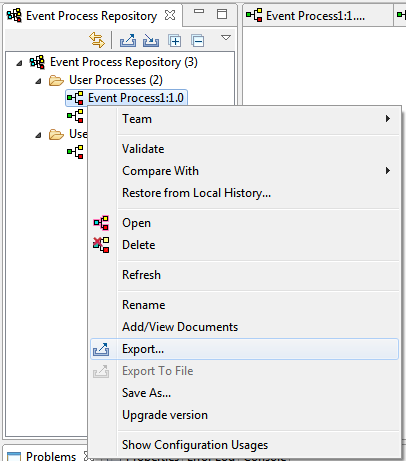
Figure 1: Export Event Process to local disk
-
The Export Event Process dialog box provides a list of all the Event Processes available for exporting along with all the Event Processes referred to by this Event Process as well as the named configurations used in those Event Processes. A uUser can choose the artifacts to be exported by selecting the check boxes next to their names.
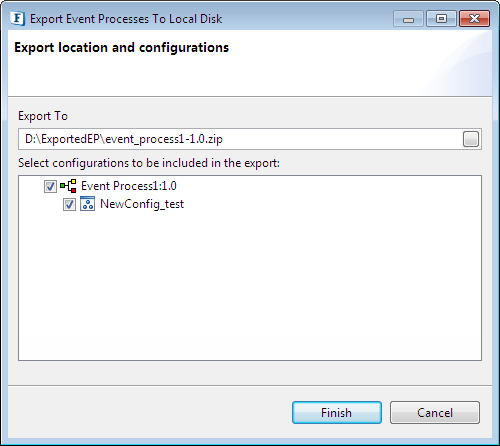
Figure 2: Selecting Dependencies and Configurations for exporting
If the exported Event Process has other Event Processes as dependencies and each of those Event Processes in turn have dependencies then all these Event Processes are exported along with their configurations in a chain manner into a single folder and the dependency chain is saved in a metadata file.
-
To change the default location (Desktop) to which the Event Process is saved, specify the file name and location to save and click OK. The Event Process project along with dependencies and configurations chosen will be saved as a .zip file.
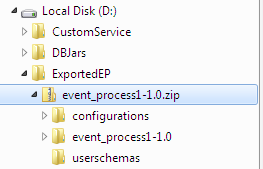
Figure 3: Contents of the exported ZIP file
Exporting to Server
To export an Event Process to a Server, perform the steps below:
-
Click on Export Event Process to Server icon located on the Event Process Repository view tool bar as shown in the figure below. The Select Event Process To Be Exported dialog box is displayed listing all the Event Processes in the offline repository and shows the Servers list specified within the Fiorano Preferences. For more information on configuring servers please refer to the Fiorano Preferences section.
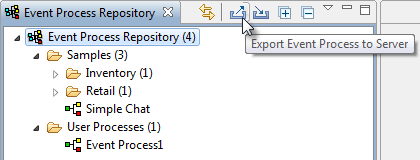
Figure 4: Clicking the Export Event Process to Server icon
-
In the Select a Server dialog box, select the server to which the Event Process is to be exported from the Server drop-down menu.
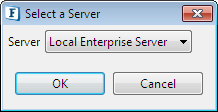
Figure 5: Selecting the server
-
Select the Event Process and Configurations to be exported and select the Server onto which it is to be exported. Click Finish.
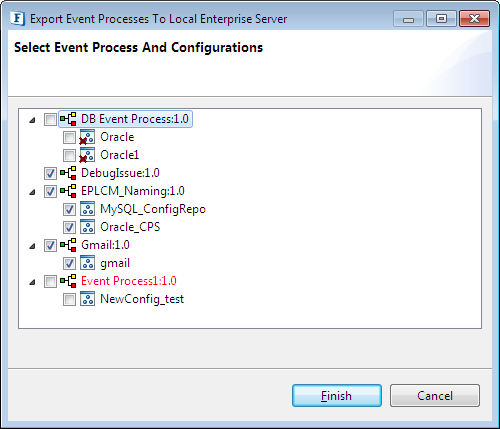
Figure 6: Selecting the Event Process and Configurations to be exported-
While exporting to a server, if an Event Process or a Configuration already exists on the Enterprise server, it is displayed in Red.
-
If a configuration used in an Event Process is missing from the Configuration Repository, the missing configurations will be flagged with a Red Cross displayed across the configuration icon (

).
-
-
Clicking Finish (figure above) displays a confirmation dialog box with prompts to whether to overwrite or skip conflicting artifacts. Choose the appropriate option.
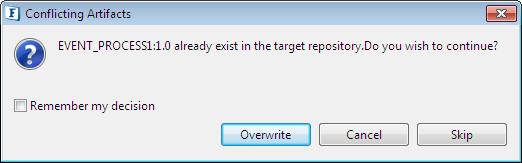
Figure 7: Option to choose Overwrite or skip conflicting artifacts