
The FMQTerminal uses a third-party library Jline http://jline.sourceforge.net/. It is not a pure Java library as it ships with some native code. The FMQTerminal works perfectly on the following platforms:
-
Microsoft Windows
-
RedHat Linux 9.0
-
Debian Linux 3.0
-
Macintosh OS X 10.3
Logging in
-
Navigate to %FIORANO_HOME%\fmq\terminal\FMQConsole.bat for Windows platform and $FIORANO_HOME/fmq/terminal/FMQConsole.sh for UNIX systems.
-
This command, without any arguments, connects to the FioranoMQ Server running on localhost. A request for login and password appears. Enter login and password details.
The password’s characters (typed) are not visible on the screen.
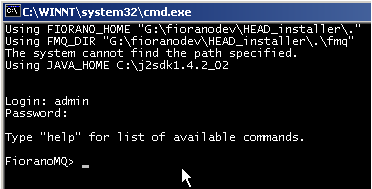
The FMQTerminal works similar to normal telnet emulators like PuTTYtel and others.
You can choose the specific FioranoMQ Server to connect to by passing the parameter mars to the executable fmq-terminal.bat (fmq-terminal.sh for Unix)
FMQConsole mars
This command searches for mars.properties in the %FIORANO_HOME%\fmq\terminal directory. If no argument is specified, then the default the localhost.properties file in the %FIORANO_HOME%\fmq\terminal directory is used.
localhost.properties is shown below:
jmx.service.url=service:jmx:rmi://localhost/jndi/fmq
java.naming.factory.initial=com.sun.jndi.rmi.registry.RegistryContextFactory
java.naming.provider.url=rmi://localhost:1858
java.naming.security.principal=admin
java.naming.security.credentials=passwd
It is possible to create a properties file for each FioranoMQ Server of interest and use it by passing the file name without the extension as an argument.
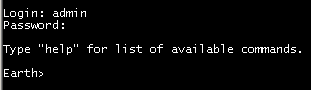
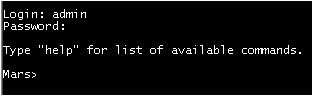
If multiple servers need to be administered from a single location, the prompt can be customized to identify the Target Server.
FMQConsole localhost Mars
Here, the third argument specifies the prompt name.
Commands List
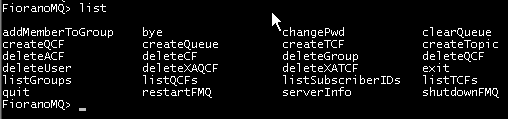
Type a few characters and press the <tab> key for auto completion.

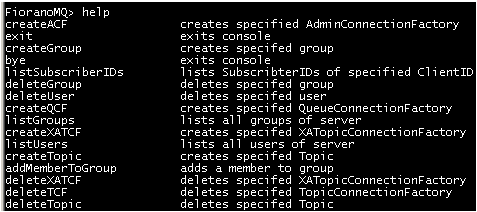
Help Command to Print Command and their Help
Description and Example for Command
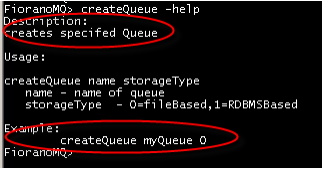
The examples above show how arguments can be passed.
Print Usage on Parameter Mismatch
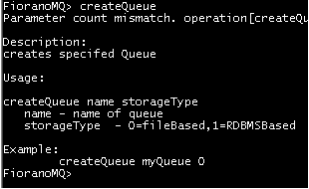
Invalid commands are displayed as 'not recognized':

Comment Command
All lines starting with # (a Hash or Pound sign) are treated as a comments: they and do not perform any actions.

Run List of Commands from File
If there is a file named mysetup.cmds with the following contents:
# Some commands on QCF
createQCF myQCF http://localhost:8090
deleteQCF myQCF
# Commands continued
createXAQCF myXAQCF http://localhost:8090
deleteXAQCF myXAQCF
createQueue myQueue 0
Then, it is possible to run the following commands on this file:
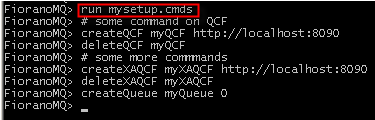
In the above example, -quiet can be specified as a second argument if commands are not to be echoed.
Adding more Commands to a Terminal
All available commands can be viewed in the commands.xml file:
%FIORANO_HOME%\fmq\terminal\commands.xml
A snippet of commands.xml is shown below:
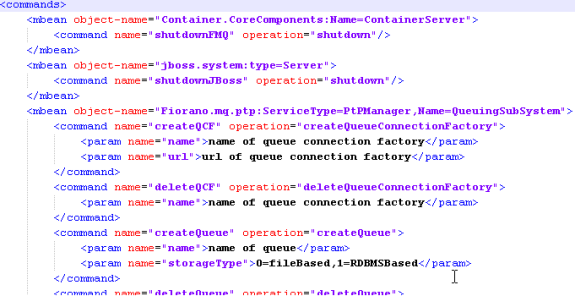
The Mbean operations are found in the eStudio, and they can be added to the commands.xml file. This function ensures that users are not limited to the built-in commands that ship with the installer.
Exiting the Terminal
To exit the FMQTerminal, any of the following commands can be used:
-
exit
-
quit
-
bye
-
Ctrl+D

This returns you to the standard command prompt.