
SalesForce 5.0 microservice simplifies the process of connecting salesforce.com's Bulk API. SalesForce 5.0 microservice helps to query, insert, update, upsert, or delete multiple records. Records can be submitted in XML, JSON, or CSV formats.
Configuration
Component Configuration
Various properties pertaining to the microservice ca be configured in the CPS (Configuration Property Sheet) as displayed below.
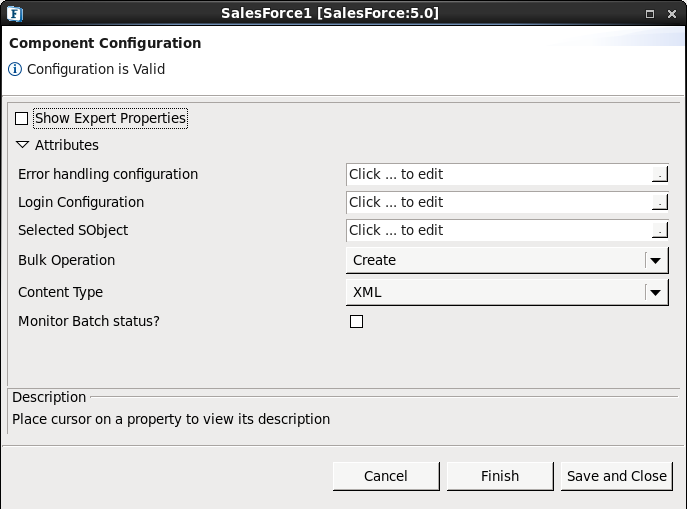
Figure 1: Component Configuration panel
Error handling configuration
The remedial actions to be taken when a particular error occurs can be configured using this attribute.
Click the ellipsis button against this property to configure Error Handling properties for different types of Errors. By default, the options Log to error logs, Stop service and Send to error port are enabled.
Refer the Error Handling section in the Common Configurations page for detailed information.
Login Configuration
Click the Login Configuration ellipsis 
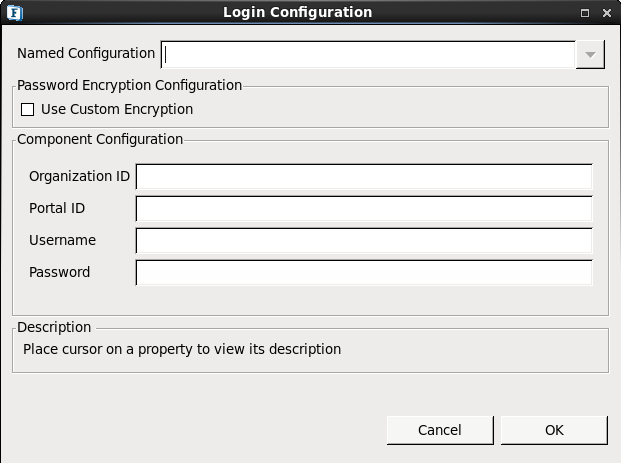
Figure 2: Login Parameters panel
This property specifies the parameters which need to be passed to salesforce.com while logging. Parameters like username, password etc. can be specified here. While entering password details, the security token should be concatenated with it to make authentication successful.
Selected Objects
This property helps to choose from the objects listed in the salesforce.com to which the operations are applied. This property lists all the objects in the salesforce.com including custom SObjects.
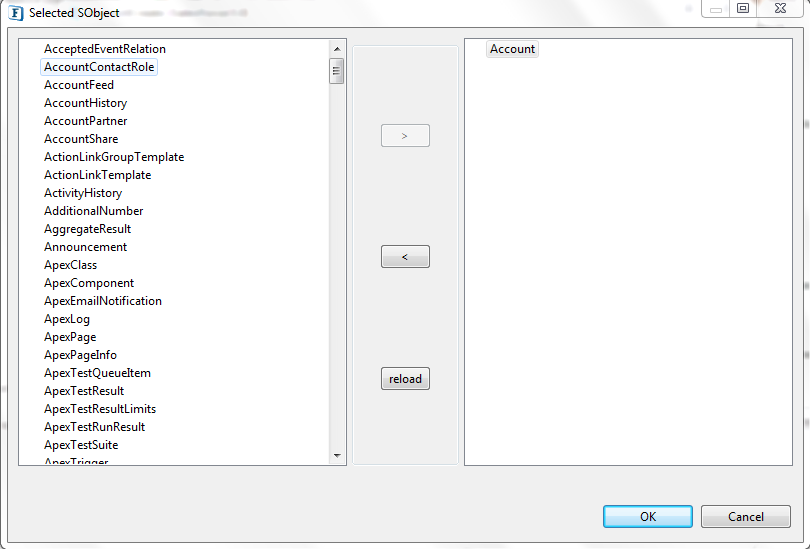
Figure 3: Selected SObject panel
The buttons present in the Selected SObjects dialog box are described in the table below.
|
Operation |
Description |
|
> |
To include an object from the list of objects in the left panel. |
|
< |
To exclude an object from the list of objects in the right panel. |
|
reload |
To refresh the left panel to update with new objects/custom objects. |
Multiple SObjects cannot be selected from the left panel and therefore only one object can be configured at a time.
Content Type
The records can be represented in the following formats:
-
XML
-
JSON
-
CSV
Operation Type
Operations that can be done in the salesforce.com are:
-
Create
-
Update
-
Upsert
-
Delete
-
Query
Select the appropriate operation type from the drop-down.
Create Operation
This property specifies the bulk operation which is used to create records in salesforce.com.
Sample Input
<?xml version="1.0" encoding="UTF-8"?>
<sObjects xmlns="http://www.force.com/2009/06/asyncapi/dataload">
   <sObject>
      <Name>Test</Name>
      <Description>SE</Description>
      <AccountNumber>ABC15797531</AccountNumber>
   </sObject>
   <sObject>
      <Name>Test Inc.</Name>
      <Description>BG</Description>
      <AccountNumber>ABC24689753</AccountNumber>
   </sObject>
</sObjects>
Update Operation
This property specifies the bulk operation which is used to update the records in salesforce.com.
Sample Input
<?xml version="1.0" encoding="UTF-8"?>
<sObjects xmlns="http://www.force.com/2009/06/asyncapi/dataload">
   <sObject>
      <Name>Test</Name>
      <Description>ASDFGh</Description>
      <AccountNumber>ABC15797531</AccountNumber>
      <Id>0019000001hUJXMAA4</Id>
   </sObject>
   <sObject>
      <Name>Test Inc.</Name>
      <Description>QWERTY</Description>
      <AccountNumber>ABC24689753</AccountNumber>
      <Id>0019000000LxHjyAAF</Id>
   </sObject>
</sObjects>
Upsert Operation
This property specifies the bulk operation which is used to insert records automatically in salesforce.com depending upon the existing row.
Sample Input
<?xml version="1.0" encoding="UTF-8"?>
<sObjects xmlns="http://www.force.com/2009/06/asyncapi/dataload">
   <sObject>
      <Name>Test</Name>
      <Description>SE</Description>
      <AccountNumber>ABC15797531</AccountNumber>
   </sObject>
   <sObject>
      <Name>Test Inc.</Name>
      <Description>BG</Description>
      <AccountNumber>ABC24689753</AccountNumber>
   </sObject>
</sObjects>
Delete Operation
This property specifies the bulk operation which is used to delete the records in salesforce.com based on the ID specified.
Sample Input
<?xml version="1.0" encoding="UTF-8"?>
<sObjects xmlns="http://www.force.com/2009/06/asyncapi/dataload">
   <sObject>
      <Id>0019000001uHBRwAAO</Id>
   </sObject>
   <sObject>
      <Id>0019000001uHBRvAAO</Id>
   </sObject>
</sObjects>
Query Operation
This property specifies the bulk operation which is used to query the records in salesforce.com based on the condition specified.
Sample Input
<?xml version="1.0" encoding="UTF-8"?>
<ns1:SalesForce xmlns:ns1="http://schema/salesforce5">
   <ns1:Query>SELECT id,Name, accountnumber from account</ns1:Query>
</ns1:SalesForce>
The query operation is used only for the XML type of records.
Similarly, when the Content Type property is selected as 'JSON', the sample input for the Create operation is given below:
[{

 "Name": "Xyz",
 "Description": "Test1",
 "AccountNumber": "ABC15797531"
 }, {
 "Name": "Xyz",
 "Description": "Test2",
 "AccountNumber": "ABC24689753"
 }]
Similarly, when the Content Type property is selected as 'CSV', the sample input for the Create operation is given below:
Name,Description,AccountNumber
Xyz,Test3,ABC24689753
Monitor Batch Status
If enabled, then the 'Monitoring Interval' property will appear as shown in the figure below. The time interval in milliseconds after which status of the batch is sent to the Status Port.

Figure 4: Monitor Interval option
Functional Demonstration
Scenario
Configure the Salesforce microservice as described in the Configuration section above to create accounts SObject on salesforce.com and use the Feeder and Display microservices to send sample input and check the response respectively.
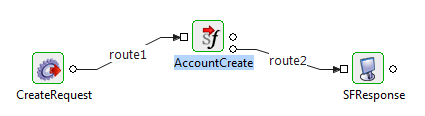
Figure 5: Demonstrating scenario with sample input and output
Input Message
<?xml version="1.0" encoding="UTF-8"?>
<sObjects xmlns="http://www.force.com/2009/06/asyncapi/dataload">
   <sObject>
      <Name>Test</Name>
      <Description>SE</Description>
      <AccountNumber>ABC15797531</AccountNumber>
   </sObject>
   <sObject>
      <Name>Test Inc.</Name>
      <Description>BG</Description>
      <AccountNumber>ABC24689753</AccountNumber>
   </sObject>
</sObjects>
Output Message
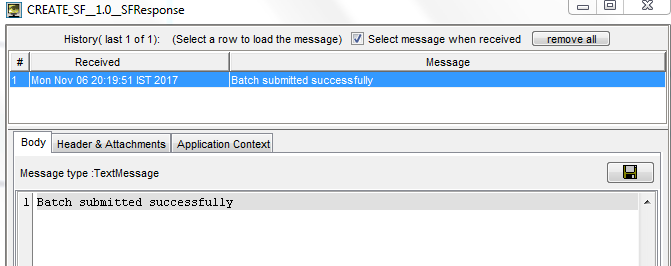
Figure 6: Output Message