
S3Download microservice downloads all the files from a specified bucket.
Get the Access Key id and Secret Key from the AWS Management Console at https://console.aws.amazon.com/s3.
Provide AmazonS3FullAccess policy to the user to get the full access to the S3 service.
Configuration and Testing
Component Configuration
The figure below illustrates the Component Property Sheet (CPS) panel with Expert Properties view enabled.
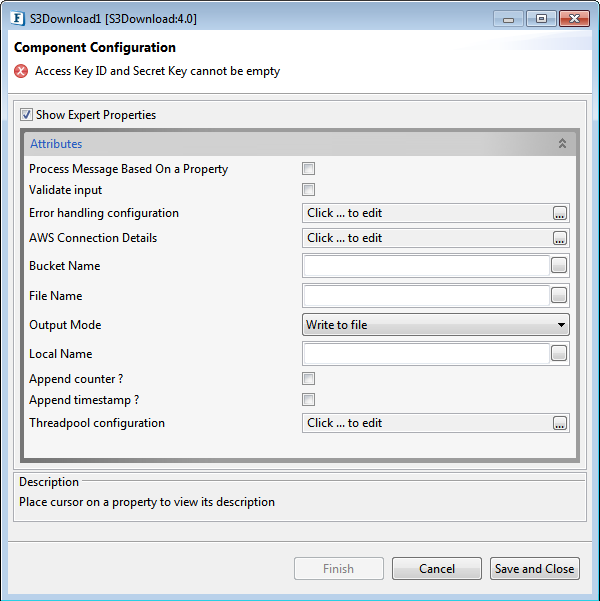
Figure 1: Configuration panel of S3Download
Process Message Based on Property
The property helps components to skip certain messages from processing.
Refer the Process Message Based On a Property section under the Common Configurations topic.
Validate Input
If this attribute is enabled, the service tries to validate the input received. If disabled, service will not validate the input. For more details, refer Validate Input section section under Interaction Configurations in Common Configurations page.
Performance increases Validate Input option is disabled, but it may cause undesired results in case the input XML is not valid.
Error handling configuration
The remedial actions to be taken when a particular error occurs can be configured using this attribute.
Click the ellipsis button against this property to configure Error Handling properties for different types of Errors. By default, the options Log to error logs, Stop service and Send to error port are enabled.
Refer Error Handling section in Common Configurations for detailed information.
AWS Connection Details
Click the AWS Connection Details ellipsis 
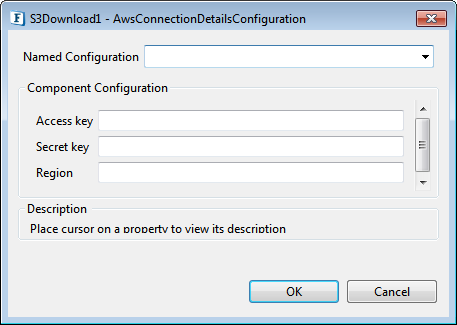
Figure 2: AWS Connection properties
Access Key
Specify the Access Key id
Secret Key
Specify the Secret Key
Region
The region of AWS Management console.
Bucket Name
Specify the S3 bucket name. Component does not create the bucket, so specify the existing one only.
File Name
Specify the file name to be downloaded from the specified bucket name
Output Mode

Figure 3: Output mode properties
Send on output port
The generated output is sent to the output port of the S3Download
Write to file
Writes the content to the file that gets created as specified in the Local File Name (see the below section) property
The following properties are visible when Write to file property is enabled.
Local file name
The name of the file to be saved in the local system
Append counter
File name is appended with the counter.
-
If enabled, a counter is appended to the file name of each downloaded file. Appending counter to file names ensures that no two files in the directory will have the same name.
-
If disabled, no counter is added to the local file name
Append Timestamp
Specifies if a time stamp has to be appended to the provided local file name
-
If enabled, S3Download adds a time stamp whose format is provided through the Timestamp format property
-
If disabled, no timestamp is added to the file name
Threadpool Configuration
This property is used when there is a need to process messages in parallel within the component, still maintaining the sequence from the external perspective.
-
This needs to be used only in such circumstances.
-
If sequential processing is not required, please use sessions on the input port.
Click the Threadpool Configuration ellipsis 
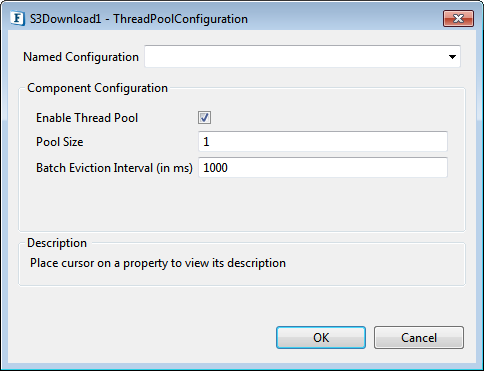
Figure 4: Threadpool Configuration properties
Enable Thread Pool
Enable this option to configure the properties that appear as below.
Pool Size
Number of requests to be processed in parallel within the component. Default value is '1'.
Batch Eviction Interval (in ms)
Time in milliseconds after which the threads are evicted in case of inactivity. New threads are created in place of evicted threads when new requests are received. Default value is '1000'.
Functional Demonstration
Downloading a file from the AWT Management console and displaying the status.
Configure S3Download component as described in Configuration and Testing section and use Feeder and Display components to send sample input and check the response respectively.
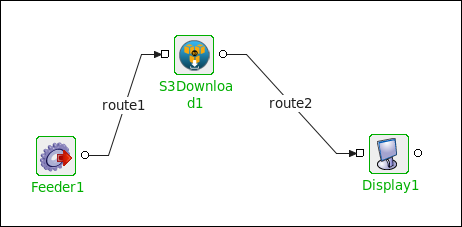
Figure 5: Demonstrating a scenario with sample input and output
Input Message

Figure 6: Sample input message for S3Download
Output Message
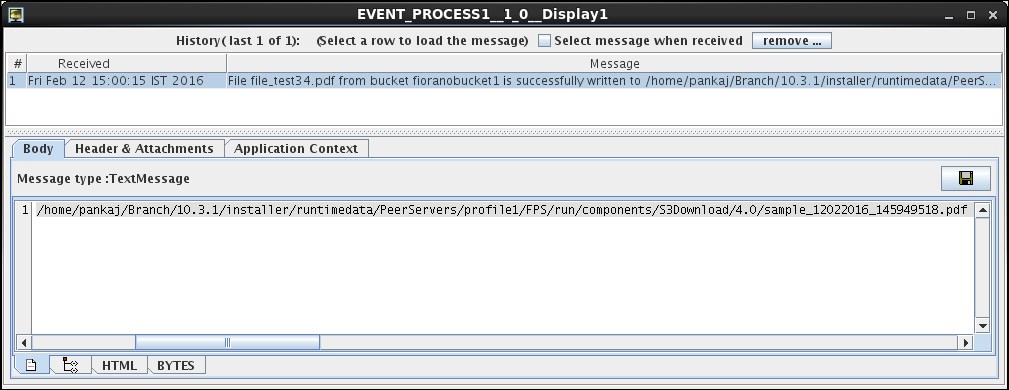
Figure 7: Output demonstrating the status of the downloading file