
This section discusses the process of generating a keystore file, using it to create a Certificate Signing Request (CSR) for third party CA authorities, importing the signed certificates back into the keystore, and using it in Fiorano to create secure RESTful or Web services.
Generating a Keystore
-
Open command prompt and navigate to the %JDK_HOME%/bin directory.
JDK8 is used in this exercise.
-
Enter the following command, and then press Enter.
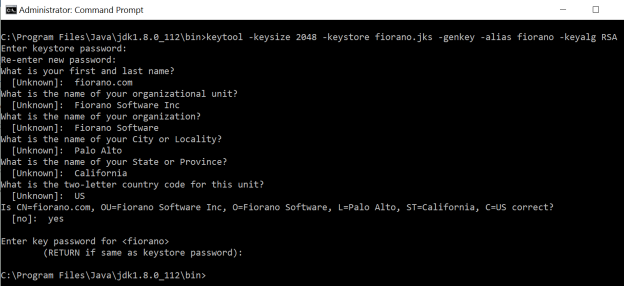
keytool -keysize 2048 -keystore fiorano.jks -genkey -alias fiorano -keyalg RSAUse any name for keystore and alias. Ensure that the same names and alias are used in the subsequent commands..
-
Enter a password for the keystore. The password used in this example is "fioranopass".
-
Provide the Organization details as prompted. When prompted for the First Name and Last Name, enter the fully qualified domain name (FQDN), Host Name or URL of the organization for which the certificate is applied for.
-
For requesting a Wildcard certificate, please add an asterisk * on the left side of the Common Name.
Example: .mydomain.com or www.mydomain.com. This secures all subdomains of the Common Name.All the details provided in this step must be valid. If any of these values are invalid, CA authorities reject the CSR. In this example, fiorano.com is used as the First and Last name, as this certificate is generated to secure RESTful/webservices in fiorano.com.
Generating a Certificate Signing Request (CSR)
A CSR needs to be generated using the keystore created in the previous section. This CSR is used by the CA authorities. Whenever a keystore is changed or updated, a new CSR needs to be generated.
To Generate a CSR, perform the actions below:
-
Enter the following command, and then press Enter:
keytool -keystore fiorano.jks -certreq -alias fiorano -keyalg rsa -file fiorano.csr -sigalg SHA256withRSA -
Provide keystore password (fioranopass) provided in the Generating a Keystore section above.

-
A file named "fiorano.csr" gets created which contains the certificate signing request (CSR). This CSR has to be passed on to the external/third party Certificate Authority (CA).
The CA will authenticate the certificate requestor (usually off-line) and will return a certificate or certificate chain used to replace the existing certificate chain (which initially consists of a self-signed certificate) in the keystore.
Generating SSL certificate using CSR
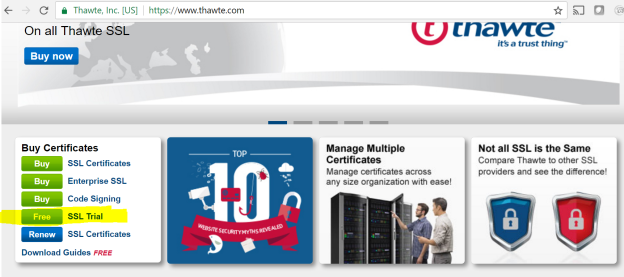
A third-party CA website needs to be used to request an SSL certificate using the CSR generated in the Generating a Certificate Signing Request (CSR) section. Third party CA websites such as http://www.thawte.com/ and https://www.godaddy.com can be used to generate SSL certificates. In this example, a 21-day trial certificate of Thawte.com is generated and used. This trial certificate is not recommended to be used in the actual implementation.
To copy the CSR,
-
Open the fiorano.csr file generated in the Generating a Certificate Signing Request (CSR) section.
-
Highlight the area from ----BEGIN CERTIFICATE REQUEST to END CERTIFICATE REQUEST---- and press Enter.
-
Paste it in the CA website online application to generate SSL certificates.
Using certificates from a CA authority
CA authorities will subsequently send a signed certificate, intermediate certificate and root certificate. Import all these certificates into the fiorano.jks keystore file.
-
The intermediate and root certificate should have different alias names, but the primary signed certificate should be imported with the same alias that was used while creating a certificate pair in the Generating a Keystore section.
-
Download certificate files from the certificate authority and save them to the same directory as the keystore created during the CSR creation process.
The certificate will only work with the same keystore that was initially created with the CSR. The certificates must be installed to the keystore in the correct order.
Assuming sslcert.pem, intermediate.pem and root.pem are the certificates received from CA authorities, following commands are used to import all the certificates into the keystore.
Command 1
keytool -importcert -alias intermediate -file intermediate.pem -keystorefiorano.jks -storepassfioranopass

Command 2
keytool -importcert -alias root -file root.pem -keystorefiorano.jks -storepassfioranopass

Command 3
keytool -importcert -alias fiorano -file sslcert.pem -keystorefiorano.jks -storepassfioranopass

All the certificates are added to the keystore and it is ready to use.
When root and intermediate certificates are added to the keystore, a message: "Certificate was added to keystore" is displayed. When the primary certificate is added to the keystore, a message "Certificate reply was installed in keystore" is displayed.
If there are no errors in this process, move to the Using the keystore in Fiorano section.
Listing keystore entries
To list the keystore and check if all the certificates are imported successfully, use the following command:
keytool -list -keystore fiorano.jks -storepass fioranopass
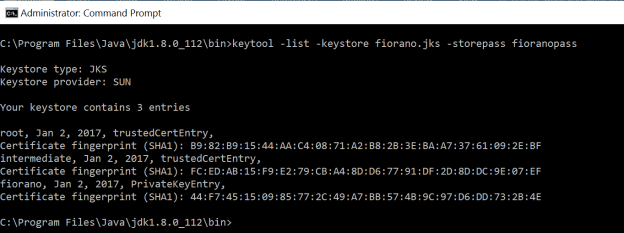
To display the certificate chain length for fiorano alias, specify the -v option in the above command.
keytool -list -v -keystorefiorano.jks -storepassfioranopass
