
If an information such as a warning, recommendation, or tip related to the event process or a service instance, which needs to be displayed as a note on Fiorano Orchestrator, this can be provided by inserting a text note.
To insert a text note,
-
Right-click the Fiorano Orchestrator, go to the Insert option and click the Text Note option.
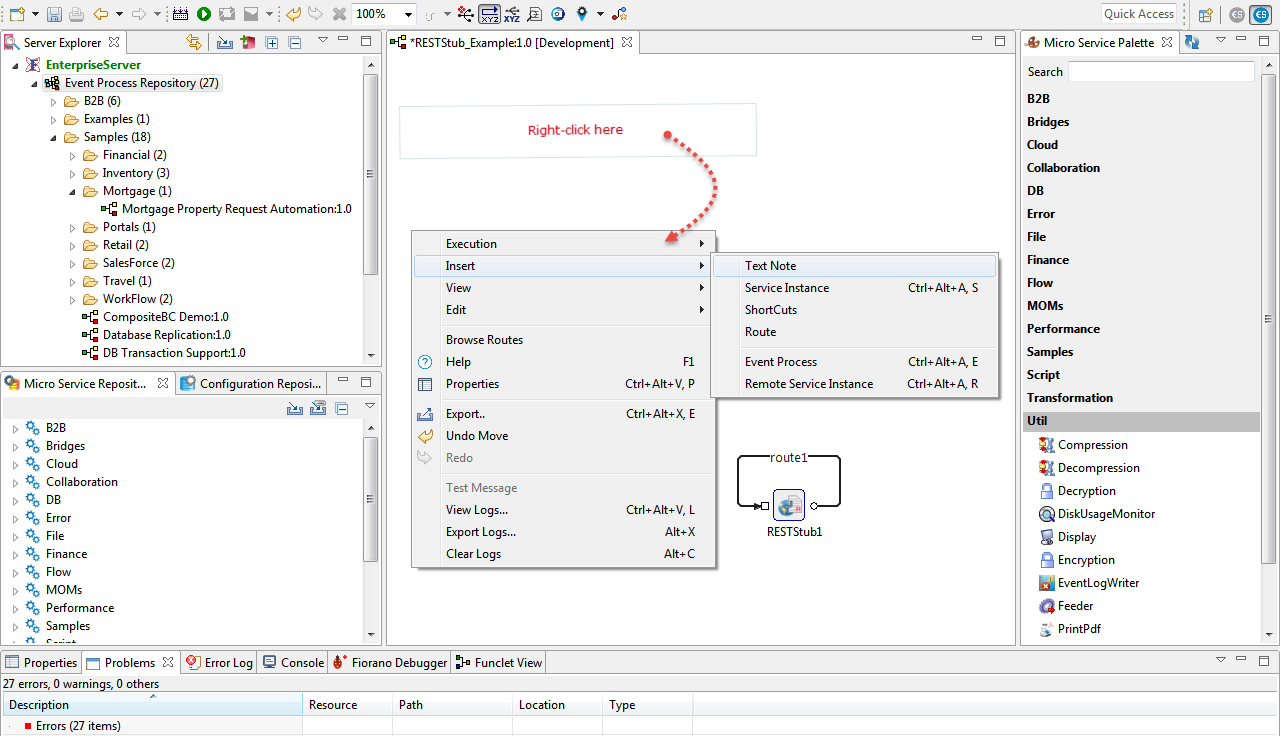
Figure 1: Opening the Text Note dialog box by right-clicking the Fiorano Orchestrator
-
Add a preferred name that represents the content in the TextNoteName text box and click OK.
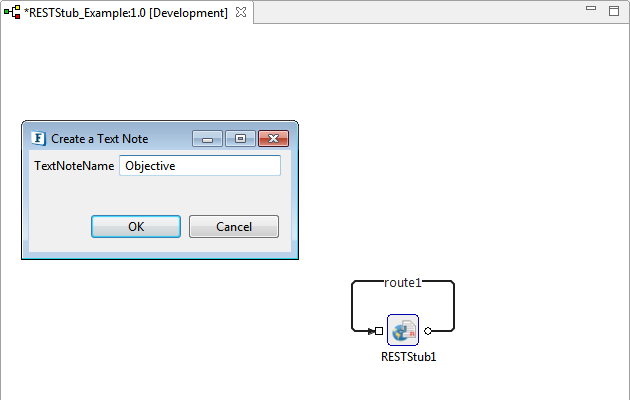
Figure 2: Naming the Text Note
-
Double-click the text note and provide the note in the Text Note text editor and click OK.
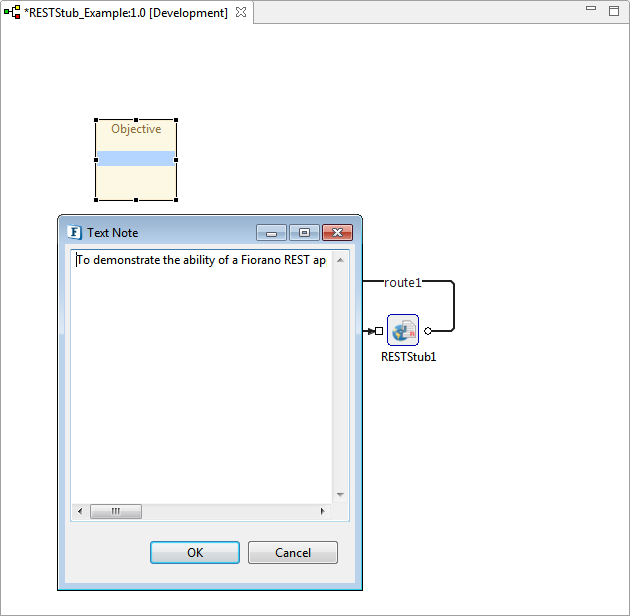
Figure 3: Entering information by double-clicking the note
-
The note gets displayed on the Fiorano Orchestrator.
This note can be moved (dragged) to any desired location within the event process.
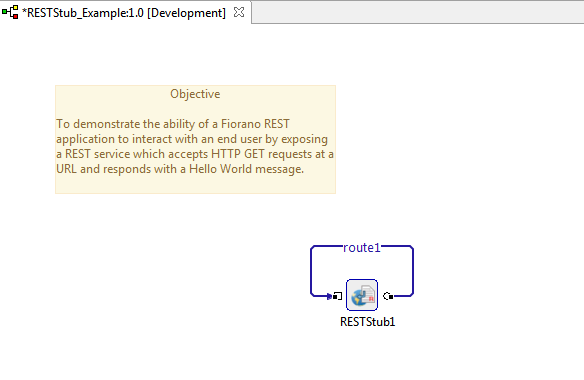
Figure 4: The event process displaying the note entered