
External Transaction is used to provide explicit commands to begin and end transactions instead of running a component in Scheduler mode.
Configuring External Transaction
To configure the DB component for using External Transaction in queries:
-
Double-click the DB component to open CPS and configure it.
-
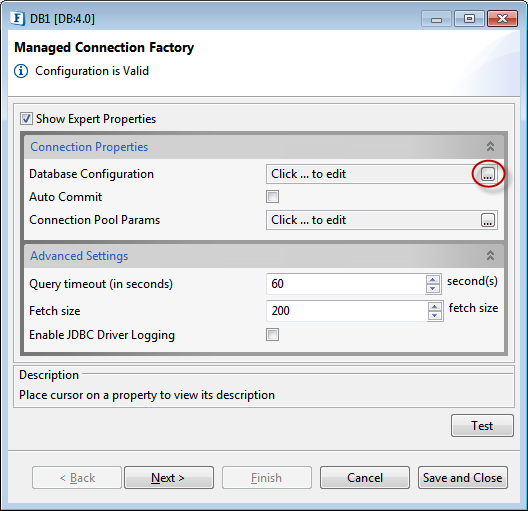
In the Managed Connection Factory dialog box, click the Database Configuration ellipsis

-
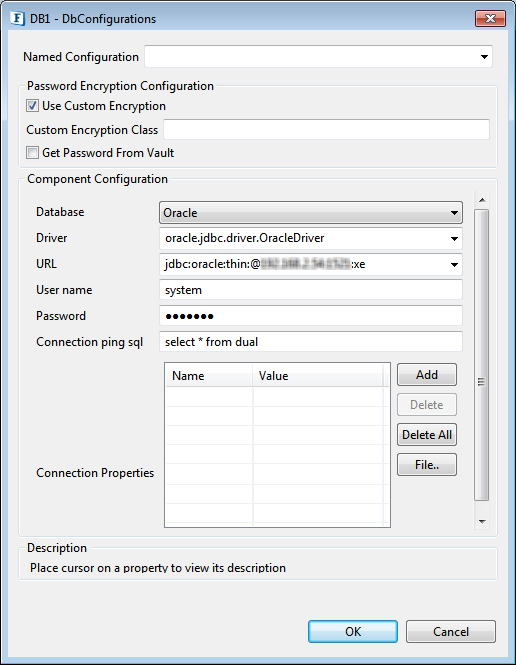
Connect to a database by setting the Component Configuration or using a pre-configured database from Named Configuration and then click OK.
-
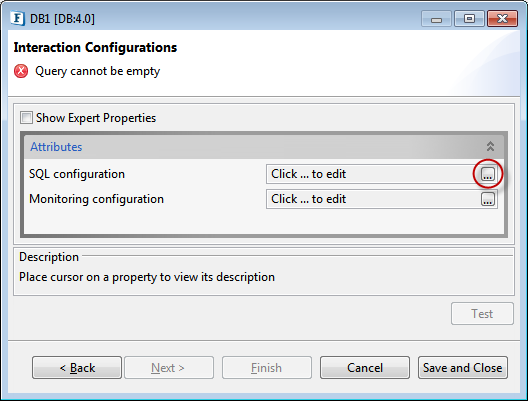
Click Next in the Managed Connection Factory dialog box. In the Interaction Configurations dialog box, click the SQL Configuration Ellipsis
-
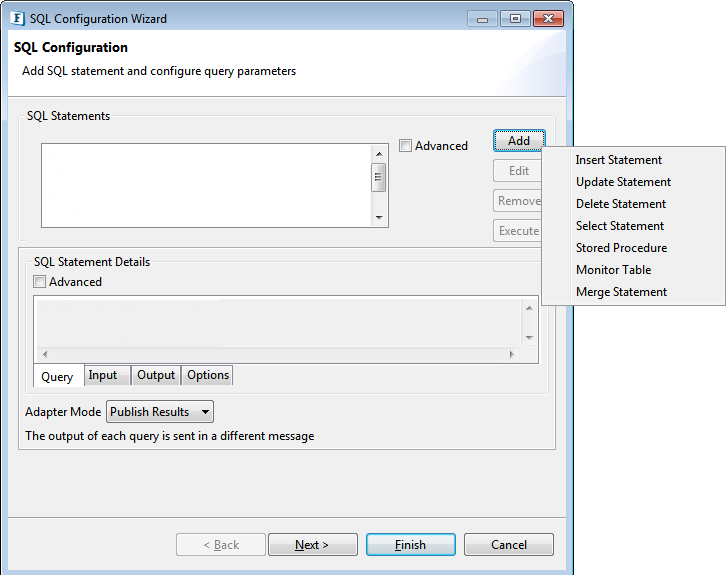
In the SQL Configuration dialog box, click Add button to configure a query, and then click Next.
-
In the Advanced Properties dialog box, change the value of the Use External Transactions property from "false" to "true" by selecting from the drop-down, and click Finish.
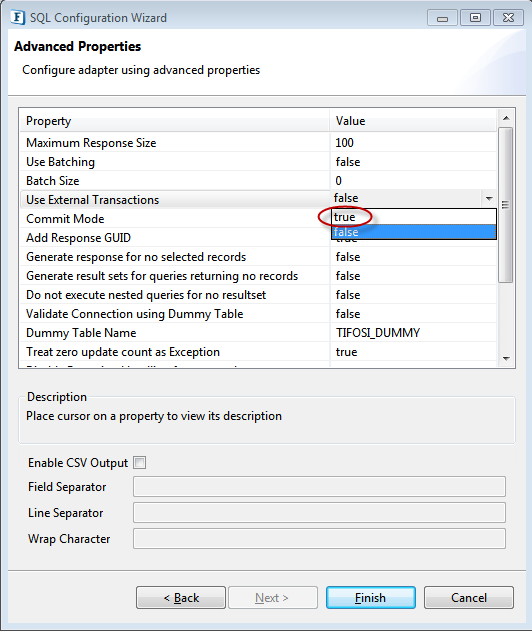
"Scheduler" mode (One of the two Adapter Modes in SQL Configuration dialog box) does not work for External Transaction which runs only by sending designated commands.

-
Click Finish in the Interaction Configurations dialog box, which closes the CPS marking the end of configuration.
Running a DB Event Process using External Transaction
External Transaction Commands
To run the Event Process through External Transaction, send the commands in the below order:
-
BEGINTRANSACTION Starts an external transaction.
-
<QueryName> Query name as created in SQL Configuration.
-
ROLLBACK This command is not a mandatory one, but used only to rollback the transactions done upto that particular point in the current transaction.
-
ENDTRANSACTION DB component commits the database operations done in current transaction and ends the external transaction.
-
If the commands: ENDTRANSACTION or ROLLBACK, or any other commands are used before BEGINTRANSACTION command, then the component throws an exception: "INVALID REQUEST ERROR".
-
ROLLBACK does not work after ending the current transaction, that is, after the ENDTRANSACTION command is used.
Usage Example
Create a DB Event Process with the components: Feeder and Display connected to the DB component as below.
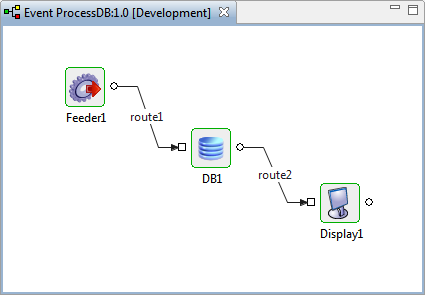
Follow the steps below:
-
Configure the DB component as explained in the section: Configuring External Transaction.
-
Configure Feeder component by connecting port schemas.
-
Run the Event Process after checking resource and connectivity.
-
In the Feeder that appears, click the Load Default Message button and check whether the second line of the message in the Body tab shows the command: "BEGINTRANSACTION". If any other command is displayed, replace it with BEGINTRANSACTION.
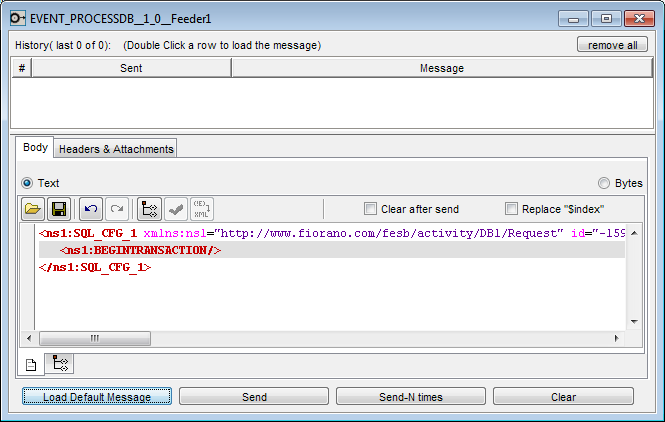
-
Click Send.
-
Confirm that the message is received in the Display component and same message as in the Feeder component displayed in the Body tab.
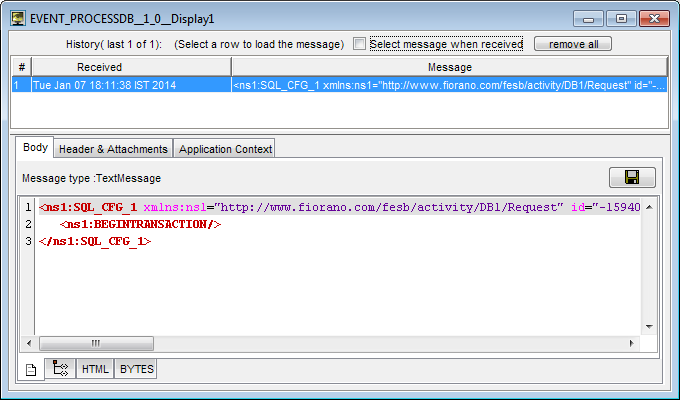
-
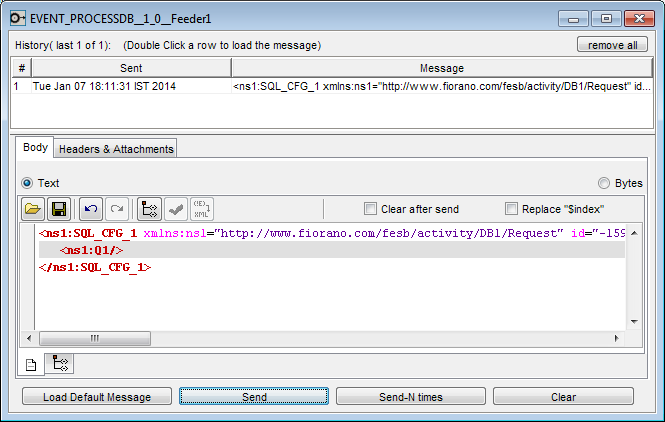
Switch back to Feeder, type the query name (as created during SQL Configuration) in the second line and click Send.
-
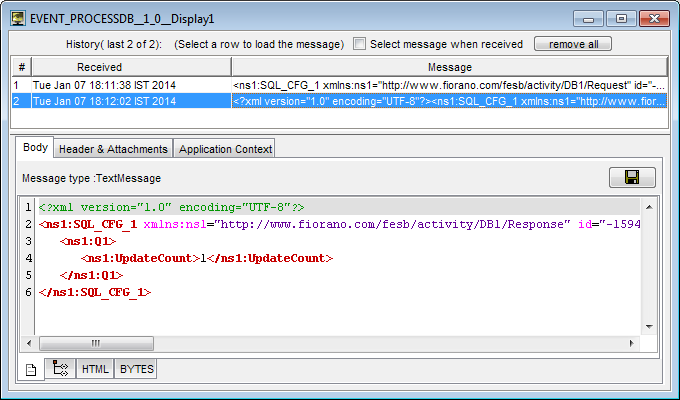
Confirm the receipt of the query in Display and message which shows the status of updation.
-
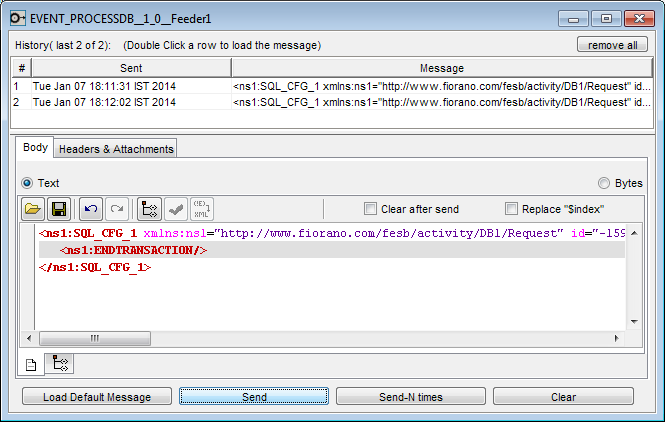
Type ENDTRANSACTION in Feeder, click Send.
-
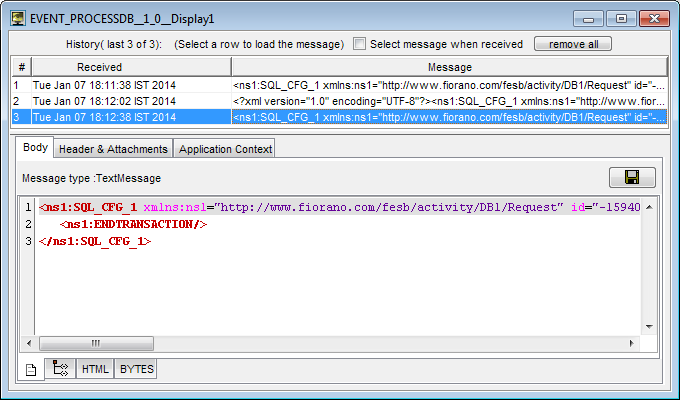
Validate ENDTRANSACTION info in Display.
Use ROLLBACK to cancel the query and send the query again, if required.