
To install the Fiorano Platform, perform the steps below:
-
Download the Fiorano 11 installer from http://www.fiorano.com/downloads/fiorano-platform/
Once the file is downloaded, check its integrity by following the steps in the Verifying Installer Integrity section.
-
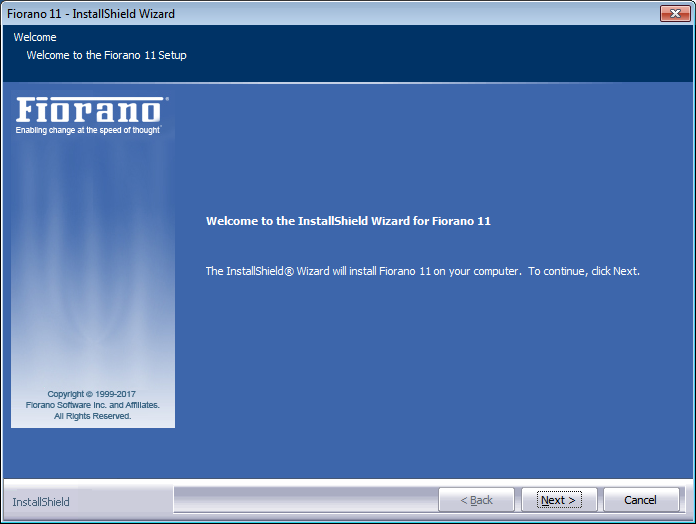
Double-click the Installer file to execute it; the Fiorano 11 Installation Wizard window opens up.
-
In the Welcome panel, click the Next button to initiate the installation process.
-
In the License Agreement panel that is displayed, choose the I Accept the terms of the license agreement option and click Next to continue with the installation.
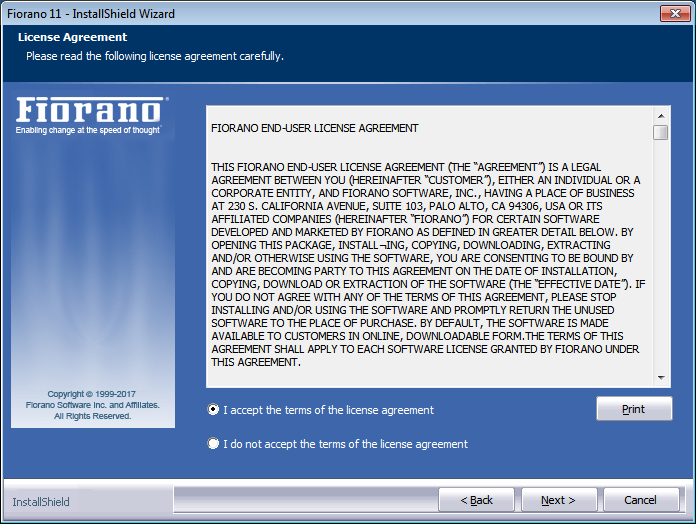
To print the license agreement, click the Print button.
-
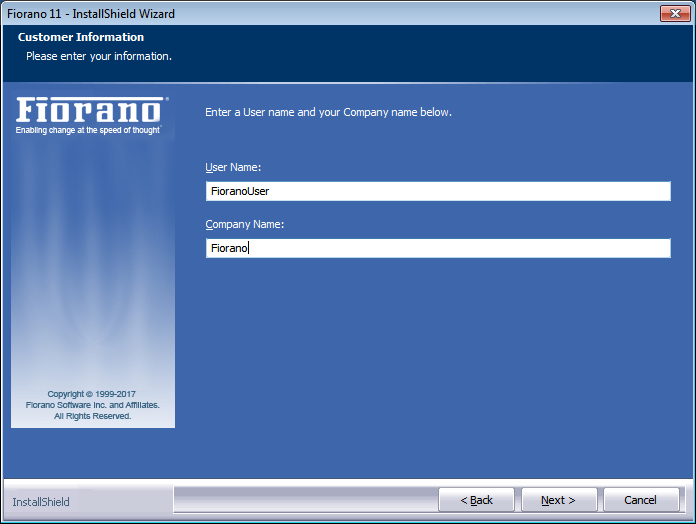
In the Customer Information panel displayed, provide the user name and company name in the User Name and Company Name fields and click the Next button.
-
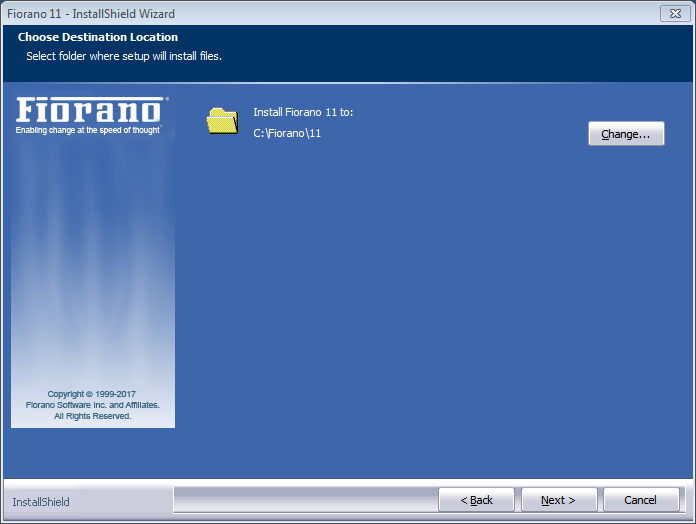
In the Choose Destination Location panel, the default Installation location will be displayed. Click the Change button to choose a different location, if required, and then click Next.
-
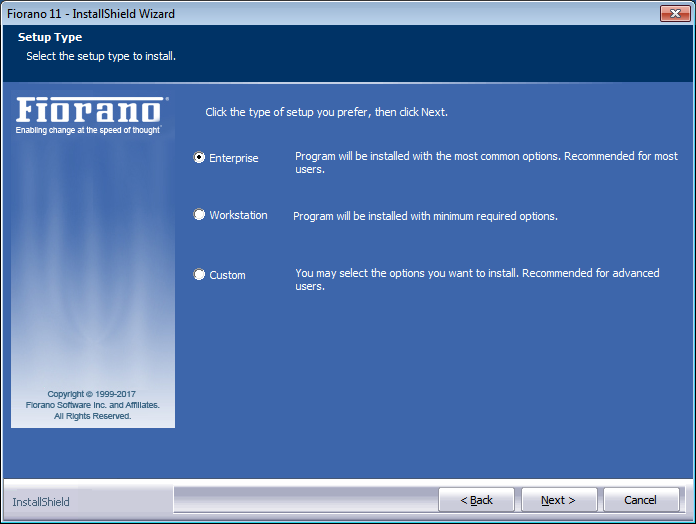
In the Setup Type panel, select the installation type from the options below and click Next:
-
Enterprise: To install the complete package which includes the Enterprise Server, Peer Server and Tools.
-
WorkStation: To install only the Peer Server and Tools.
-
Custom: To select the required attributes.
-
-
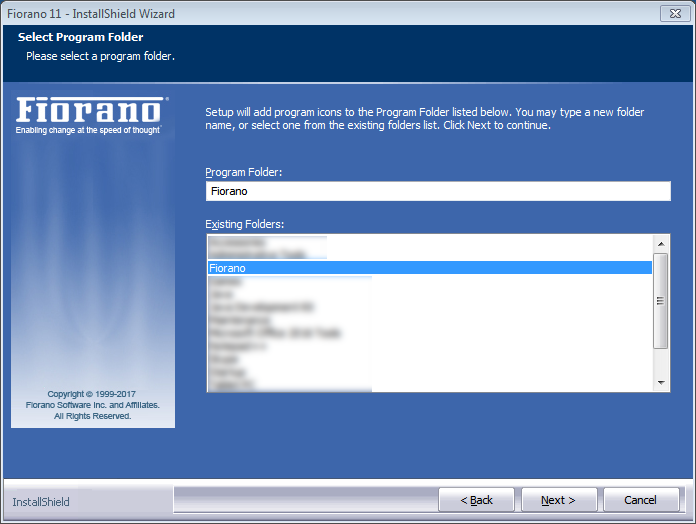
Select the Program Folder to which the Fiorano Platform framework has to be added and click the Next button.
-
Click Install to continue installation.
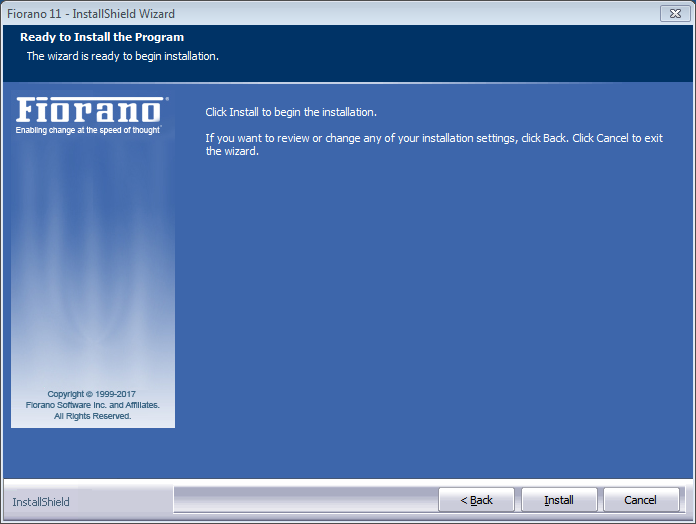
Installation may take a few minutes.
-
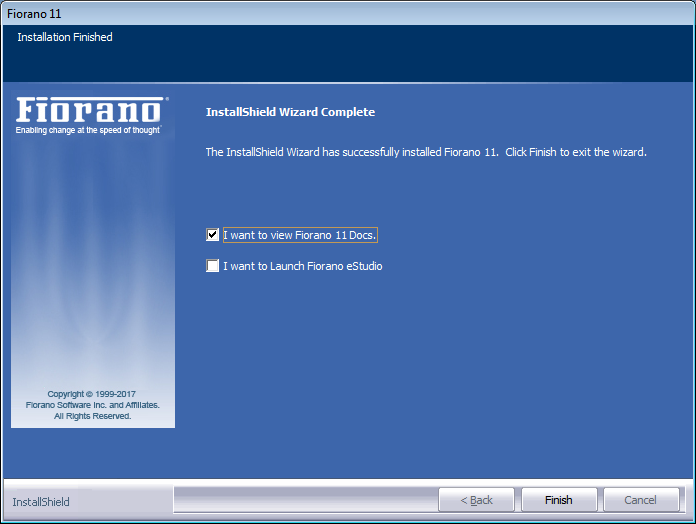
Once the installation is complete, select the below options as required and click the Finish button to complete the installation:
-
Select the option I want to view Fiorano 11 docs to view the documentation.
-
Select the option I want to Launch Fiorano eStudio to open the Fiorano eStudio tool.
-
-
To exercise migration from an older Fiorano version to the new one, follow steps mentioned in the Migration Across Releases section.
-
For details on how to start and use the Fiorano ESB Servers, please refer to the
Developingsection.