
Configuring rules defines conditions based on which it is possible to determine whether a policy has to be executed or not at runtime.
For example, the XML to JSON policy can be applied only if the Accept Header is set as application/json.
The Rule next to the Policy tab in the Configuration page allows the API author to add additional rules to a policy before a message is passed to a policy.
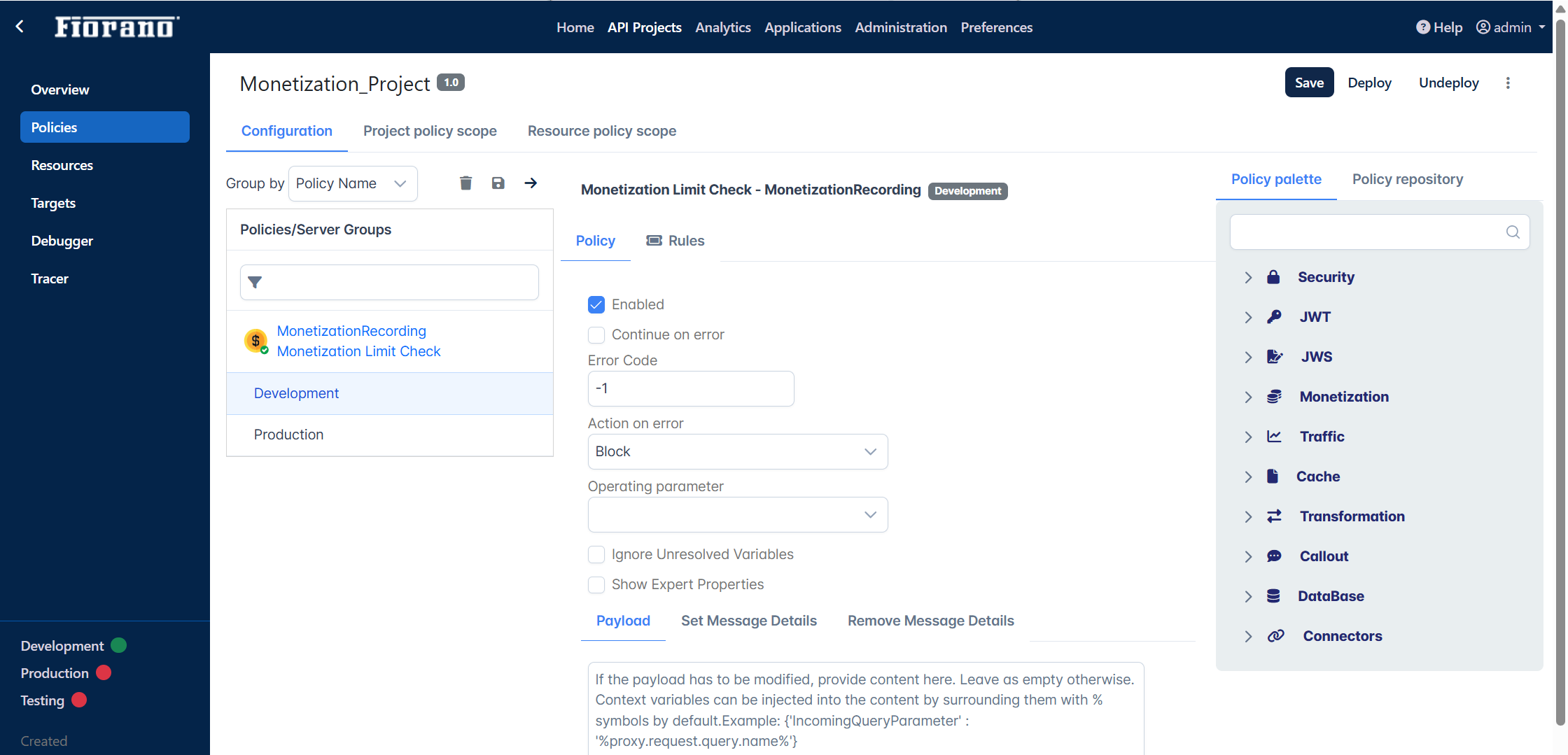
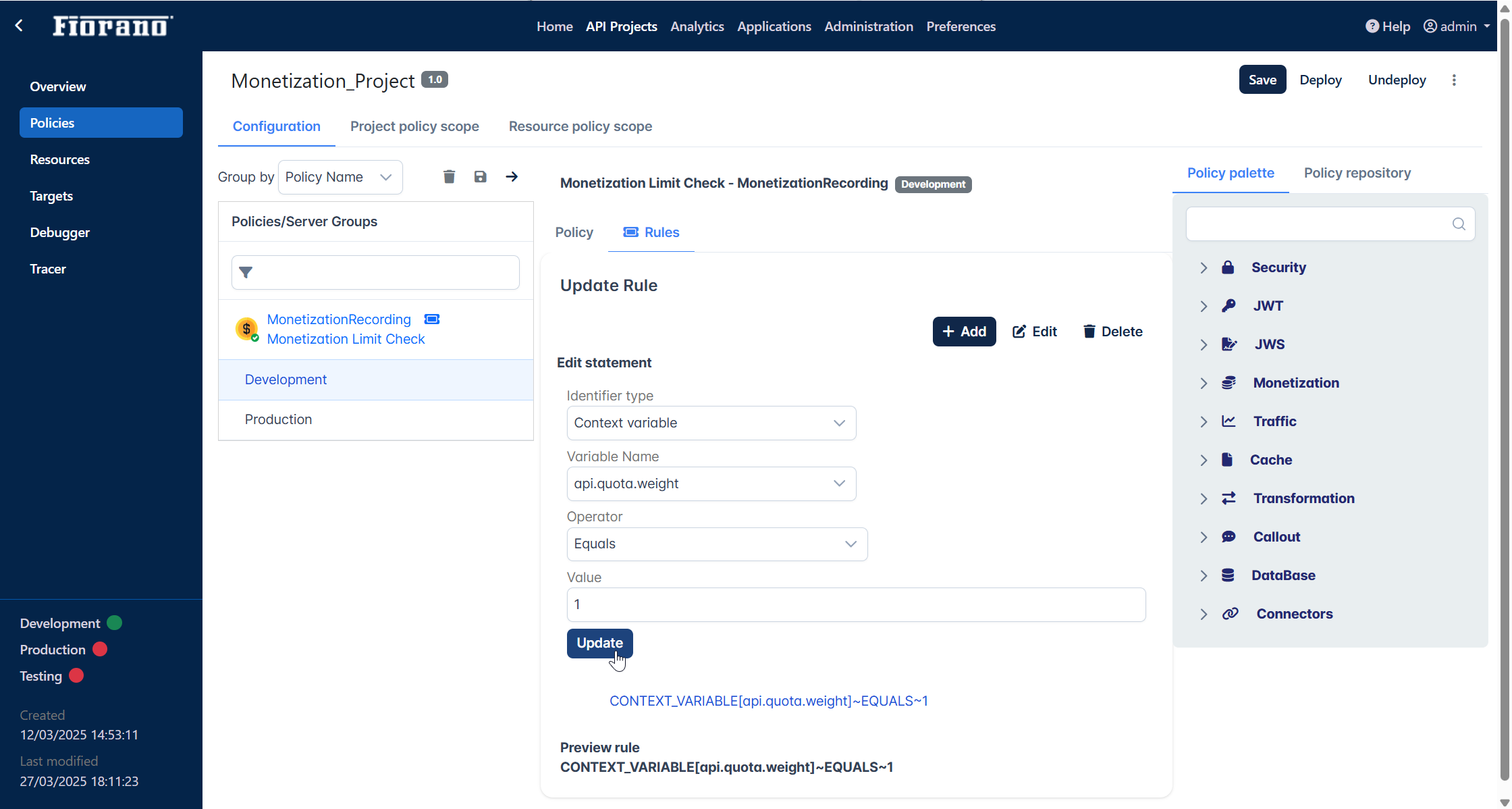
A sample snapshot of the Monetization Limit Check Policy Configuration page is provided below.
Adding Rule
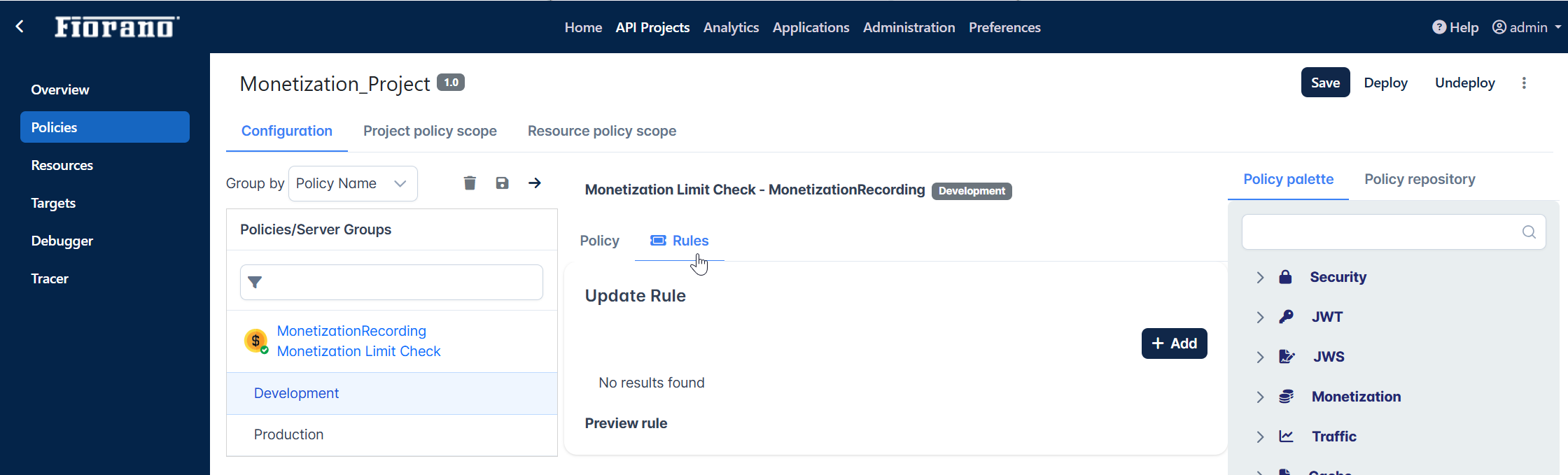
Go to the Rules tab to start configuring a rule.
Adding a statement
To add a statement, perform the following actions in the Update Rule panel.
-
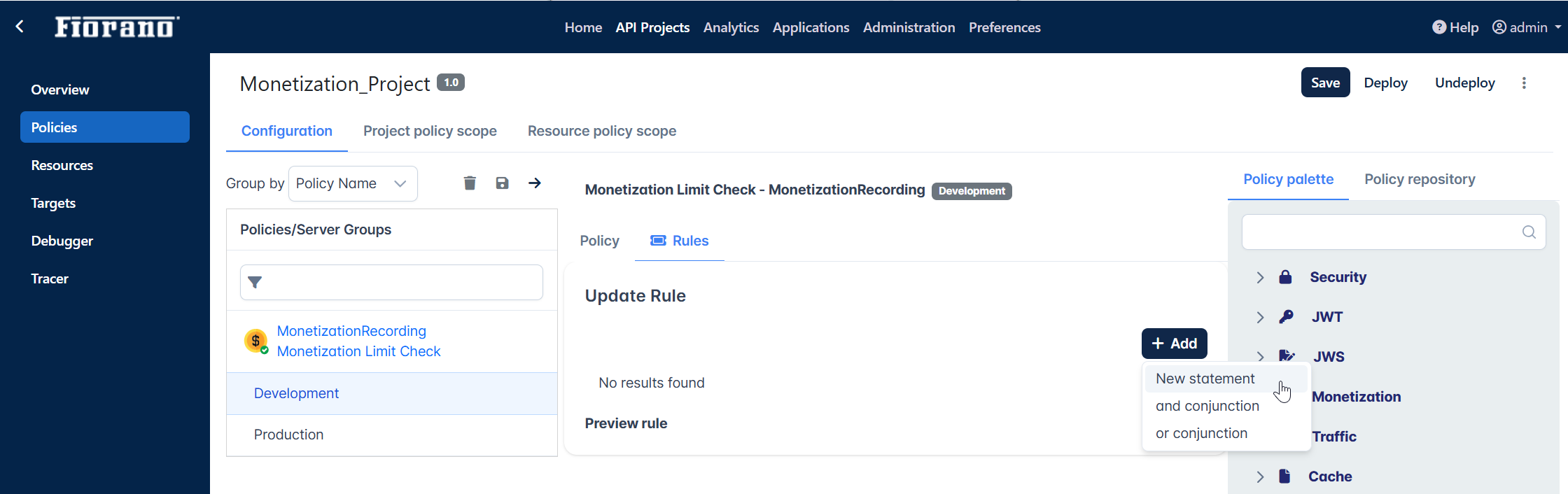
Click the Add buttonand click the New statement option.
-
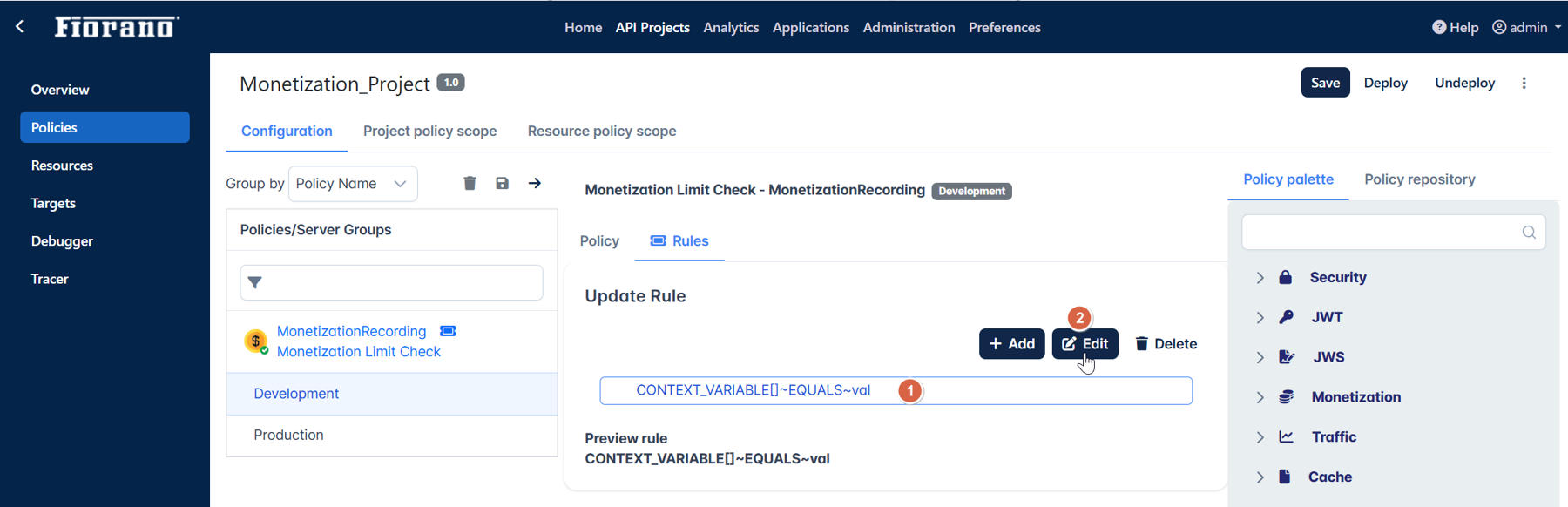
Click the ample statement that appears and click the Edit button.
-
Edit the rule by changing the properties present in the Edit statement panel and click Update.
Each property in the dialog box is explained in the table after the steps.
-
Click the Save button on top of the screen to apply the changes.
The Preview option helps in cross-verifying whether or not the rule is defined as intended.
Rule parameters
|
Parameters |
Description |
|
Identifier Type |
Specify the Message Part Identifier type. Specify the part of the message from where the policy needs to check and validate the condition or criteria specified. Options available are:
|
|
Variable Name |
Select the flow variable from the list of options available in the drop-down list. Example api.quota.weight, client.ip, proxy.request.method |
|
Operator |
Choose the operator from the options below to form a condition:
Each operator is described with an example in the next section. |
|
Value |
Provide the value that is expected from the condition specified. |
Operator options
Choose the operator from the options below to form a condition.
Equals
Compares two strings and returns true if the strings are the same and false if not.
Example
CONTEXT_VARIABLE[api.project.name]~EQUALS~project1
Not Equals
Compares two strings and returns true if the strings are not the same and else false.
Example
CONTEXT_VARIABLE[api.project.name]~EQUALS~project1
Like
Matches whole string or substring in a string. Use wildcard characters to match the substring.
To match a substring "test" in "testthistring", for a
-
prefix substring, use
test.* -
suffix substring, use
.*test -
in-between substring, use
.*test.*
Example for a string "project1"
-
CONTEXT_VARIABLE[api.project.name]~LIKE~proj.*
-
CONTEXT_VARIABLE[api.project.name]~LIKE~.*ject1
-
CONTEXT_VARIABLE[api.project.name]~LIKE~.*jec.*
Not Like
The whole string or substring should not be present in a string. Use wildcard characters to match the substring.
Example for a string "project1"
-
CONTEXT_VARIABLE[api.project.name]~NOT_LIKE~proj.*
-
CONTEXT_VARIABLE[api.project.name]~NOT_LIKE~.*ject1
-
CONTEXT_VARIABLE[api.project.name]~NOT_LIKE~.*jec.*
One of
Matches any one string added using commma-seperated values and returns true, otherwise false.
Example
CONTEXT_VARIABLE[api.project.name]~ONE_OF~project1,project2,project3
Not one of
Not matching any string added using comma-separated values return true, otherwise false.
Example
CONTEXT_VARIABLE[api.project.name]~NOT_ONE_OF~project1,project2,project3
Adding more statements
For using conditional statements using conjunctions in the rule, add the conjunction (OR/AND) that needs to be used between the statements and then add those statements.
-
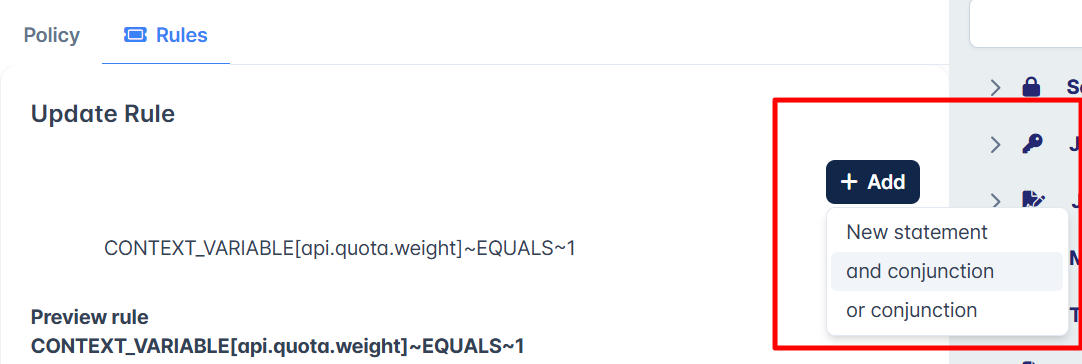
Click the Add button in the Update Rule section
-
Click any one of the following:
-
add conjunction
-
or conjunction
-
-
Follow the steps in the Configuring Rule#Adding a statement section.