
This policy is used to allow access to API resources only for those clients with valid product subscription. All API projects in which this policy is used are wrapped into one or more products and added to a client subscription. Each product under a specific subscription has a unique pair of customer key (API key) and customer secret. API manager allows requests only from those client applications which hold a valid API Key to access API resources.
When API resources are added to API products, a unique key is generated for each registered Client Subscription that uses those products. The generated API key is used by Verify API Key policy for verification. Conversely, the generated API key is of no use without this policy.
Configuration
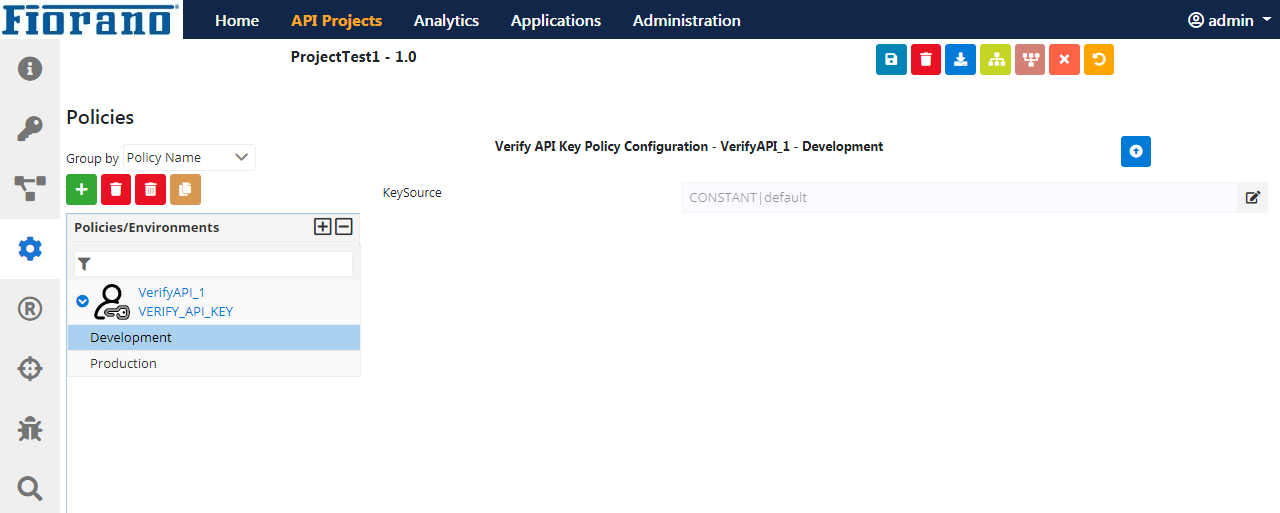
Figure 1: Verify API Key Policy Configuration attribute
Click Key Source edit icon to configure Message Part Identifier.
Steps (Sample)
Ensure to click the Save button after completing each step; else the data will be lost.
To configure the Verify API Key policy, perform the following actions:
-
In the Policies section inside the project, configure Verify API Key policy with the values shown below:
-
Type: PARAMETER
-
Name: apiKey (The name of the query parameter which needs to be used as the identifier)
-
Default Value: null (can be any value)
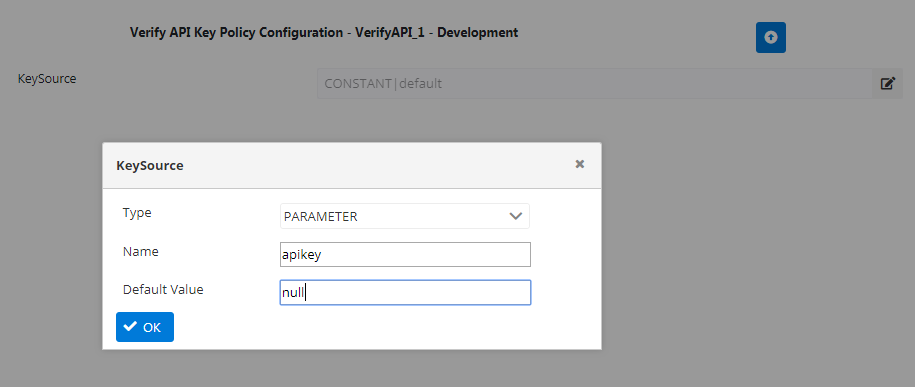
Figure 2: Providing values for the KeySource Message Part Identifiers
-
-
Create a product and add the project for which Verify API Key Policy is created by navigating to the Applications menu.
See the Project name right below the API Projects menu in Figure 1.
A group of projects can be made available for clients by adding them to the product created.
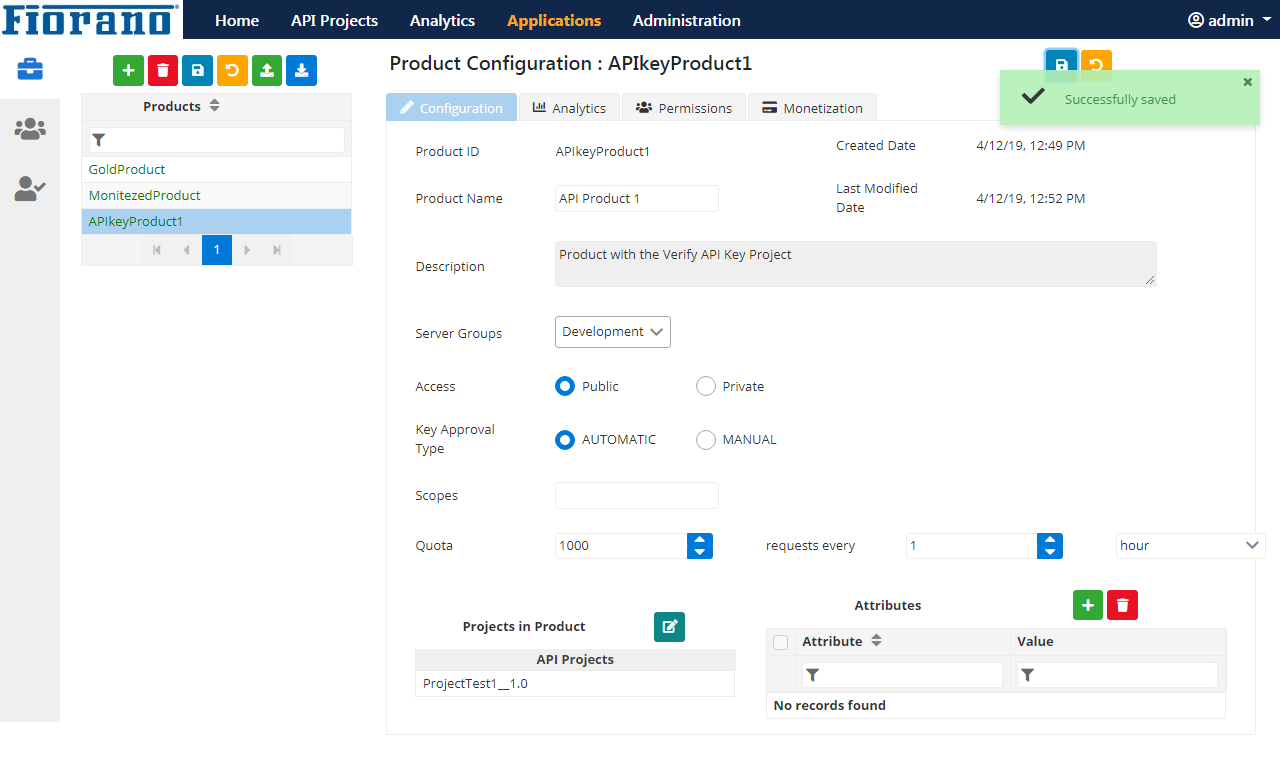
Figure 3: Adding a project to the product
-
Create a client ensuring that the Status is "Active".
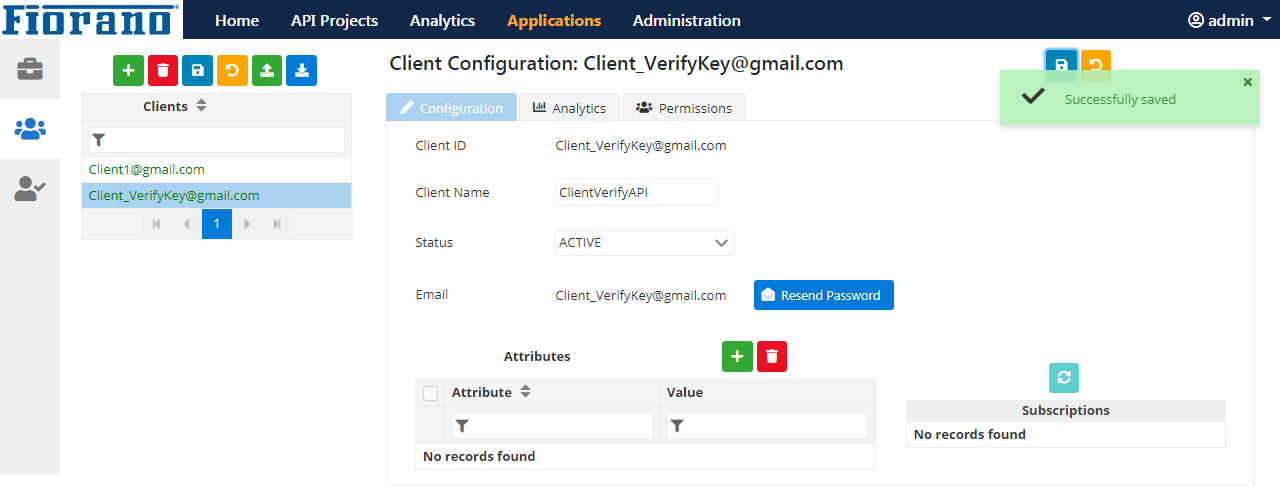
Figure 4: Creating a Client
-
Create a Client Subscription with the client created (in the above step) and perform the following actions:
-
Add the product to which the project is bundled.
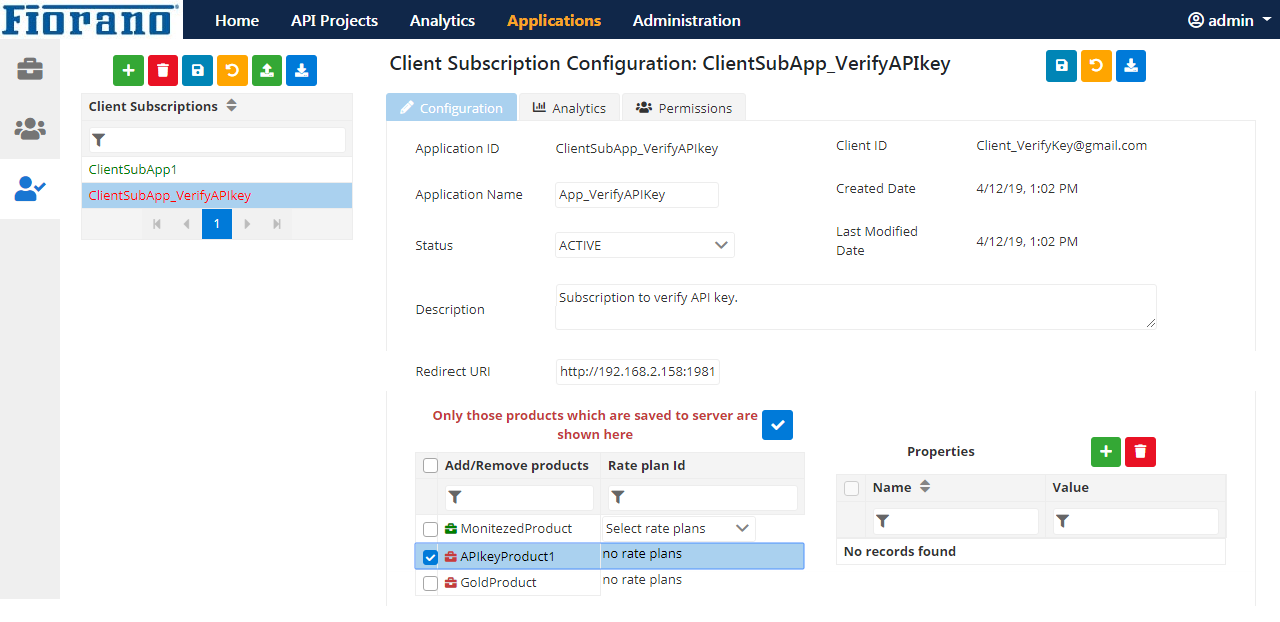
Figure 5: Adding the product to which the Verify APIkey project is added
-
Save the configuration.
-
Click the product to generate the API Consumer Key.
Consumer Key and Consumer Secret will be displayed below the Subscribed Products section.

Figure 6: Generating Consumer Key and Consumer Secret by clicking the product saved
-
-
Pass this Consumer Key to the API proxy access URL as a parameter in the following format:
http://<ip-address-of-gateway-machine>:2160/<project-context-path>/<project version>/?apiKey=<Consumer Key value>
{
  "ErrorMessage" : "The subscription corresponding to the key defaultvalue is invalid",
  "ErrorCode" : "Invalid Subscription",
  "MoreInfo" : "Policy Name - VerifyApiKeyPolicy, Type - VERIFY_API_KEY"
}
While configuring the Verify API Key policy, if the Consumer Key value is provided as the Default Value, then apiKey parameter need not be provided in the API Proxy URL.
Adding the policy while creating a project
Select the API Keys option (Secure API with) in the API Customization screen while creating the project from any of the following services:
-
REST/HTTP Service
-
WSDL
-
RIM
-
Swagger
-
OpenAPI
Refer to the API Customization section to know the details.
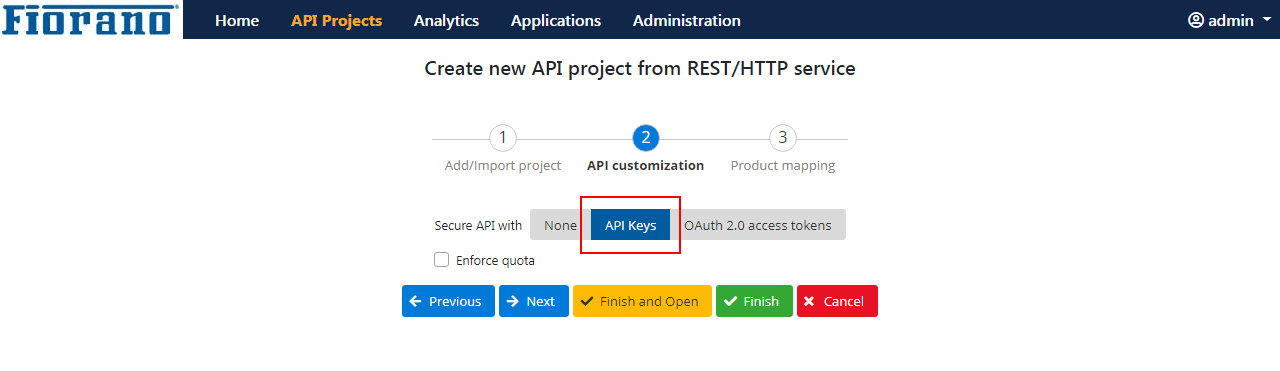
Figure 7: Attaching Verify API Keys to the project
After adding a policy, this can be configured as per requirement