
Click the admin option on the upper-right part of the dashboard to see the details about Fiorano API Management, change preferences and to log out from the dashboard.

Figure 1: admin options
About
Clicking the About option pops up a window with the following details about the dashboard:
-
Fiorano logo
-
version number
-
build number
-
a short description
-
links as below:
Link Name
Description
URL
Contact us
Navigates to the contacts page in the Fiorano website
https://www.fiorano.com/company/contact_fiorano
Support
Navigates to the Technical Support page
Licensing
Navigates to the Fiorano Software License Management Center page
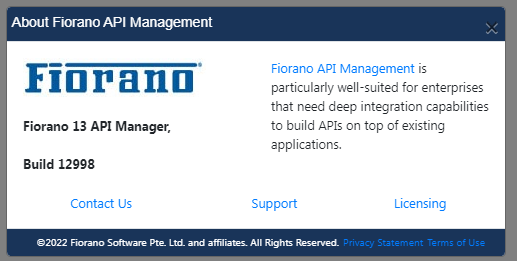
Figure 2: About popup window
Preferences
Clicking the Preferences option provides sections to change language, analytical options, and enable version control.
After making changes, ensure clicking the Save icon to apply the changes made in the Preferences sections.
Changing Language to Japanese
Option to change language is in the General Settings section.
To change the language from English to Japanese,
-
Select the Japanese option and click the Save icon.

Figure 3: Changing language preference
-
Click the admin option and click Logout to log out of the dashboard.

Figure 4: Logging out after saving the changes
-
Log in back to the dashboard to see the Japanese language applied.
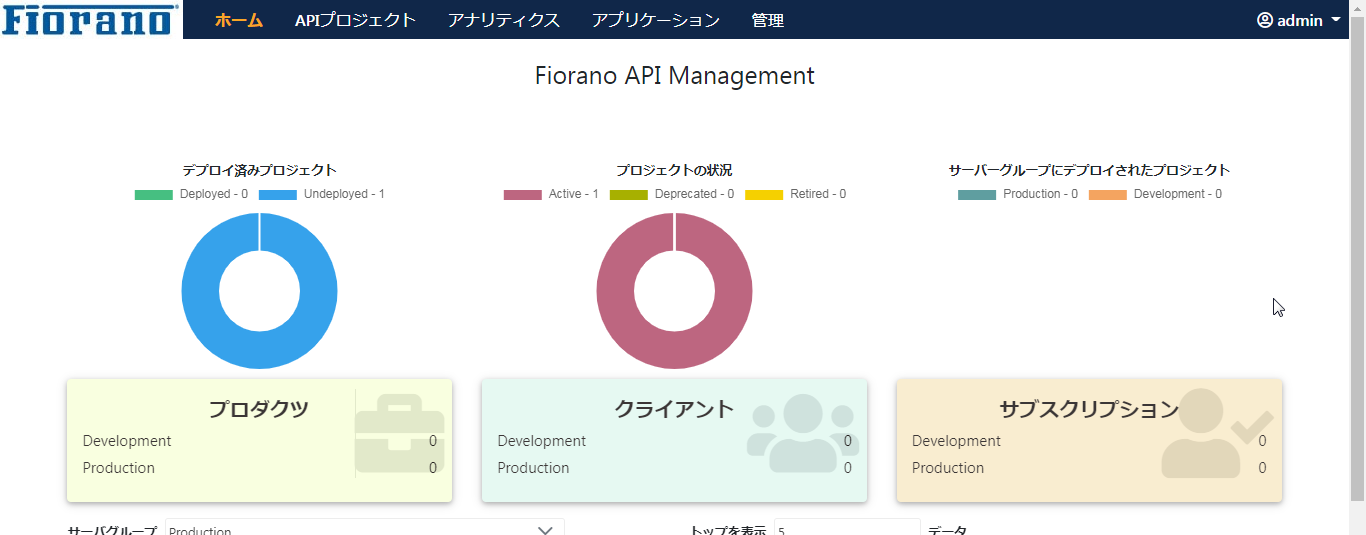
Figure 5: Japanese language applied after logging in
Analytical Settings
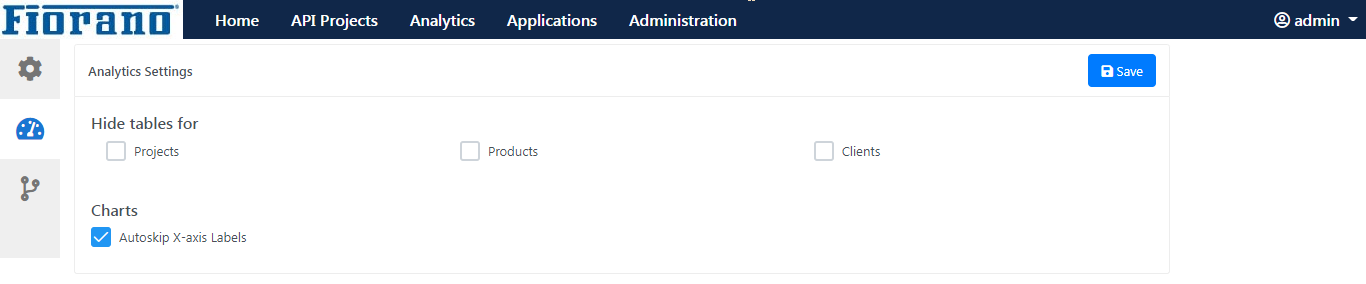
Figure 6: Analytical Settings preferences
Hiding Tables
Select any or all options below to hide tables for the respective attribute(s) from analytical reports:
-
Projects
-
Products
-
Clients
Skipping X Axis label
The Autoskip X-axis Labels option will be enabled by default. Disable the option to display the X-axis label in analytical reports.
Version Control
Enable version control if version management needs to be performed using GIT.
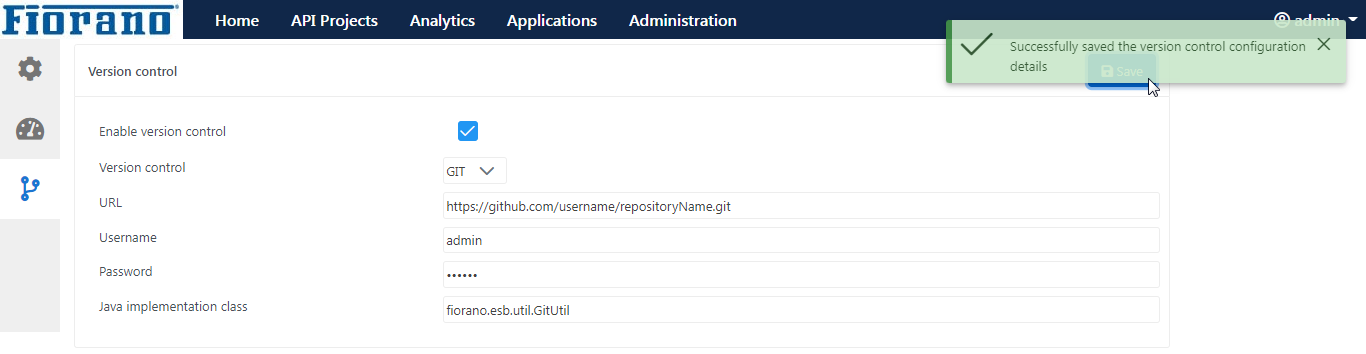
Figure 7: Enabling Version Control