
Clients can access APIs after they are added in the Client section. After adding the client, a Client Subscription is added to the APIs, thereby binding them with a single API consumer key which allows them to access the subscribed API products.
Refer to the Adding Products, Clients and Client Subscriptions section for step by step instructions to add the respective attributes.
Click the Add 
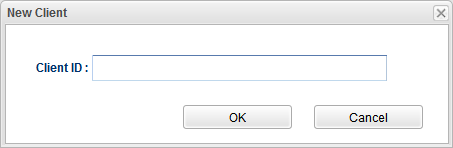
Figure 1: Option to add a client with a client ID
Provide the details below under the Configuration tab and click the Save button to apply the changes.
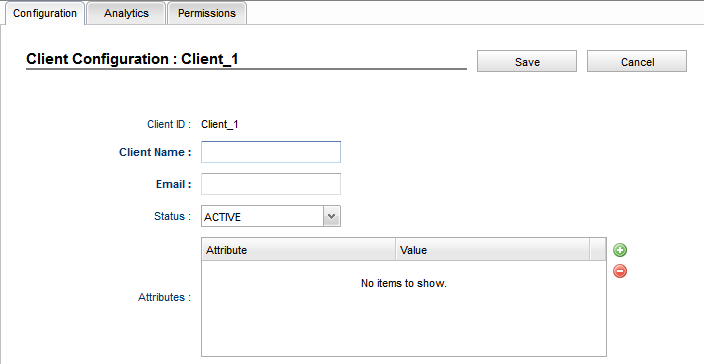
Figure 2: Client Configuration attributes
|
Attribute |
Description |
|---|---|
|
Client ID |
The name provided while creating the client gets auto-populated. |
|
Client Name |
Provide a name to identify the client. |
|
|
Email address of the client, which is used for all further communications including transmitting the secured keys. |
|
Status |
Provide the status of the client from the options as below, as per requirement:
|
|
Attributes |
If there is a requirement to add additional attributes, click the Add |
Click the Save button to add a client with the above details (clicking Cancel at this point discards the changes)..
-
After saving the client, to edit the properties of the client, make the required changes in the configuration panel and then click Save.
-
To remove a client completely, select the product under the Clients tab in the left navigation panel and click the Remove

Developers registered through the developer portal can be seen in the Clients list.